
Troubleshooting Bluetooth Connection Failures
Overview
QwenNote A1 connects to the QwenNote app on your phone via Bluetooth to sync transcription files and audio data. If Bluetooth is disconnected or pairing fails, services such as transcription and synchronization in the app will not function properly.
Scenarios
- Connection or pairing failure: The app cannot detect the A1 device, or the device was previously paired but now shows "Not Connected".
- Content does not sync for a long time after recording ends.
- Unable to re-link the device after switching phones.
Procedure
If the device cannot connect to the app, troubleshoot the issue as follows:
1
Tap the device icon in the upper-right corner to go to the Device Settings page, and then tap Troubleshoot.
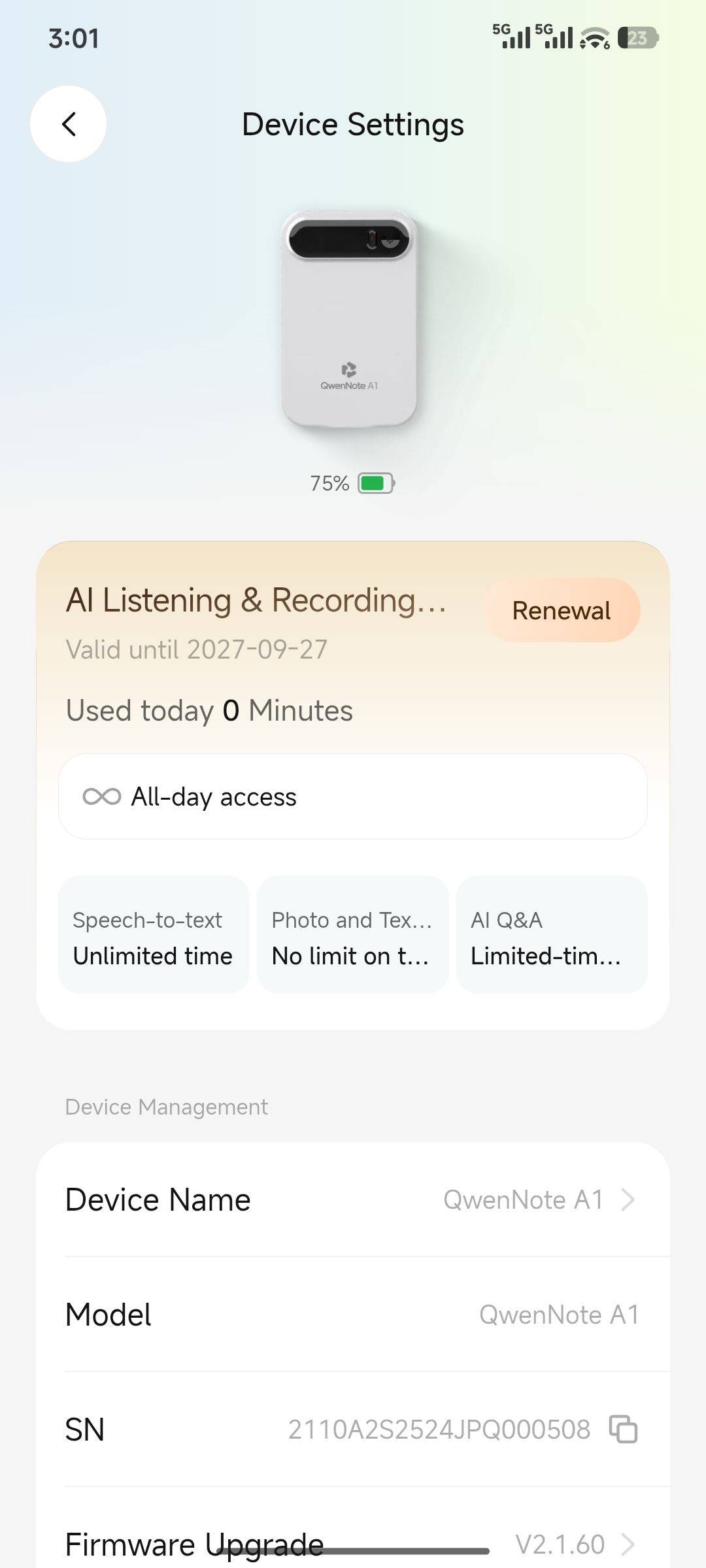
Enter connection troubleshooting
2
Tap an item to resolve the issue.
After you tap Troubleshoot, the system automatically diagnoses connection issues and displays detected problems. Tap an item to resolve the issue.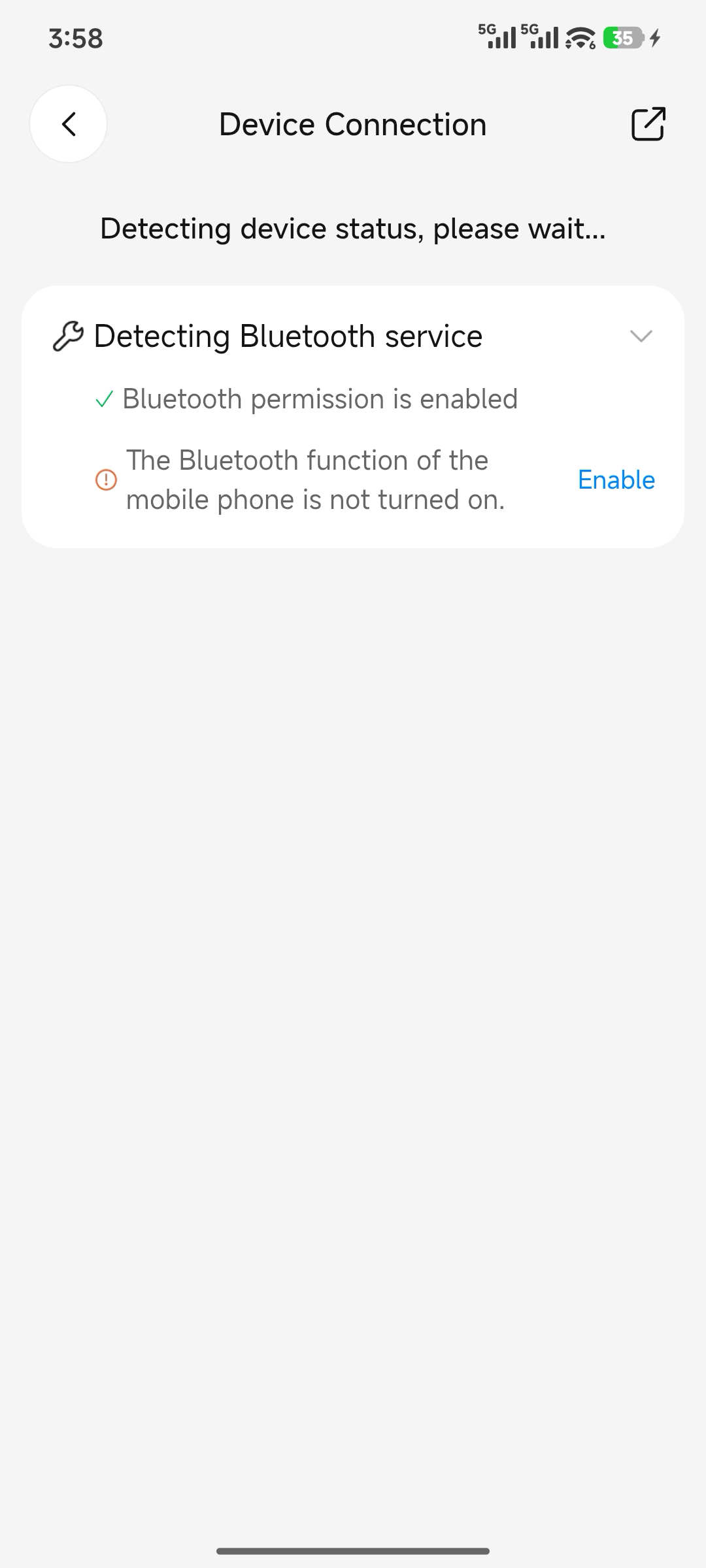
Review and resolve detected issues
No configuration or permission issues foundIf no configuration or permission issues are found after a full check, the following screen appears. The device may be in a frozen state. Perform a forced reset: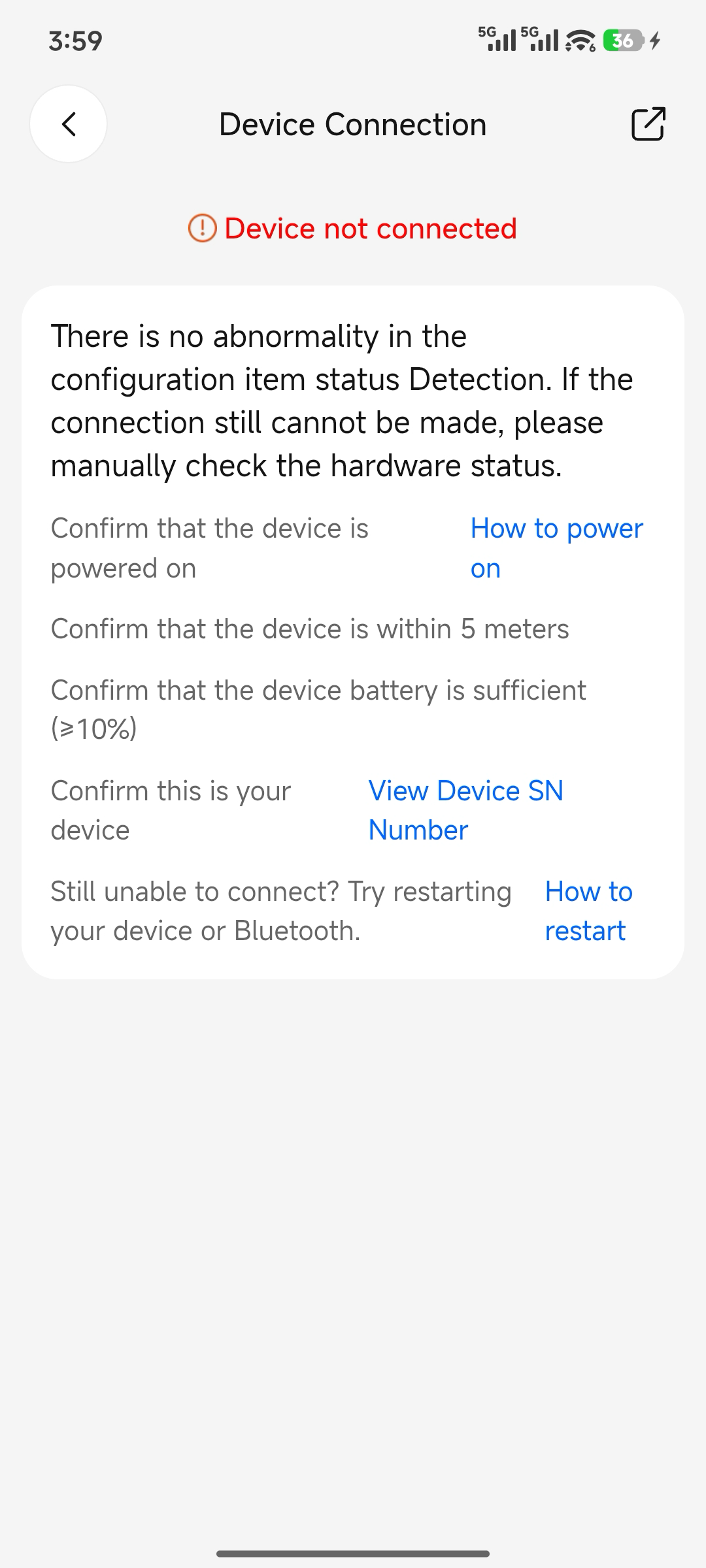
Device connected successfullyThe troubleshooting entry disappears after the device is successfully connected.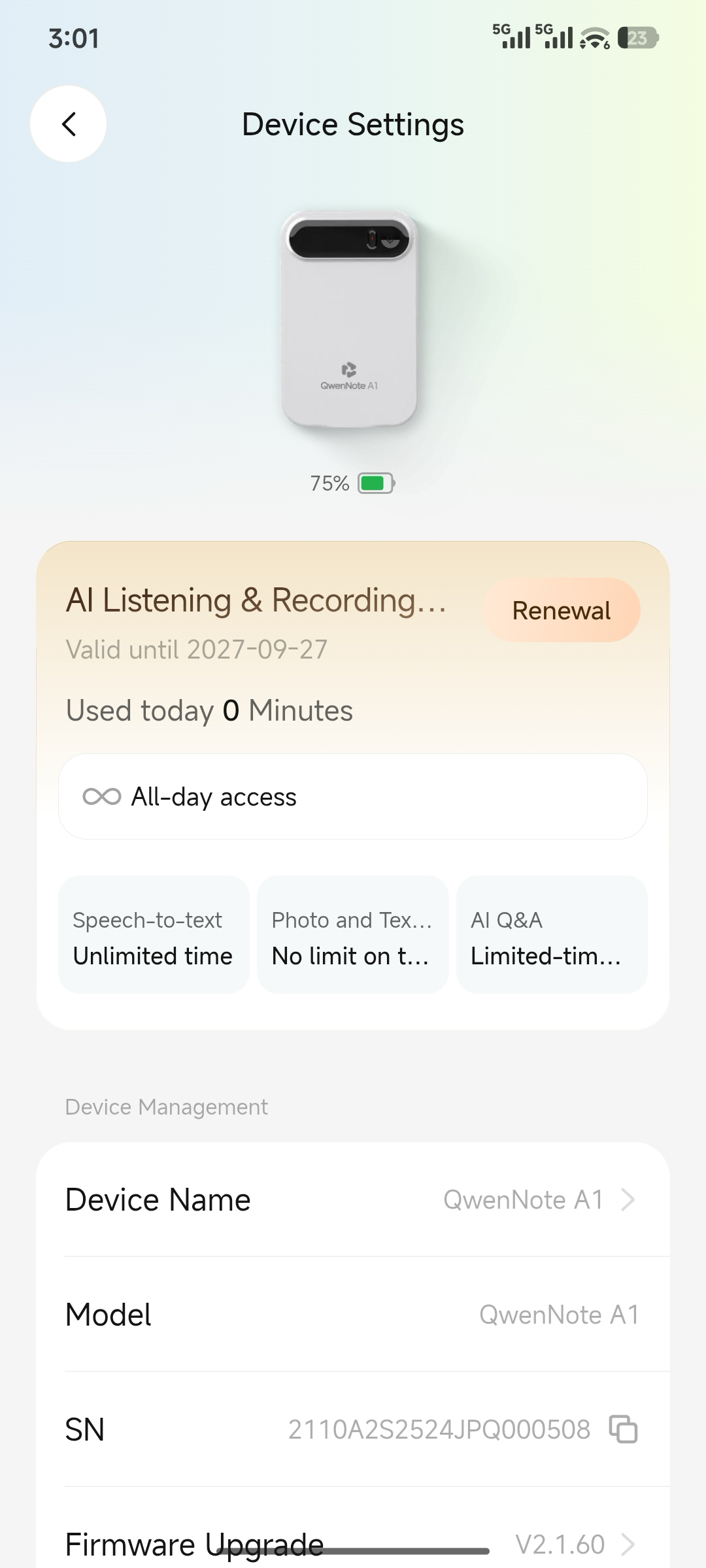
Additional Information
- When recording on the device, recording continues even if Bluetooth is disconnected. Data syncs automatically once the connection is restored.
- If none of the above steps resolve the issue, contact an authorized reseller or local customer support.
How to Force Restart
If the device freezes and does not respond to any buttons or operations, use one of the following methods to recover:
- Press and hold the Record button for 8 seconds to force shutdown, then press and hold the Record button for 3 seconds to power on. (If the buttons or screen are frozen, press and hold for 15 seconds.)
- Use a SIM ejector tool to press and hold the reset hole on the upper right side of the device for at least 20 seconds to force restart.
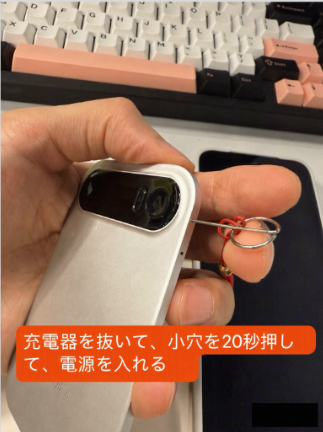
Reset hole operation
Other Common Issues
- Unclear recordings: Move closer to the sound source, do not block the microphone, and avoid environments with loud noise or echo. In meeting scenarios, the effective pickup range is approximately 5–8 meters.
- Poor call recording quality: Thick or metal phone cases may interfere with audio capture.
- Water damage: This device is not water-resistant. Avoid using it in wet or high-humidity environments.
- Device freeze: Use a SIM ejector tool to press and hold the reset hole for at least 20 seconds to force restart, or press and hold the Record button for 8 seconds to shut down and then press and hold for 3 seconds to power on.