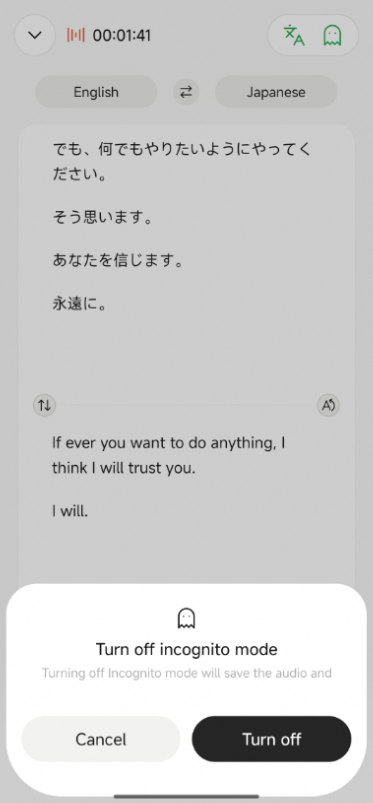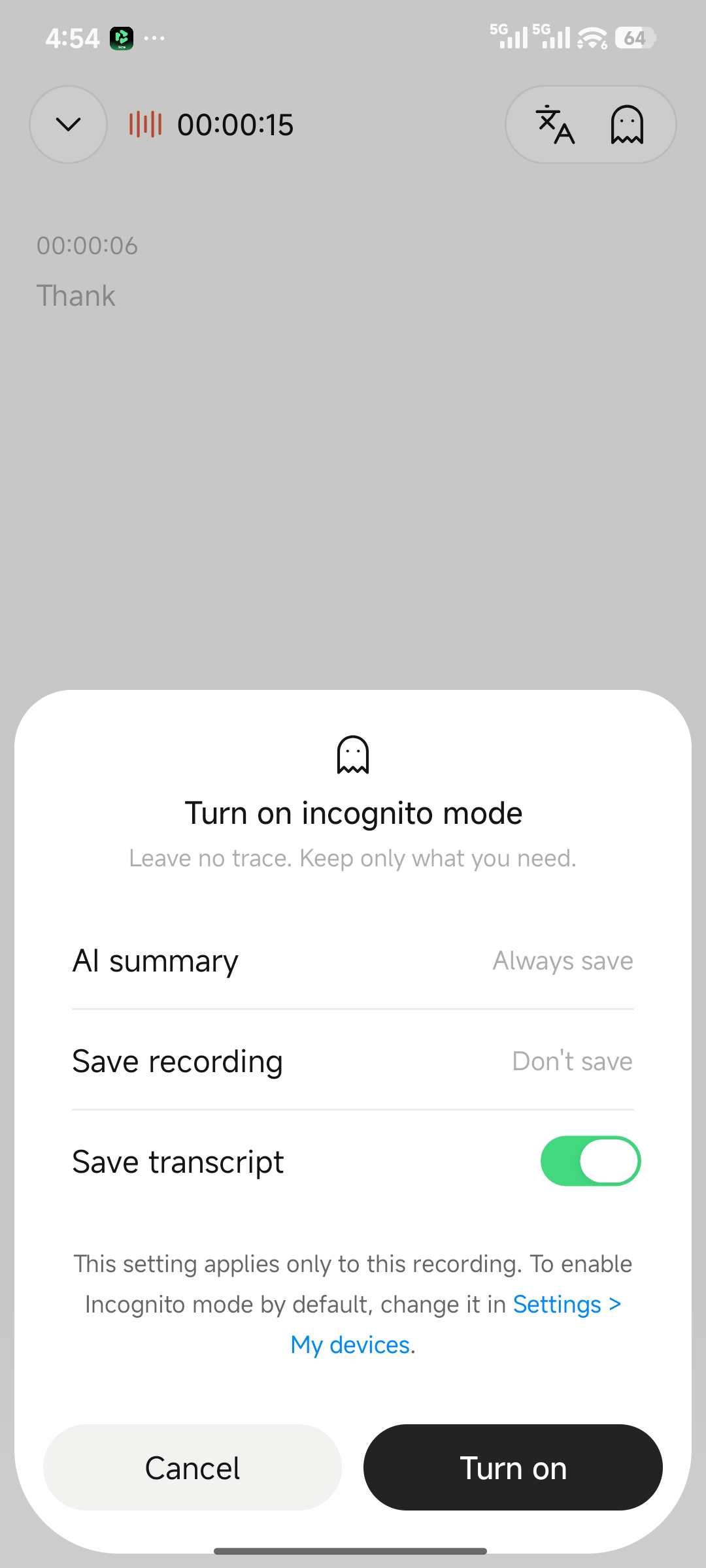
No Original Audio Retained in High-Privacy Scenarios
Overview
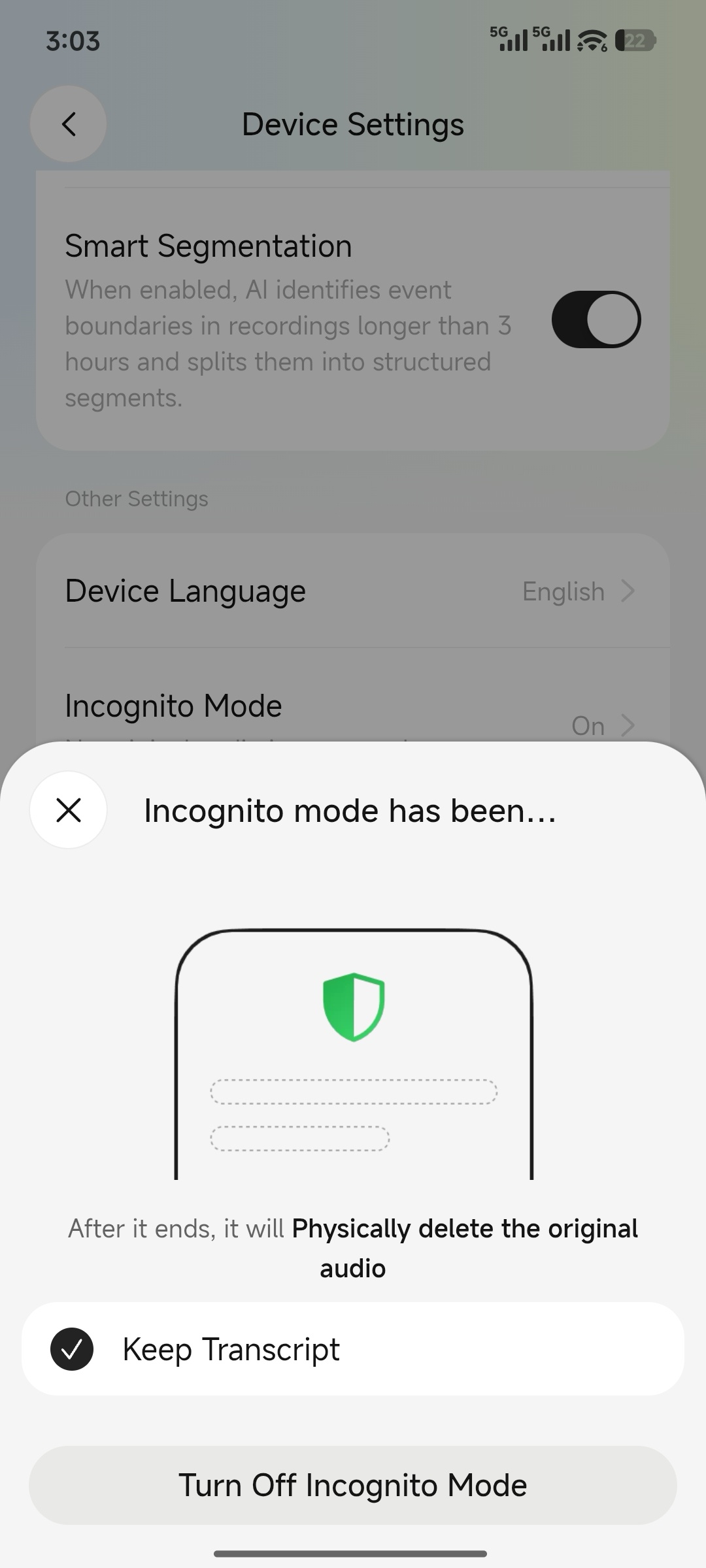
Incognito Mode is designed for meetings with strict privacy requirements. When enabled, only AI-generated content is provided. Recording files remain hidden throughout the process and are automatically deleted after generation. You can choose whether to retain the original transcript.
Scenarios
- Meetings with strict privacy requirements.
- Users who need only meeting minutes, without audio or transcripts.
Important: Do not enable Incognito Mode if you need to keep the audio. Once enabled, audio files are permanently deleted and inaccessible, even to the owner.
Procedure
1. Enable Incognito Mode in Settings
1
Incognito Mode is disabled by default. Go to Device Settings to enable it.
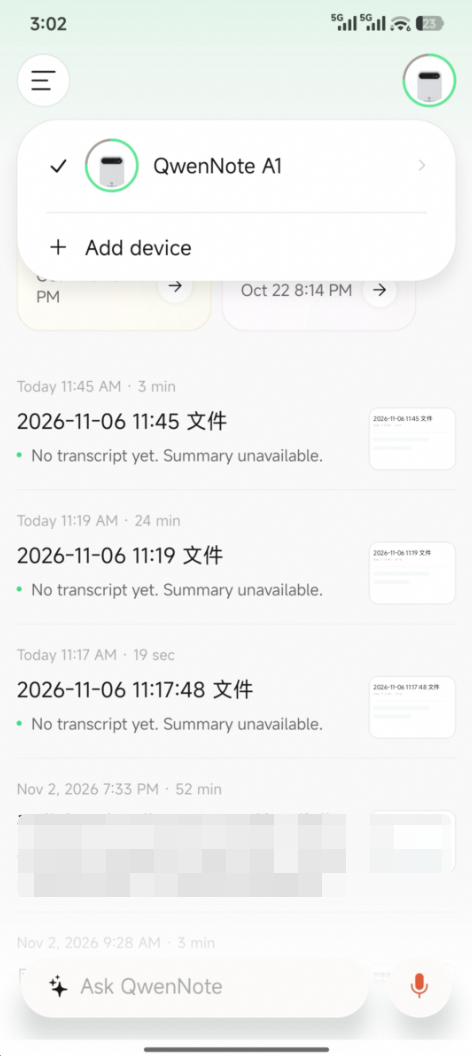
2
Scroll down and turn on the Incognito Mode toggle.
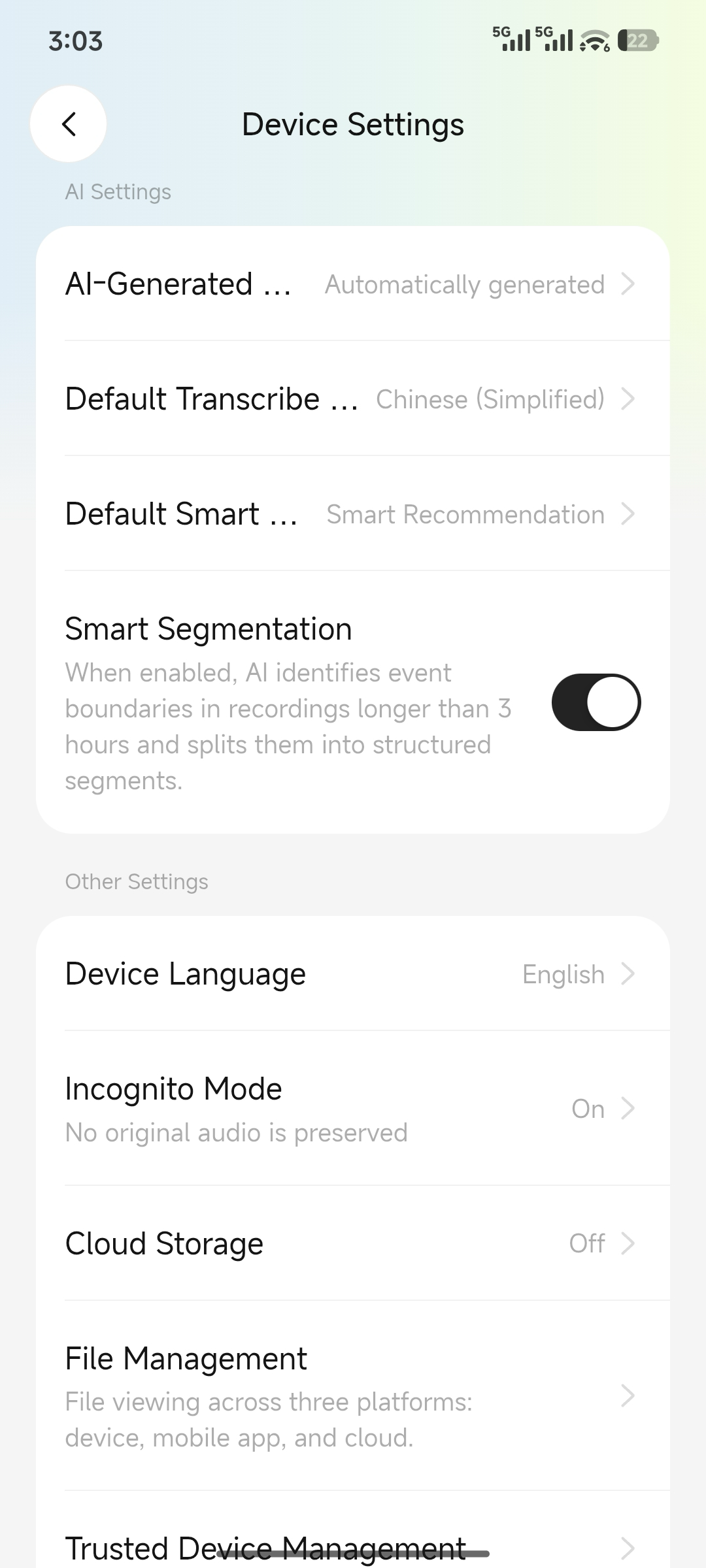
3
Confirm to enable. You can also specify whether to retain the original transcript.
2. Toggle Incognito Mode During Recording
1. The Incognito Mode option is displayed on the recording page.