
Favorite key transcripts and view them in one place
Overview
You can favorite key transcripts and access them from a dedicated section for quick retrieval.
Scenarios
- Long-term retention of important meetings and key decision records
- Quickly locating key content among a large volume of transcripts
- Repeated review of training sessions and interview records
Procedure
1. Favorite a transcript
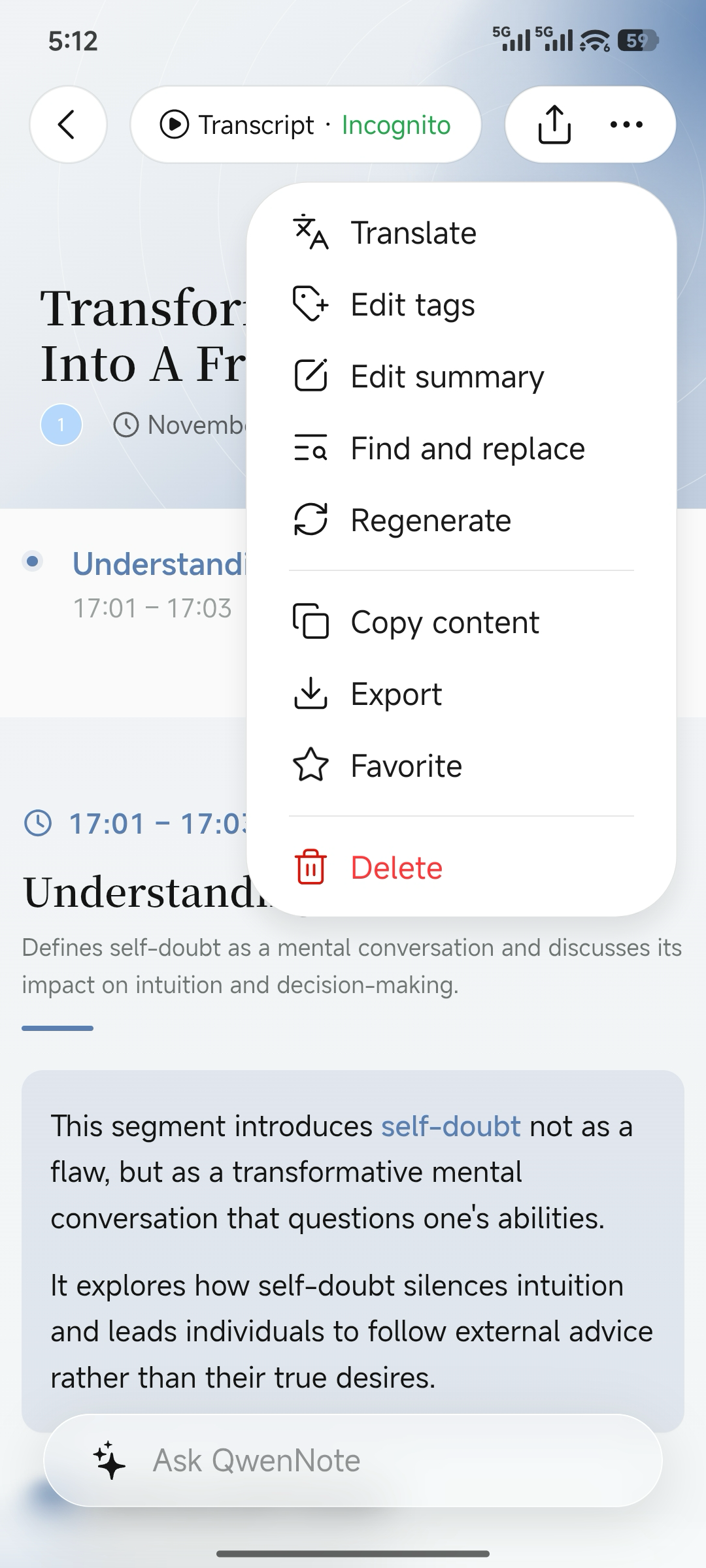
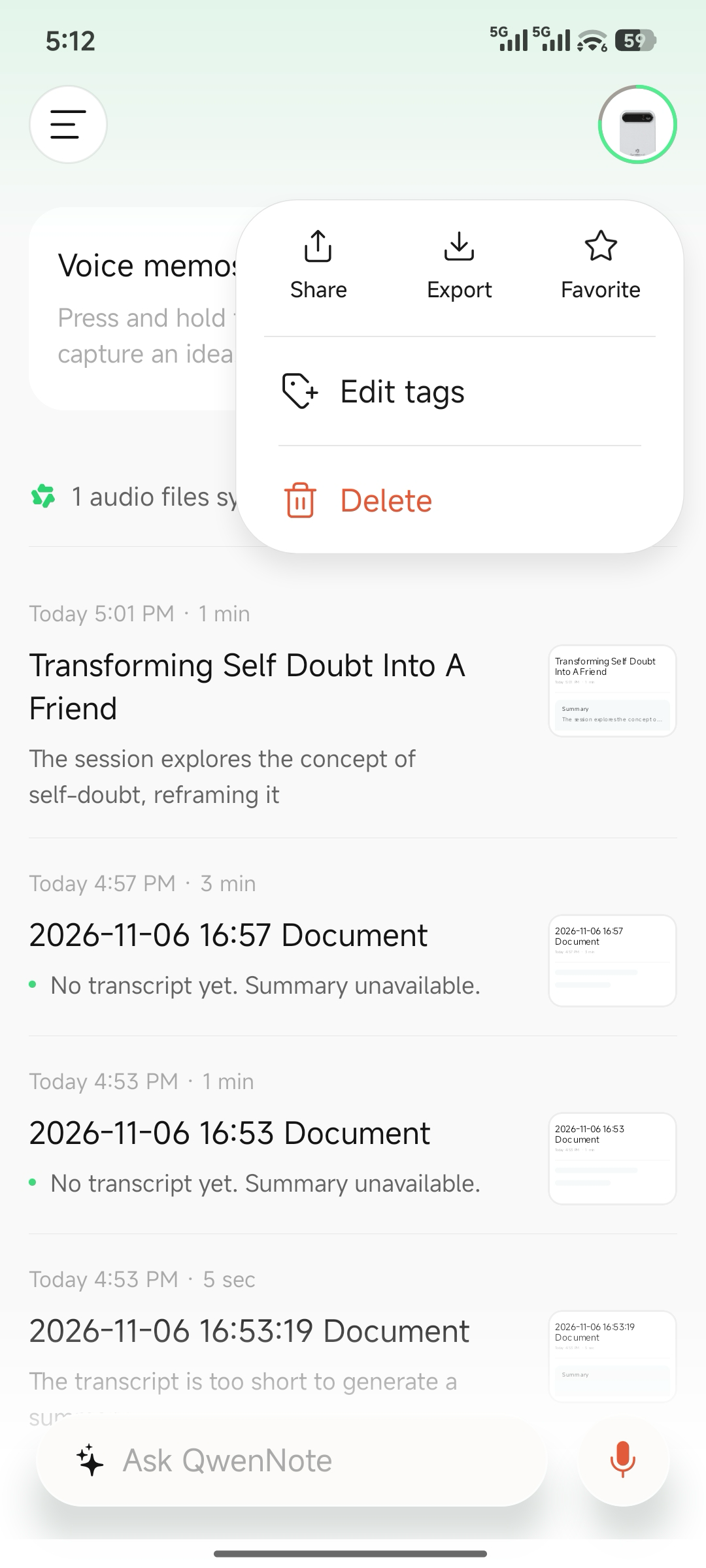
1. On the transcript details page or in the list, tap the … menu and select Favorite.
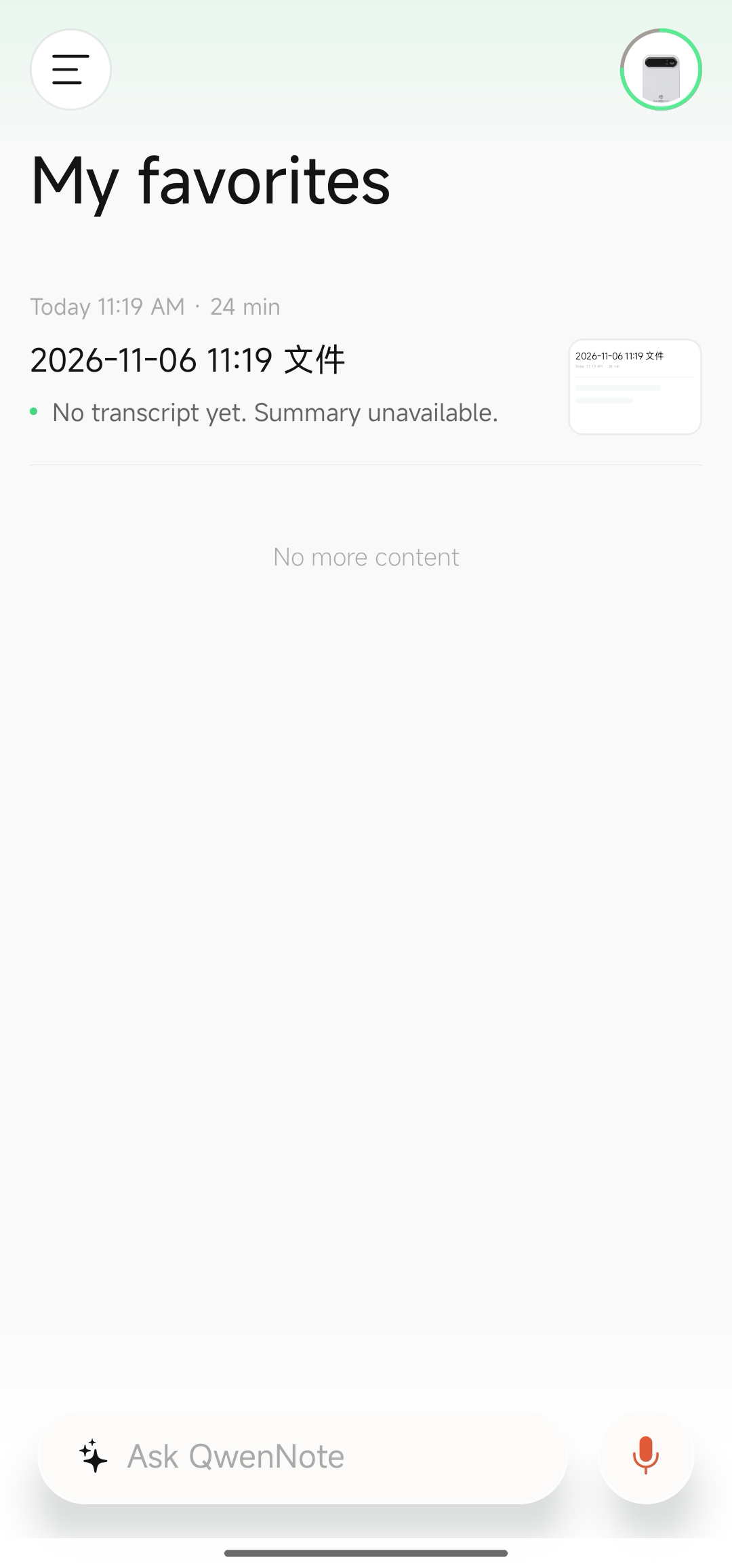
2. View favorites
1
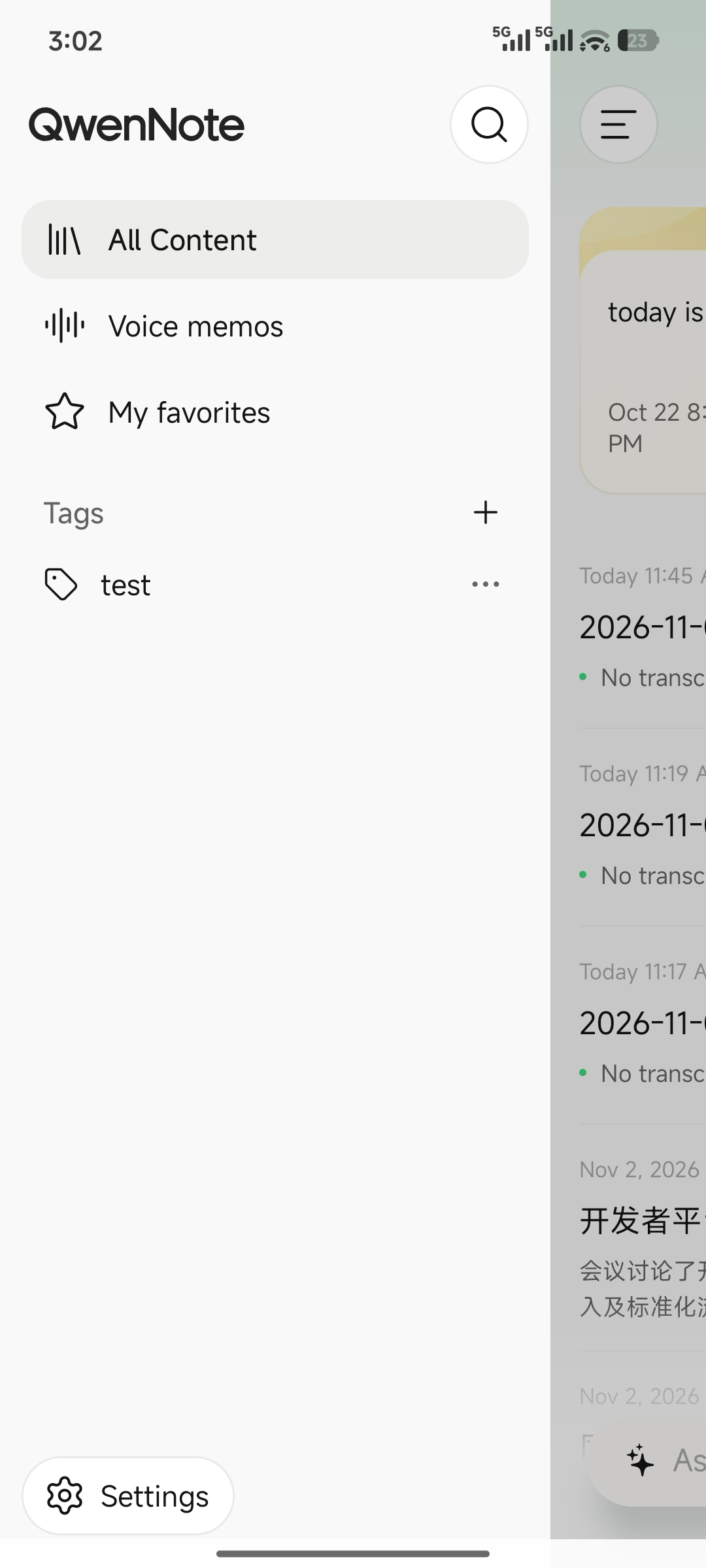
Tap the Switch Navigation Bar icon in the upper-left corner of the home page to expand the navigation bar.
2
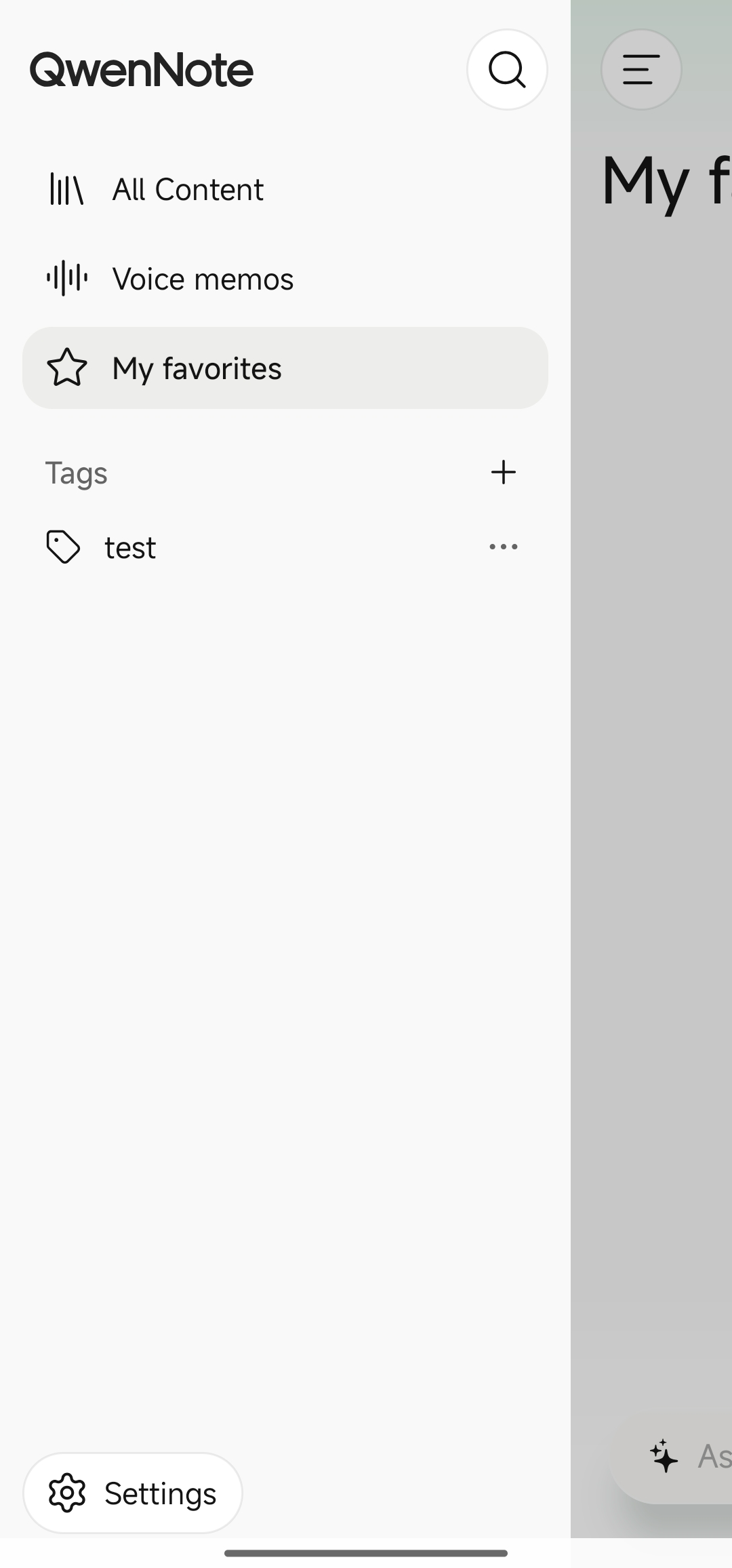
Select My Favorites to return to the home page.
3
Your previously favorited transcripts are displayed on the home page.
3. Considerations
- Favoriting a transcript does not change the retention settings of the original recording.
- Recordings made in Incognito Mode do not retain the original audio. Favoriting such recordings does not enable audio playback or export.