
Overview
You can switch between multiple transcription modes tailored to different scenarios to meet your specific audio recording needs.
Scenarios
- Different environments require different audio capture effects, such as conference rooms, face-to-face communication, or preserving original ambient sound.
- The current mode does not deliver satisfactory results, and you need to change the audio capture or noise cancellation method.
- You frequently use a specific scenario and want to set it as the default mode.
Procedure
1
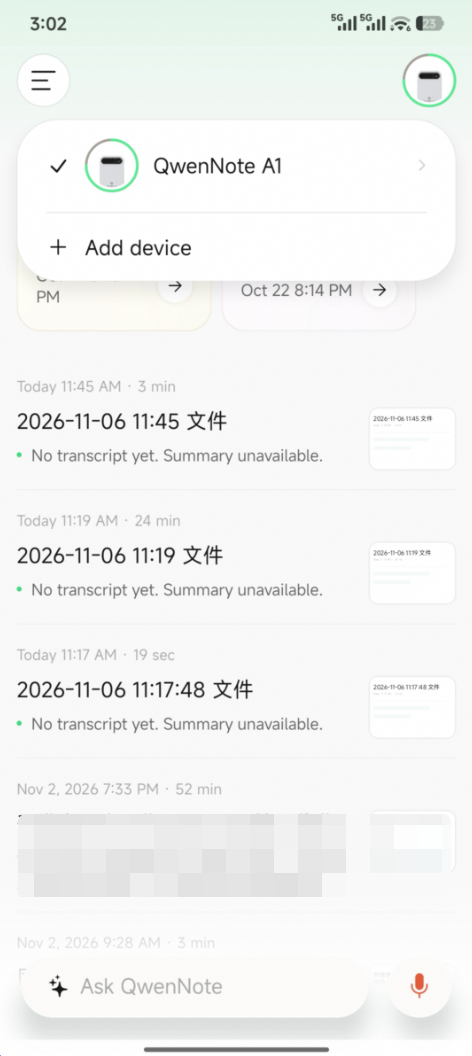
On the homepage, tap the icon in the upper-right corner to go to the Device Settings page.
2
On the Device Settings page, configure the default transcription mode.
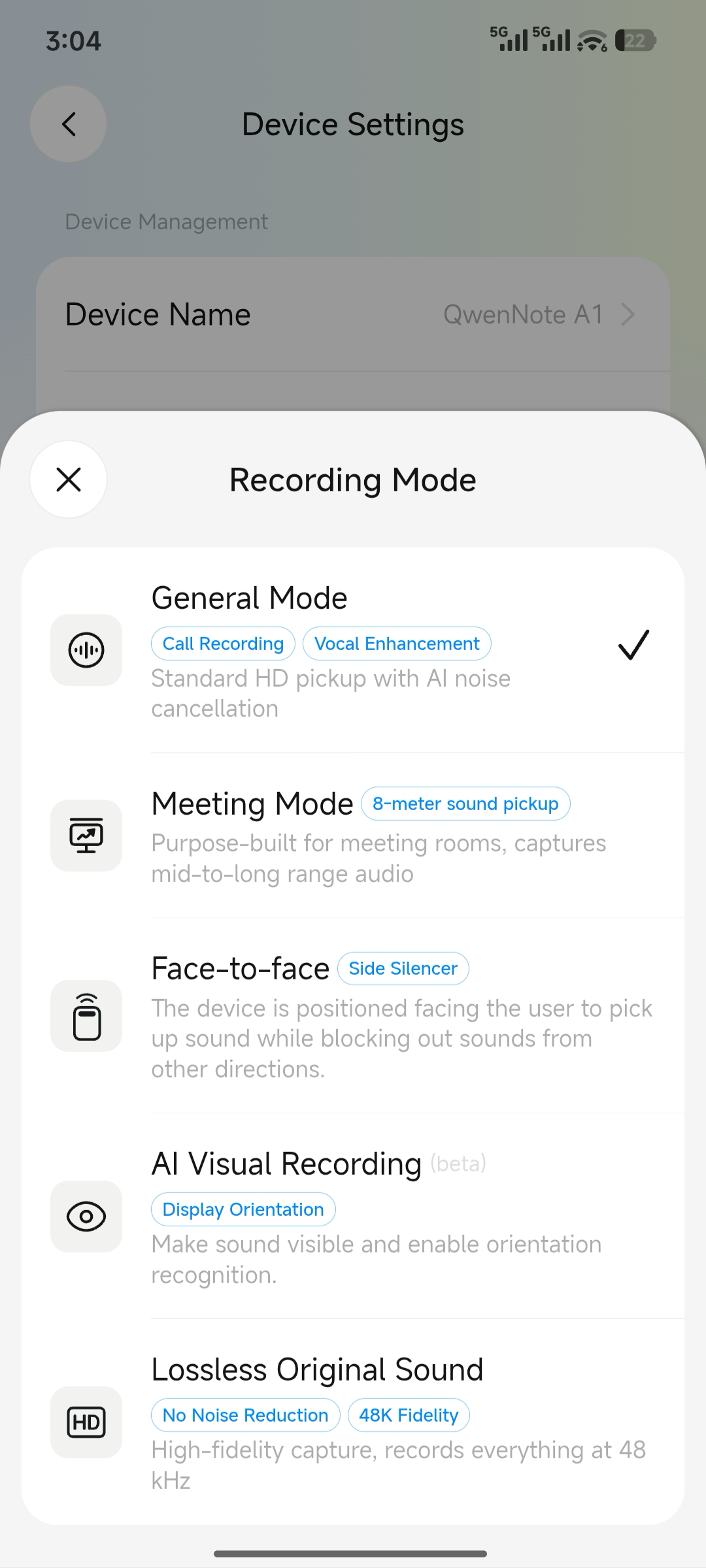
- General Mode: Standard HD audio capture with AI-powered noise cancellation. Balances phone call transcription quality. This is the default mode.
- Meeting Mode: Designed for conference rooms. Supports medium-to-long-range audio capture, suitable for medium and large meeting rooms.
- Face-to-Face Mode: Near-field audio capture within 2 meters. Suppresses external noise, suitable for one-on-one conversations and interviews.
- AI Visual Transcription: Visualizes sound and identifies the relative direction of the speaker.
- Lossless Original Sound: Hi-Fi fidelity. Records all sound at 48 kHz without noise cancellation, suitable for scenarios that require unprocessed original audio.