
Using One-Way and Two-Way Translation
Overview
A1 supports AI simultaneous interpretation during transcription, offering both real-time one-way translation and face-to-face two-way translation modes, with text-to-speech playback for translated content.
Scenarios
- Cross-language meetings, visits, and interviews where you need to understand foreign-language content in real time.
- Face-to-face conversations where both parties need to understand each other.
- Situations that require text-to-speech playback of translations.
Procedure
1. Enable Translation
After starting a transcription, go to the transcription screen in the app and tap the Text A icon in the upper-right corner to enable translation. One-way translation mode is enabled by default.
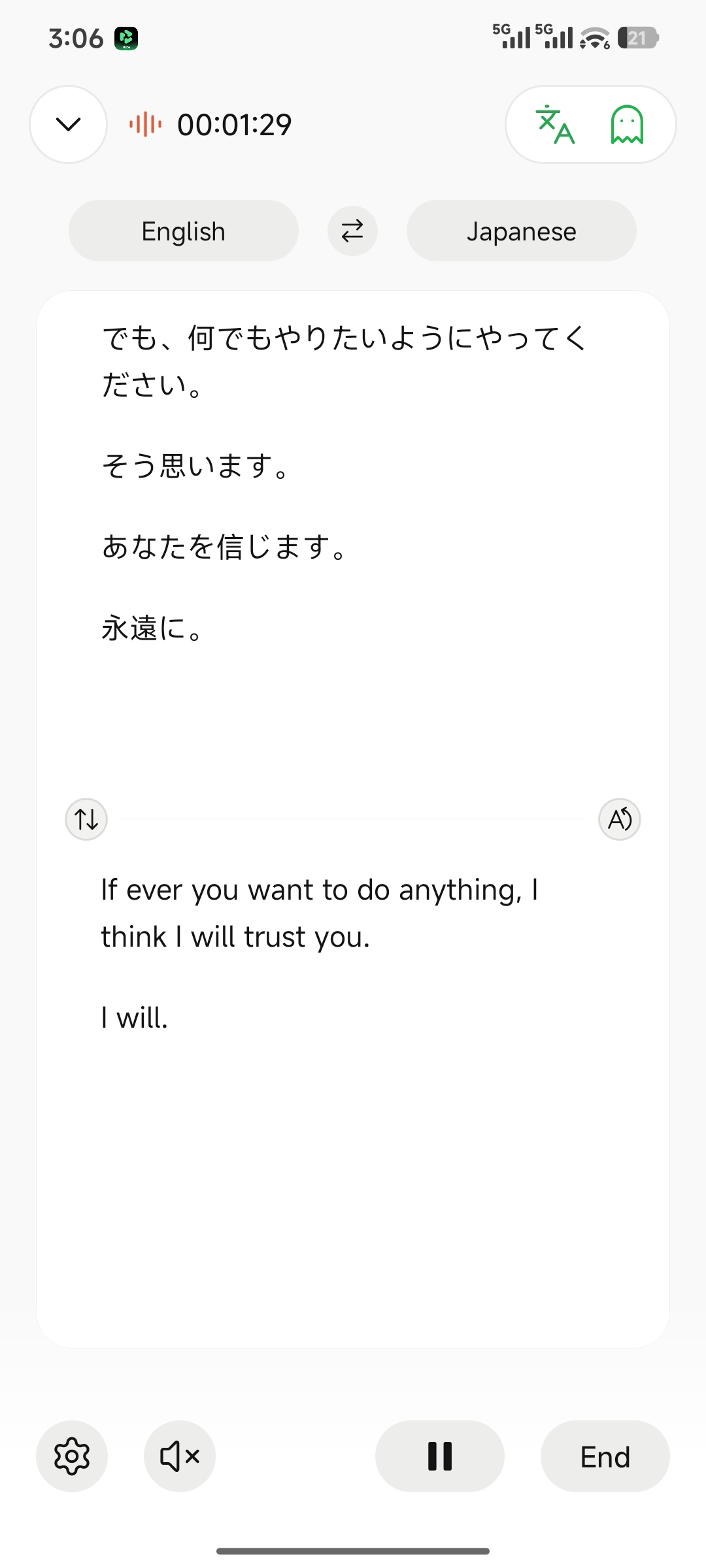
Enable AI Translation
2. Switch Translation Modes
Tap the arrow (➡️) between the languages on the translation screen to switch modes.
One-Way Translation (Default)Supported Languages: 79Scenario: Listening to foreign-language content and translating it into your own language without switching direction.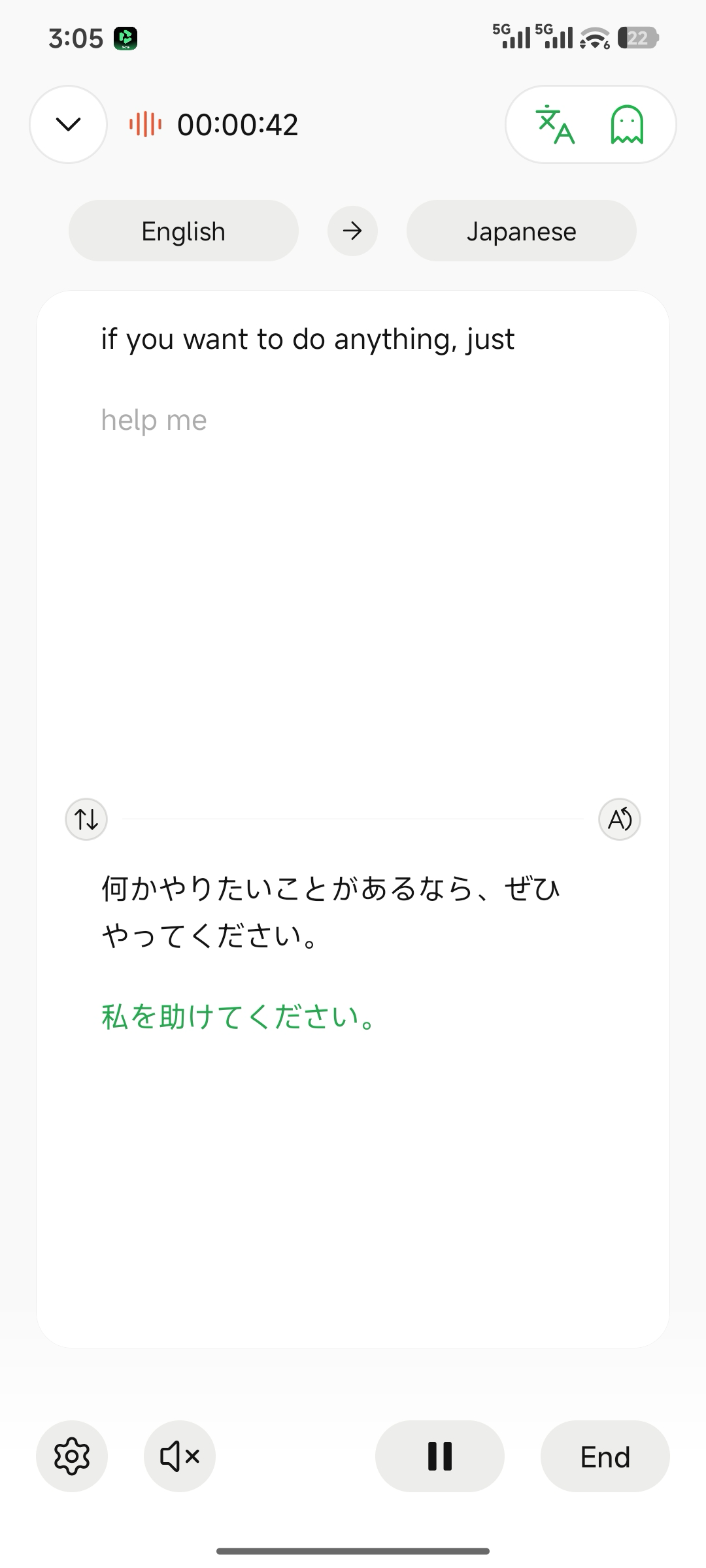
Two-Way TranslationSupported Languages: 70Scenario: Face-to-face communication with bidirectional translation and switchable direction.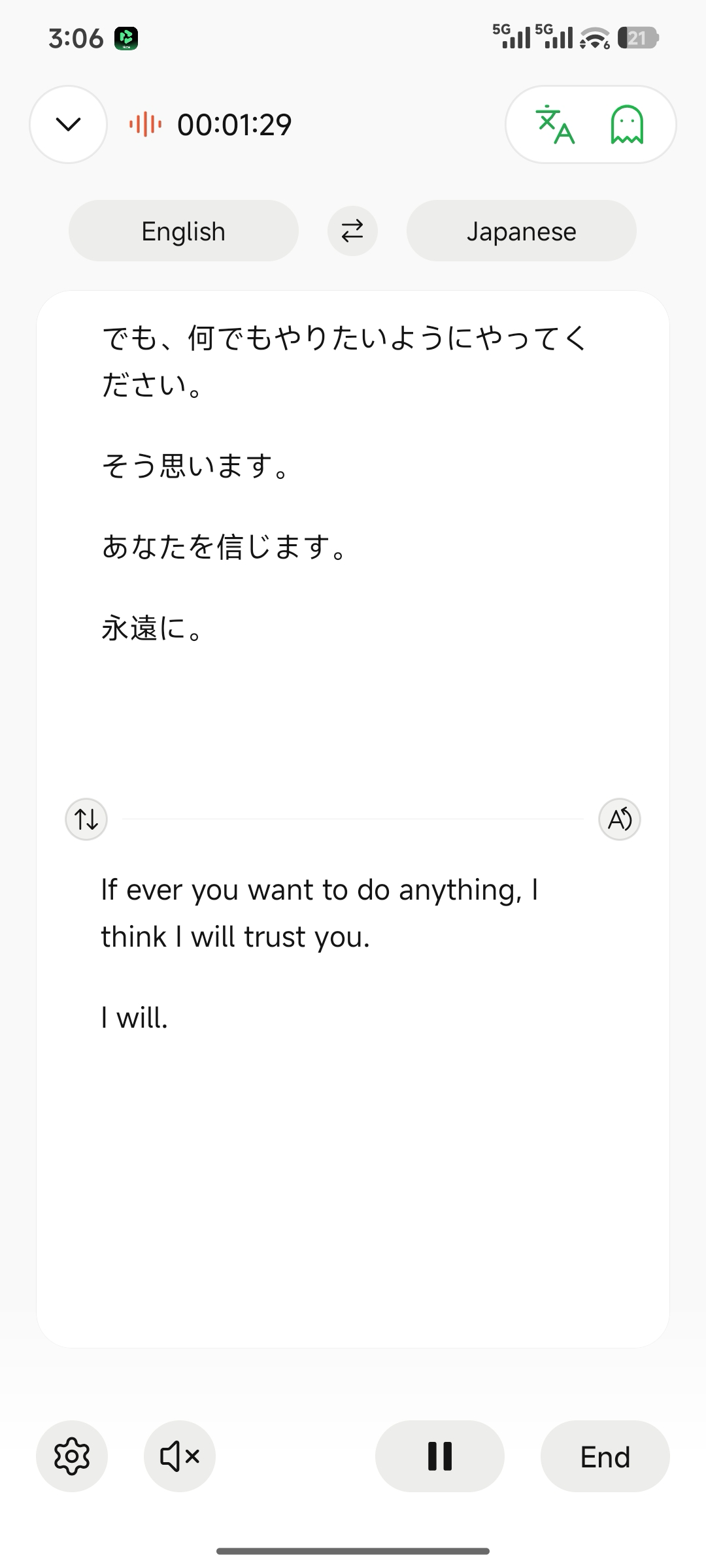
3. Change Display Format (Translation Settings)
One-Way Display FormatsOne-way translation (default) supports three display formats.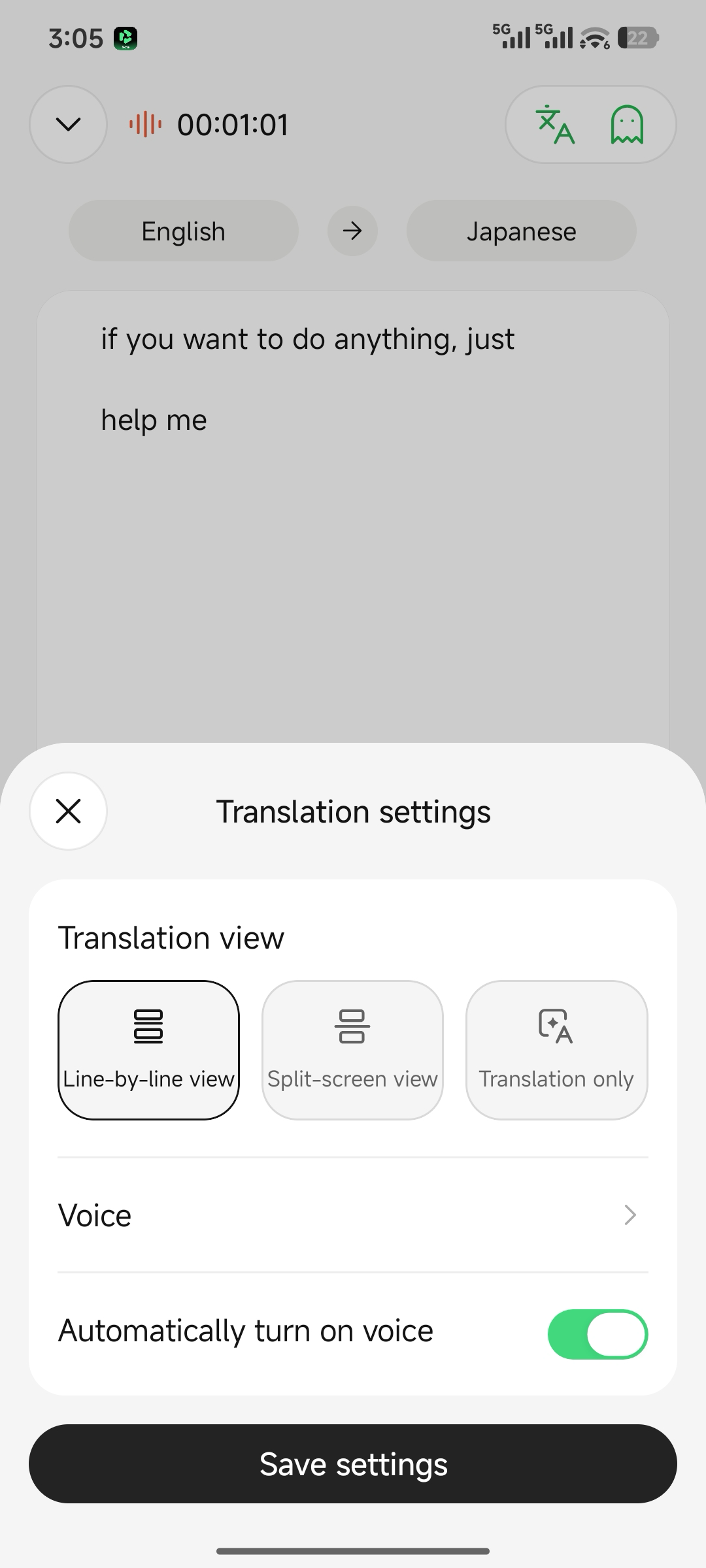
Two-Way Split-Screen DisplayTwo-way translation supports only split-screen display.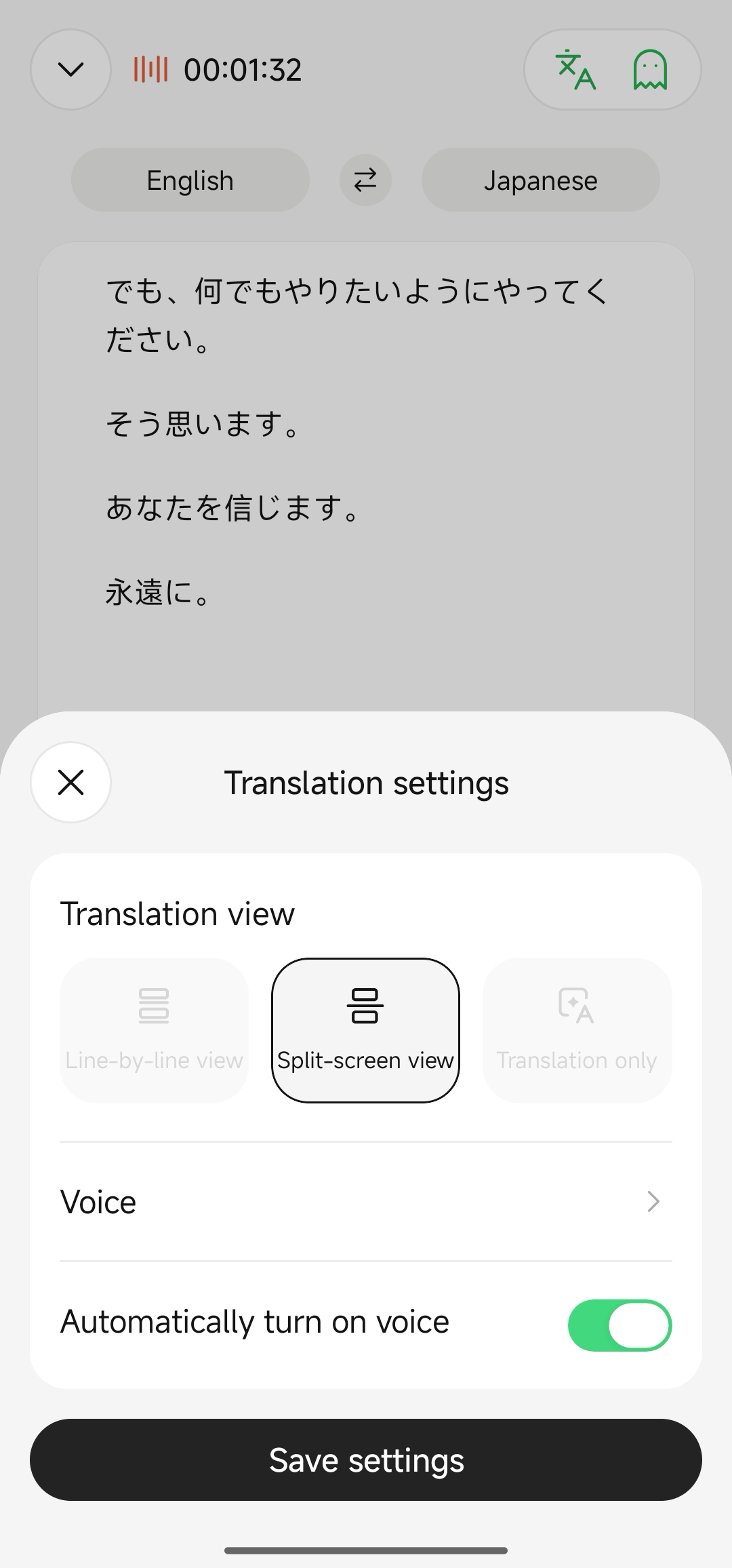
4. Text-to-Speech Playback
- Tap the speaker icon to enable text-to-speech playback of translations.
- You can enable Auto-play when headphones are connected.
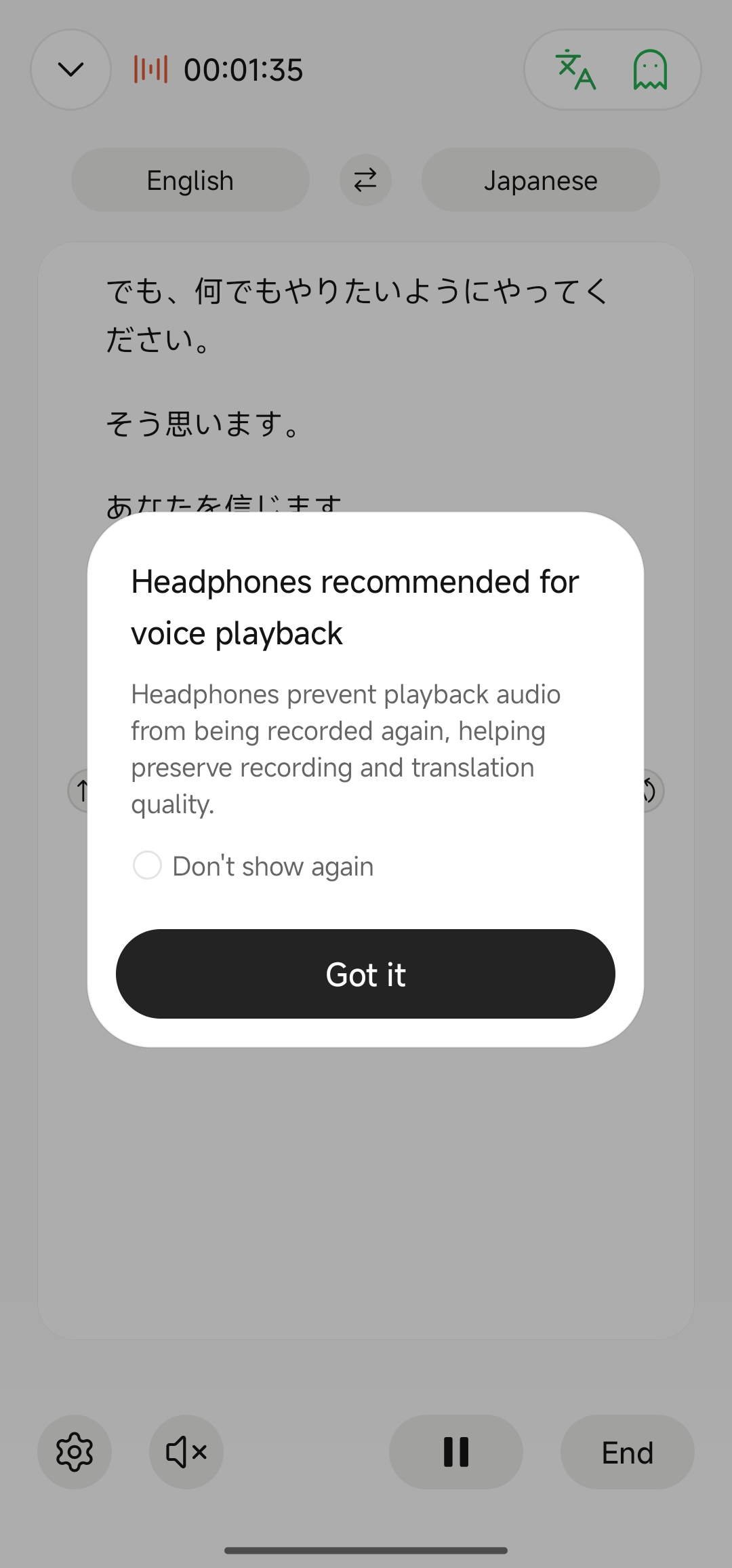
Text-to-Speech Settings
5. Considerations
- Simultaneous translation of multiple mixed languages is not supported.
- Translation accuracy may be affected by background noise, accents, and speaking speed.
- Ensure the transcription language setting matches the spoken language.