
Upgrade A1 Firmware via the App
Overview
The A1 device firmware is continuously updated. You can upgrade the firmware through the QwenNote app.
Scenarios
- The app notifies you of a new firmware version.
- You want to use new features or fix known issues.
- The device has connection issues, and you need to rule out outdated firmware as the cause.
Procedure
1. Manually Check for Updates
1
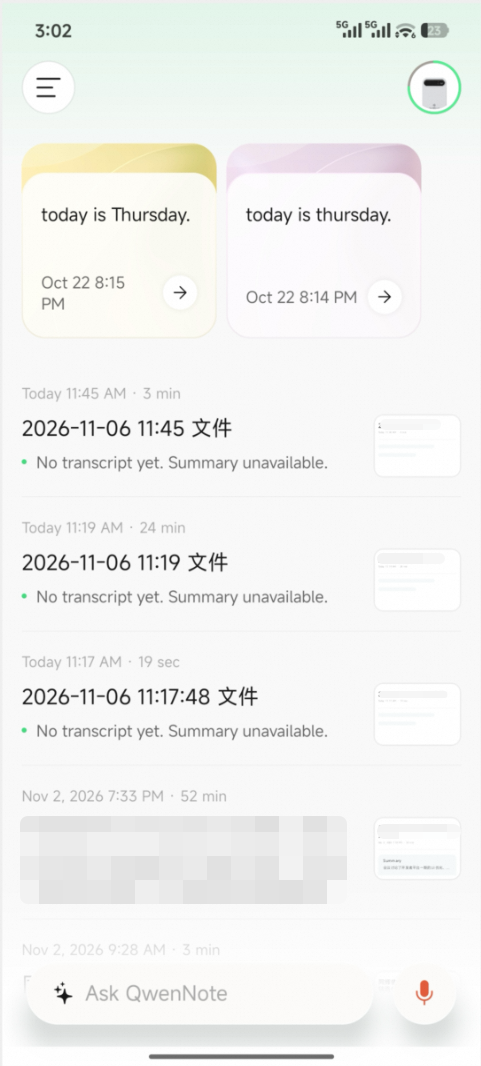
Open the QwenNote home page.
2
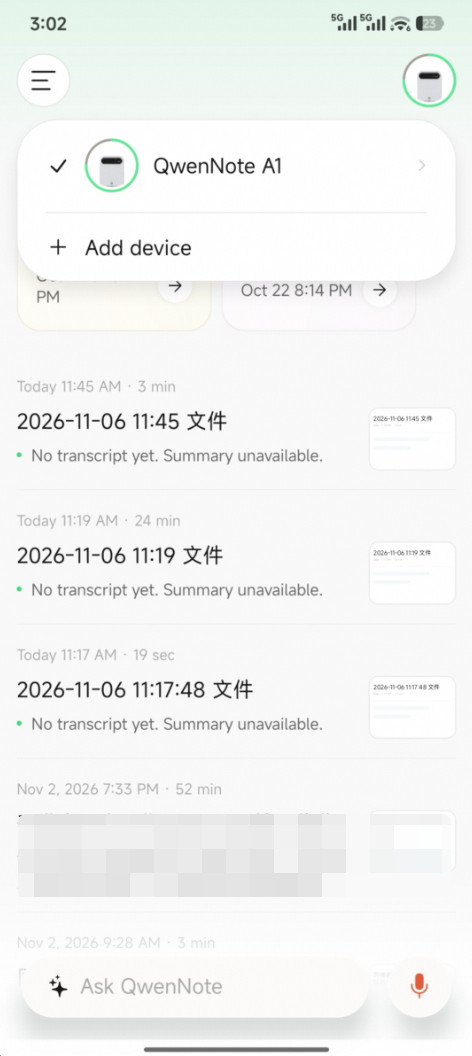
Tap the icon in the upper-right corner to go to Device Settings.
3
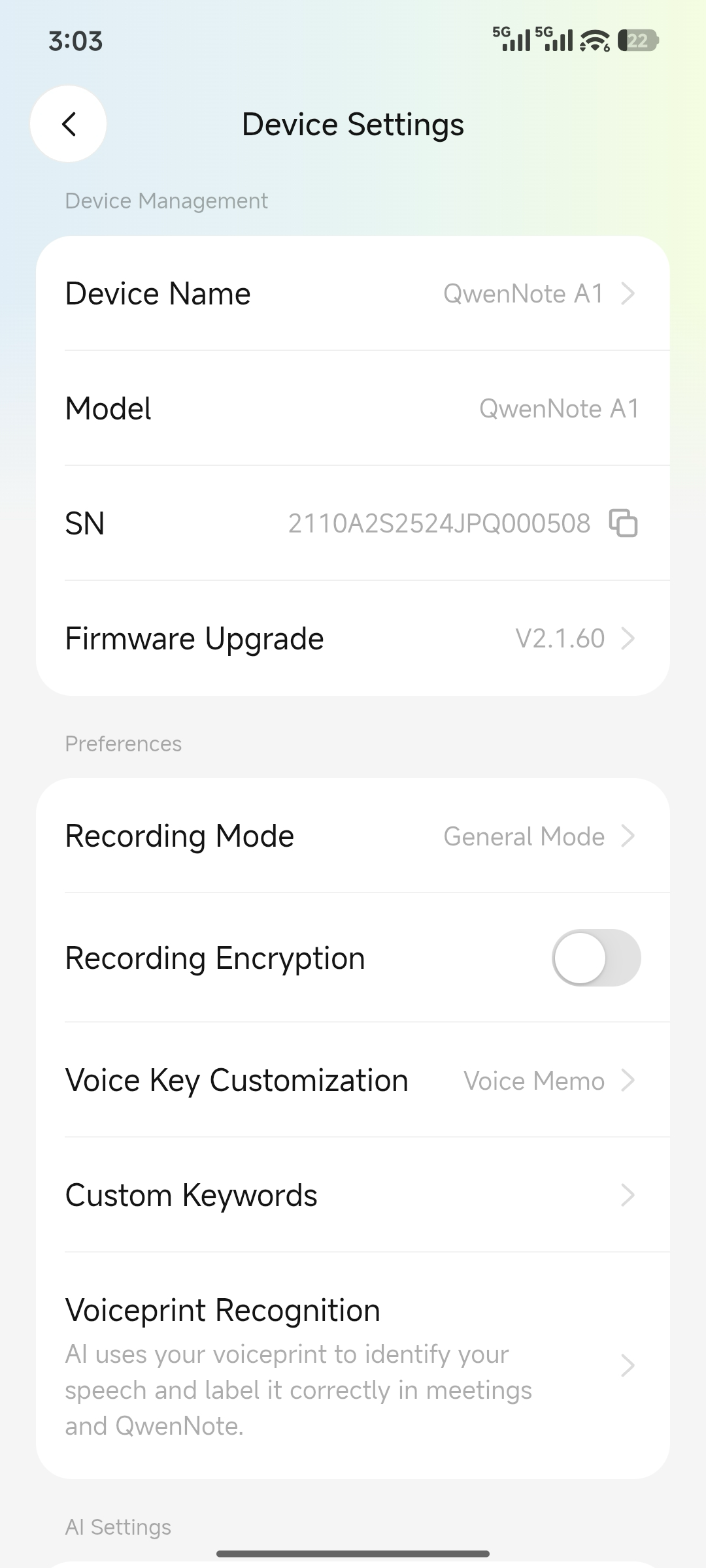
Tap Firmware Upgrade (device connection required).
4
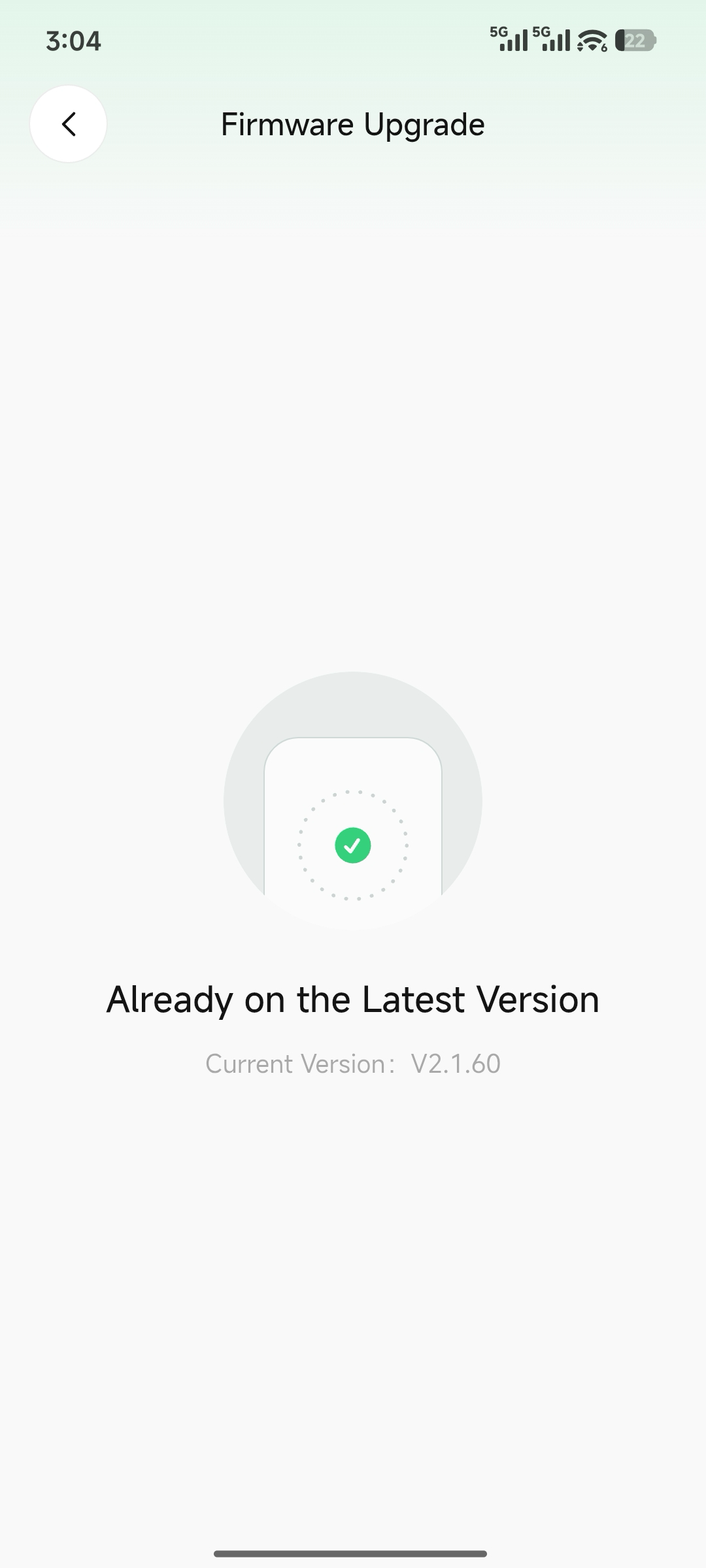
If the firmware is up to date, the current version is displayed.
2. Automatic Upgrade Notification
When a new version is available and the device is connected, an upgrade prompt appears when you access transcription files. Follow the on-screen instructions to confirm the upgrade.
3. Considerations
- During the upgrade, maintain a stable Bluetooth connection between the device and your phone. Do not power off the device or move it away from your phone.
- Make sure the device has sufficient battery or is connected to a power source before upgrading.