
App Features and Main Entry Points
I. Feature Overview
The QwenNote app is the companion application for QwenNote A1 and serves as your personal Context Hub. It handles device binding, firmware updates, recording synchronization, transcription, AI-generated minutes, translation, content organization, and permission management. The device captures audio, while the app stores, organizes, and retrieves your content.
II. Use Cases
- First-time A1 users who need to download the app, register an account, and bind their device.
- Daily review of recordings, AI summaries, and verbatim transcriptions.
- Using features such as translation, AI Q&A, and tag-based organization.
- Managing device settings, cloud storage, and audio files.
III. Workflow
Registration and Activation Process
Go from download to setup in just three simple steps — no complex configuration required.
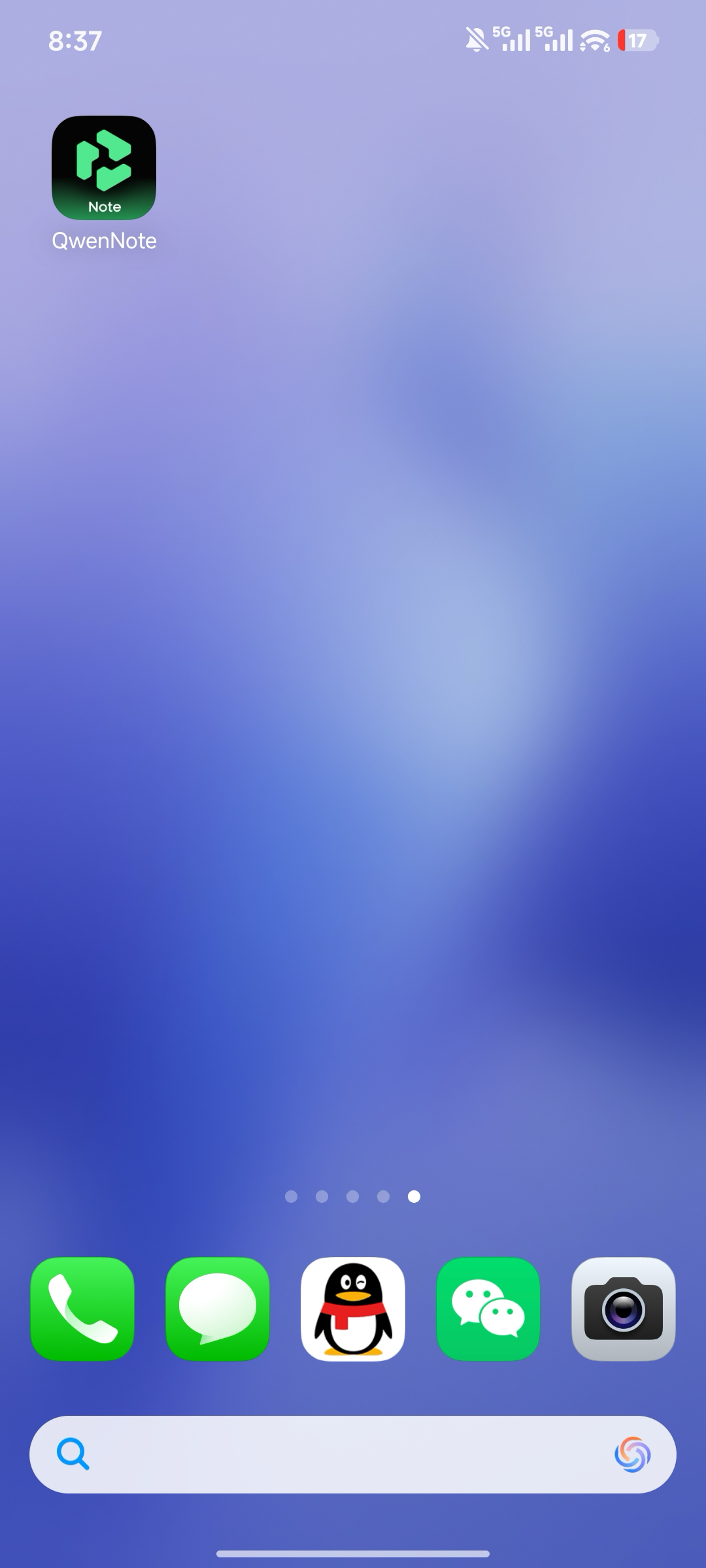
1. Download and Install
- iPhone: Open the App Store, search for "QwenNote", verify the app name and developer, then tap "Get" to install.
- Android: Download the QwenNote app from official channels in your region and follow the on-screen instructions to install.
Download and Install
2. Log On
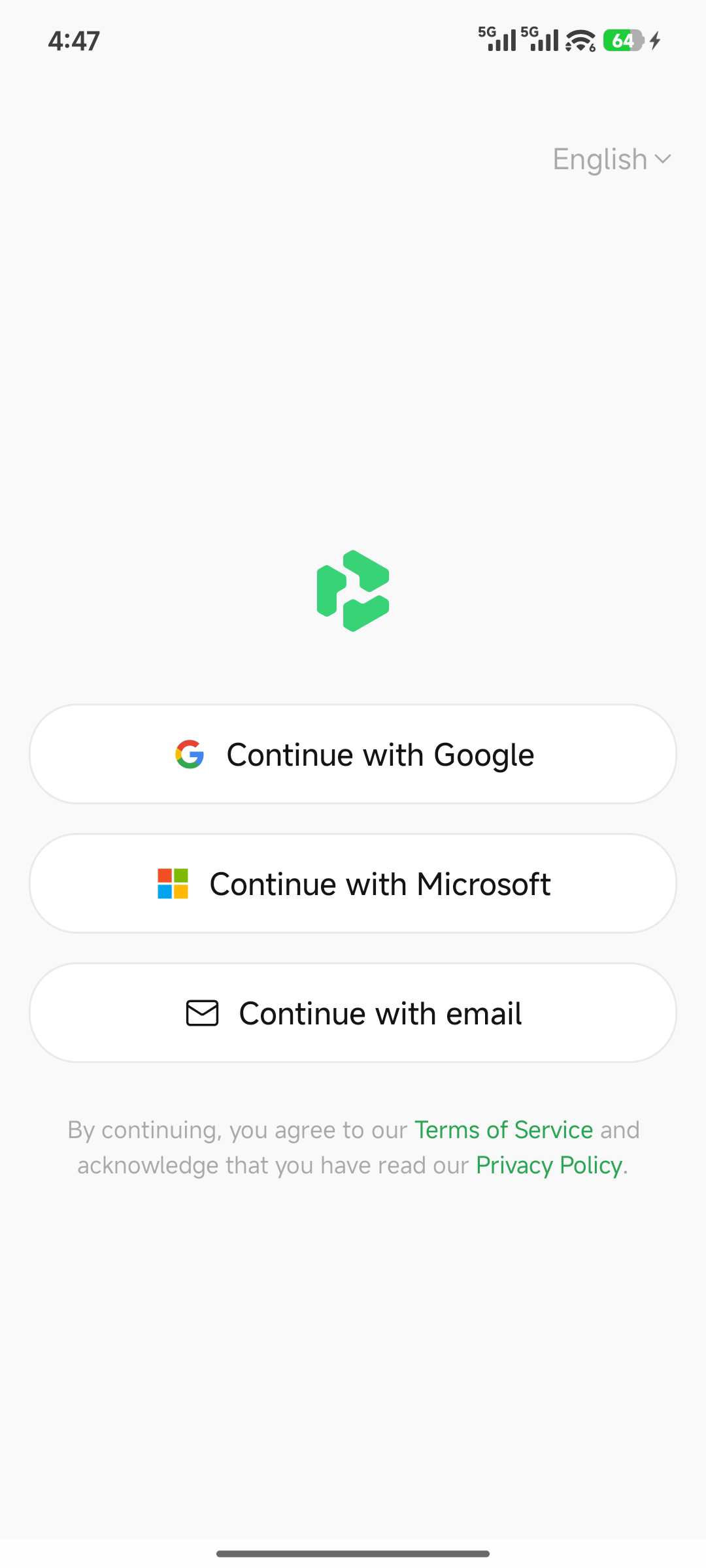
Supports email, Google, Apple, and Microsoft login methods.
1
Select your preferred login method on the login page
Login Methods
2
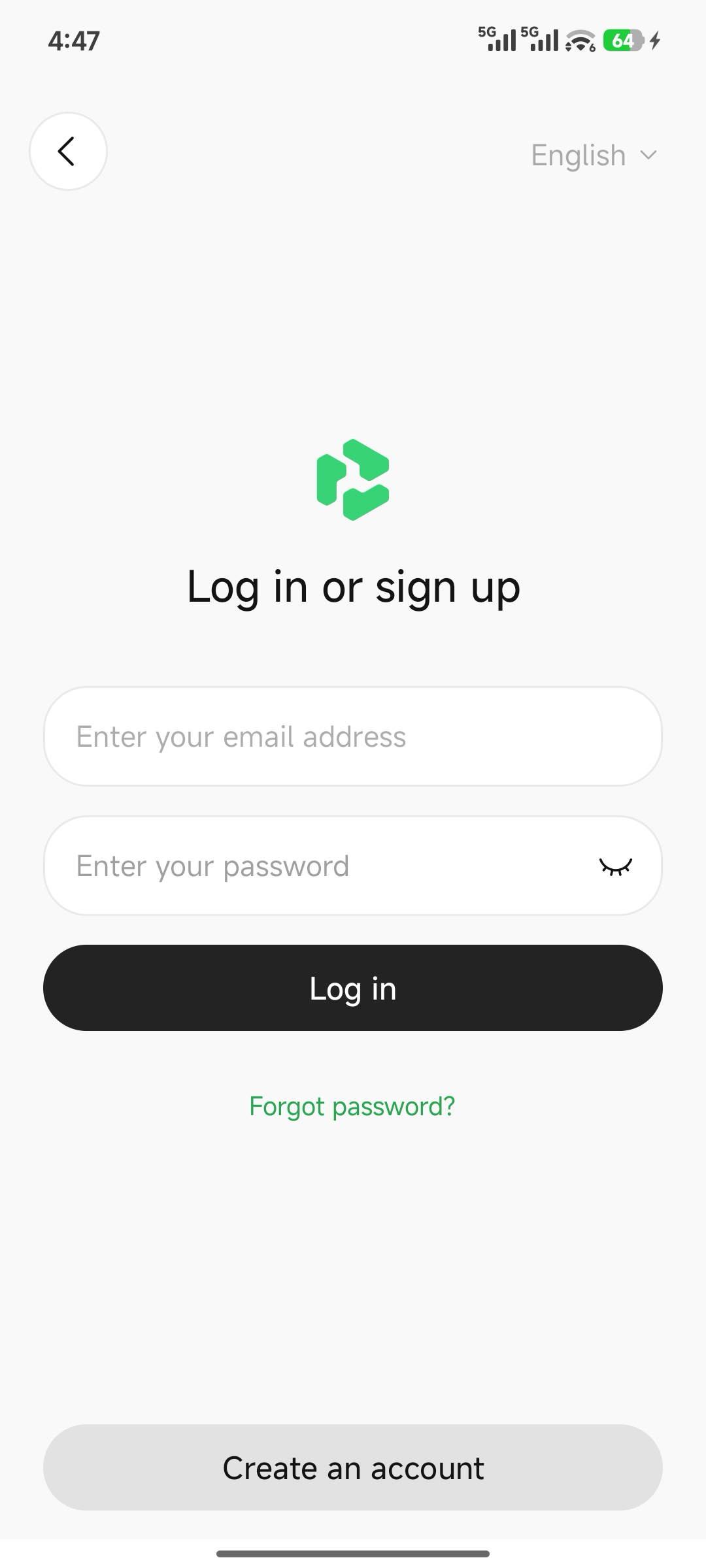
Complete verification as prompted
Account Verification
3
Terms of Service
Before proceeding, review the "Terms of Service" and "Privacy Policy" at the bottom of the page. By continuing, you agree to these terms.
3. Bind Device
Activate and bind your device by following these steps:
1
Unbox the device.
Unbox the device. Press and hold the recording button for 3 seconds or power it on. The device will display an activation prompt.
2
After downloading and installing QwenNote , log on and tap Add Device
3
Scan the exclusive product activation code
in the upper-right corner. Scan the exclusive product activation code included in the packaging, or tap Activate to start scanning and connecting. Then proceed with the activation and binding process.
4
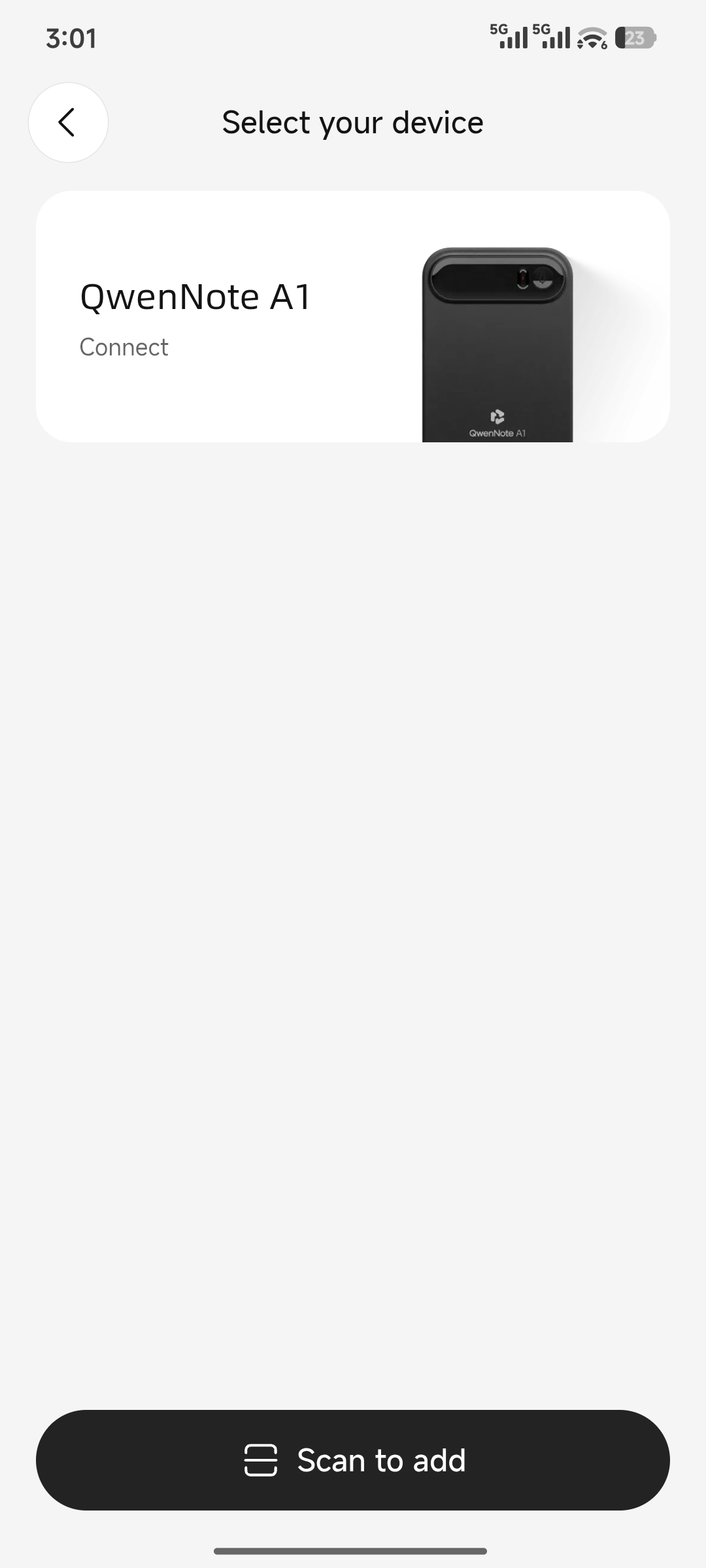
Select the corresponding device to connect
5
After selecting the device, follow the on-screen instructions to complete the connection
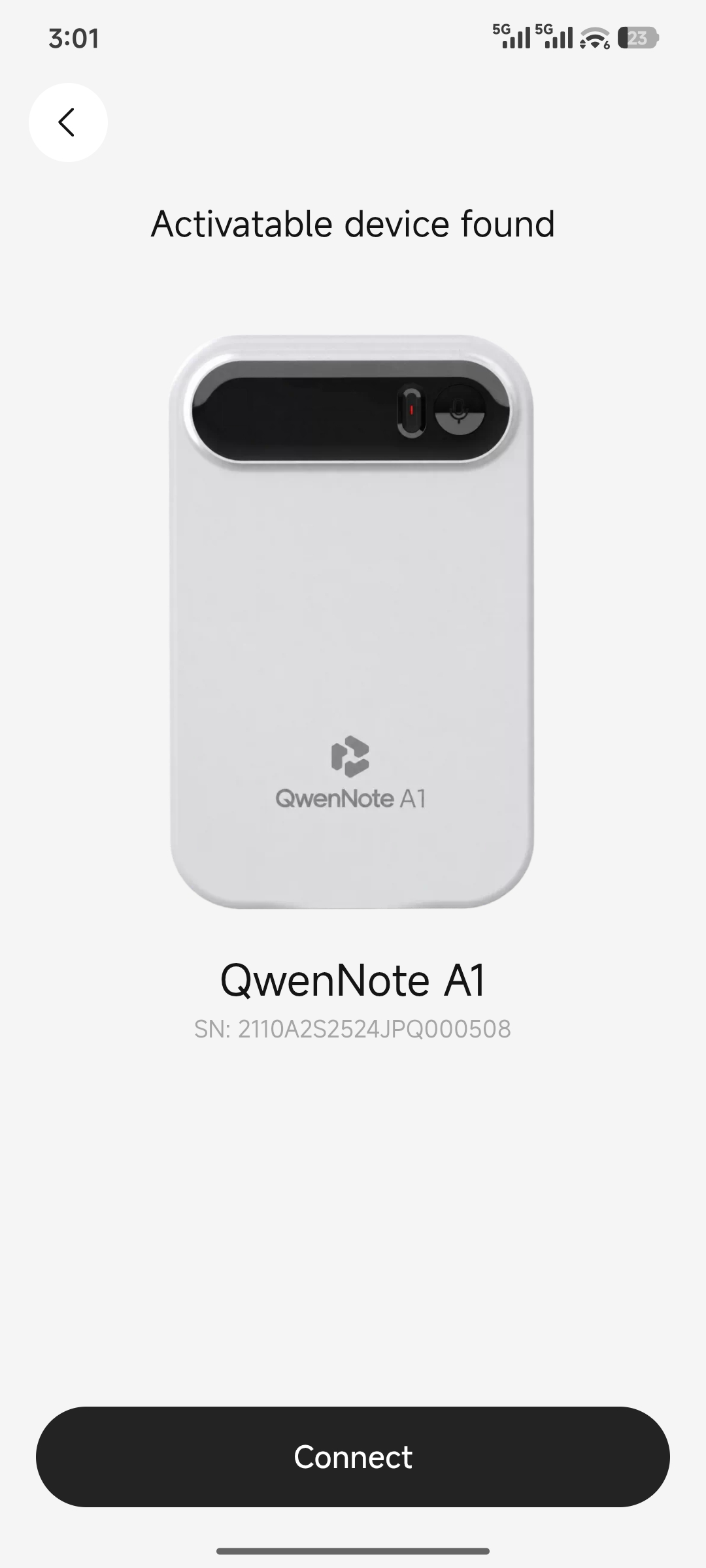
6
A congratulations pop-up indicates that activation and binding are complete
Your device is now ready for use.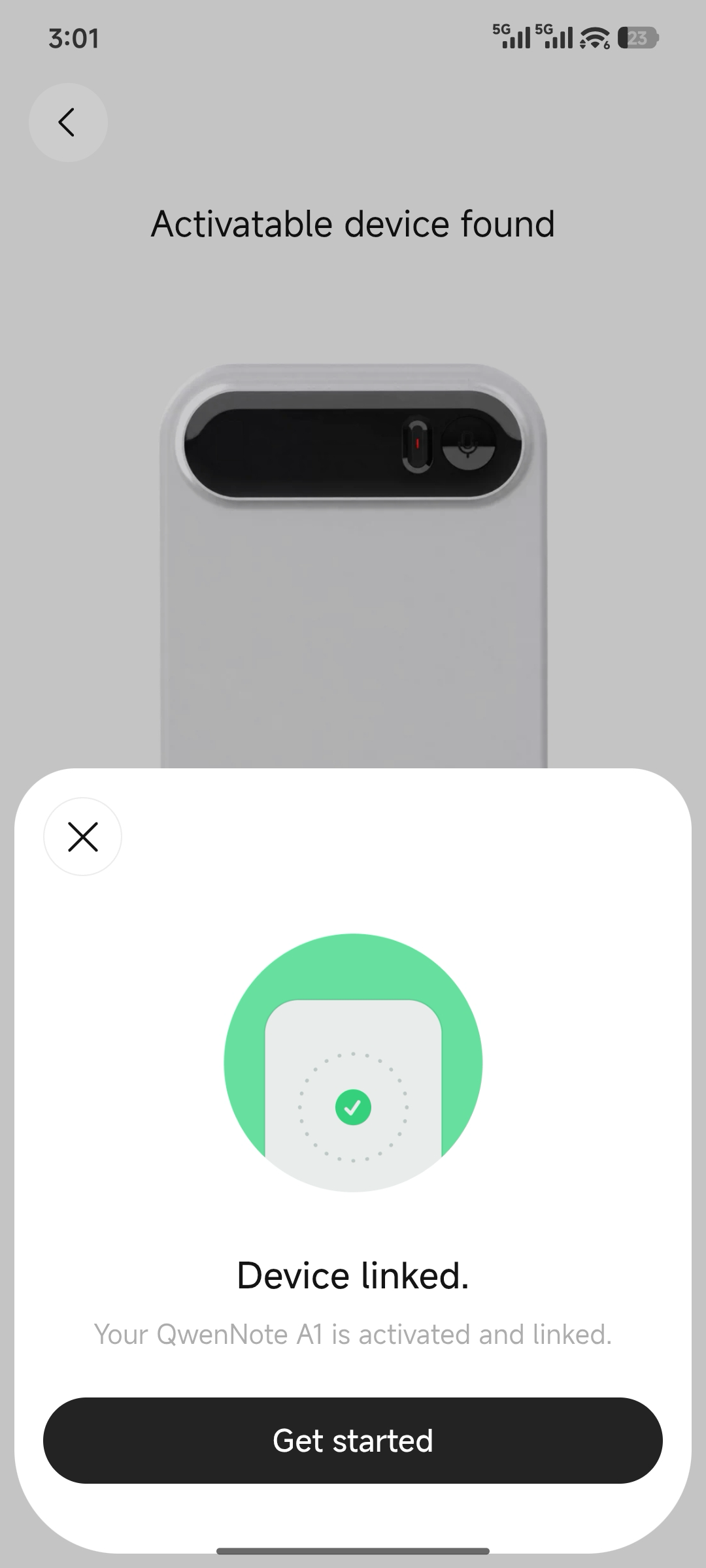
App Feature Overview
After binding your device, the app becomes your device management center with all essential settings at your fingertips.
Main Entry Points
- Home List
- Access recordings to add tags, mark as favorites, export, or delete.
- Device Icon (Upper-Right Corner)
- Open Device Settings.
- Menu Icon (Upper-Left Corner)
- Switch navigation tabs (including Favorites).
- Ask QwenNote
- AI Q&A based on your historical recording summaries.
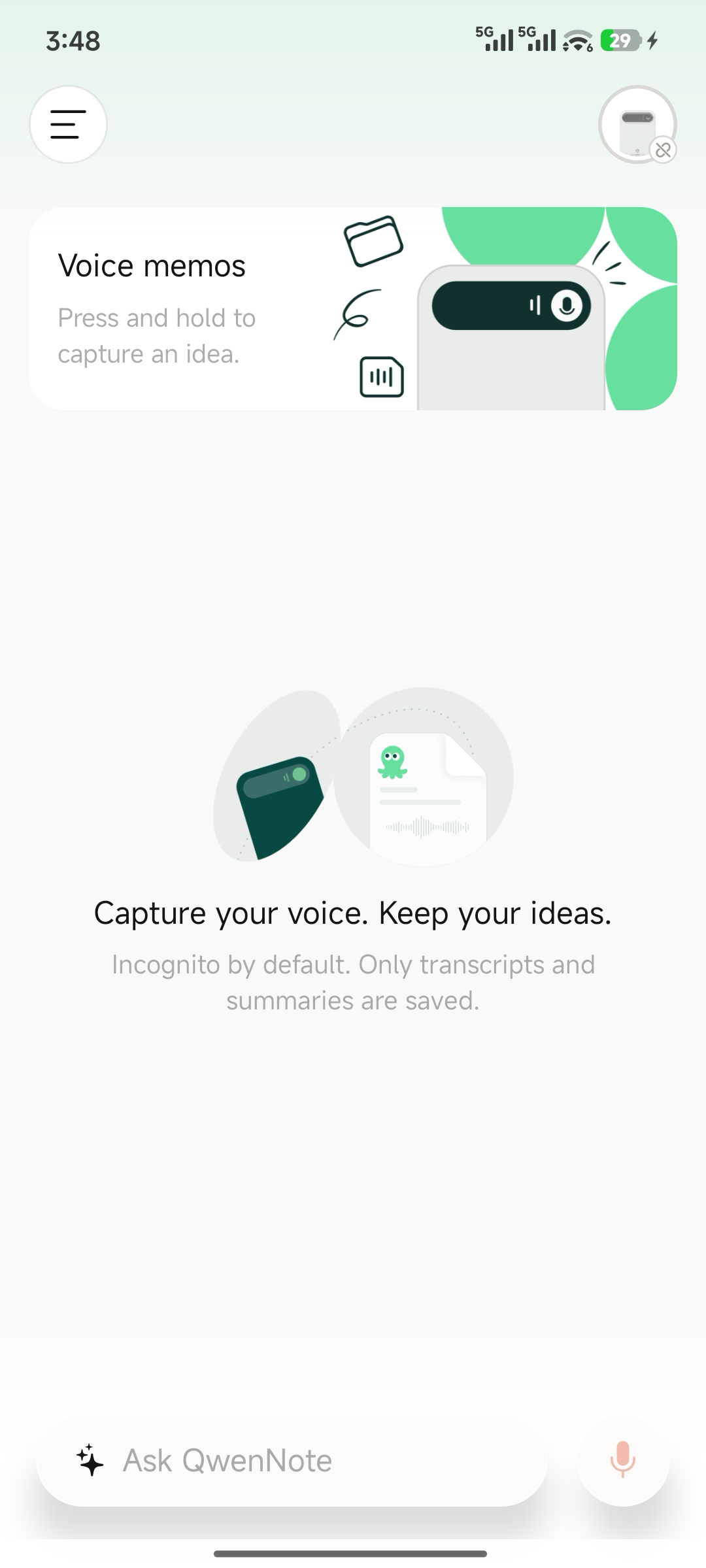
Main App Entry Points
- Minutes Generation:
- Structured minutes are generated within seconds after a recording ends. They provide comprehensive key points and deeper insights, with topics, action items, and decisions clearly organized into sections for immediate use.
- Choose from various minute templates and detail levels. Meeting notes, interviews, and lectures each have dedicated layouts.
- Stealth Mode:
- Once transcription is complete, neither the original recording app nor export channels can access the audio file, preventing leaks at the source.
- Take away only the text transcript and minutes, leaving any sensitive information behind in the meeting room.
- AI Q&A:
- Ask questions across your entire history. Queries like "Who made that decision last time and what was the conclusion?" are answered instantly.
- Answers link directly to the original transcript segments. Tap to replay the exact audio, ensuring accuracy and eliminating hallucinations.
- Custom Hotwords:
- Add industry jargon, project codenames, and specific terminology to your hotword list for prioritized recognition during transcription. Proper nouns are transcribed accurately.
- Supports batch import and real-time editing. Configure once to apply across all recording scenarios.
- Voiceprint Recognition:
- Register multiple voiceprints to automatically identify speakers during transcription. Clearly see who said what in your minutes.
- Smart Segmentation:
- Long recordings are automatically split into segments. Each segment covers a single topic, allowing you to jump directly to the section you need when reviewing.
- Firmware Update:
- Device firmware receives continuous updates. When the device is connected, update the hardware version via Device Settings in the app.
- Multilingual System:
- Switch languages for both the system interface and voice interaction. The international version supports Chinese, English, Japanese, and more, making it easy to take notes wherever you are.
- Device voice prompts and AI Q&A automatically follow the system language, eliminating the need for manual configuration.