
Unlink and Reset Your A1 Device
Overview
After linking your A1 device to an account, you can unlink and reset it in the app if you need to switch accounts, transfer the device, or perform a factory reset.
Scenarios
- Switching to a different account that requires re-linking
- Clearing the binding before transferring the device to another user
- Recovering from device issues by performing a reset
Procedure
1. Online Unbinding (Recommended)
Perform the following steps while the device is connected to the app:
1
Open the recording screen in the app and tap the icon in the upper-right corner to go to Device Settings.
2
Scroll to the bottom and tap Unbind and Reset.
3
Tap Confirm in the confirmation dialog to complete the unbinding process.
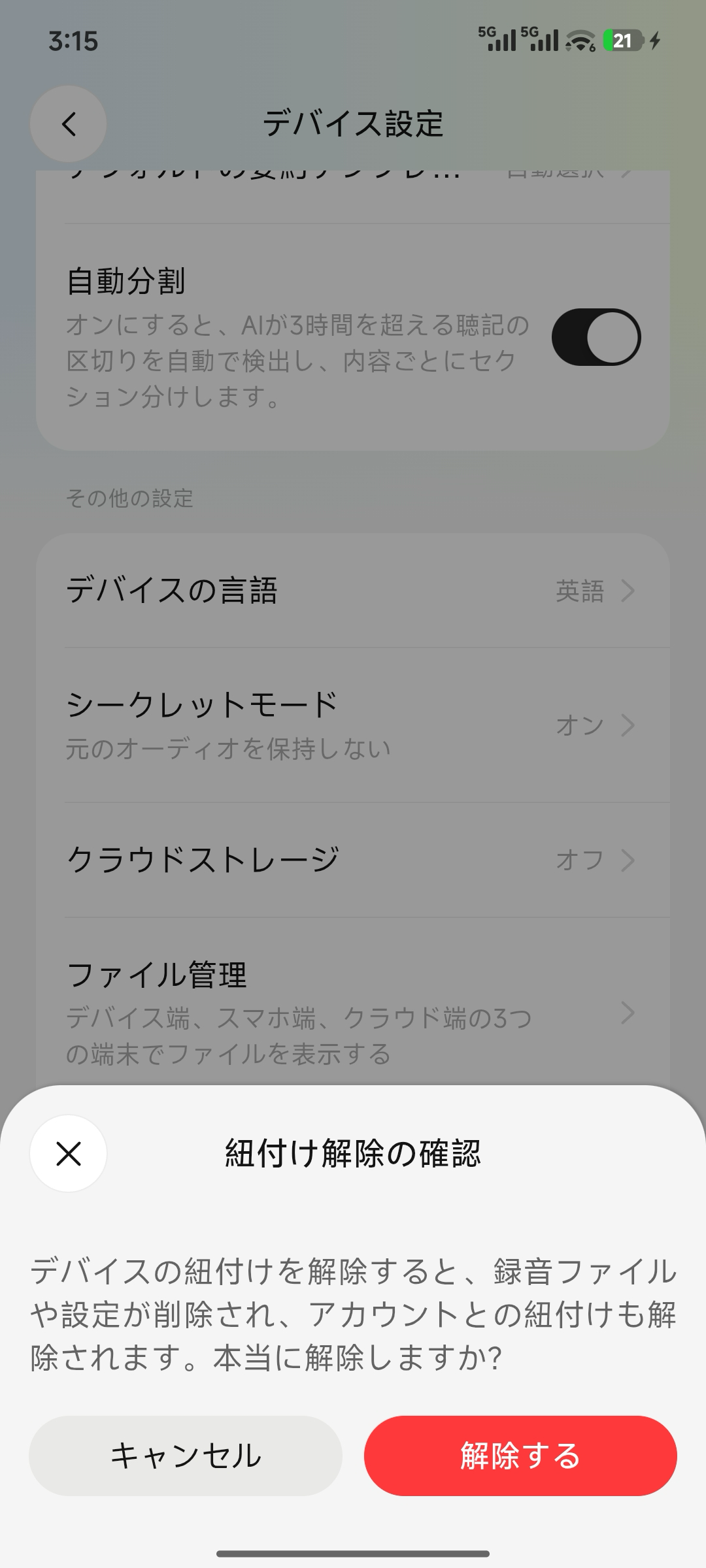
Online unbinding confirmation
2. Offline Unbinding
- If the device is not connected to the app, select offline unbinding in the device settings.
- In this case, the device does not detect the change and continues to display a bound status. You must re-bind the device and then perform an online unbind to fully remove the association.
- Note: Offline unbinding is intended only for special cases such as a lost device. Do not use offline unbinding unless necessary.
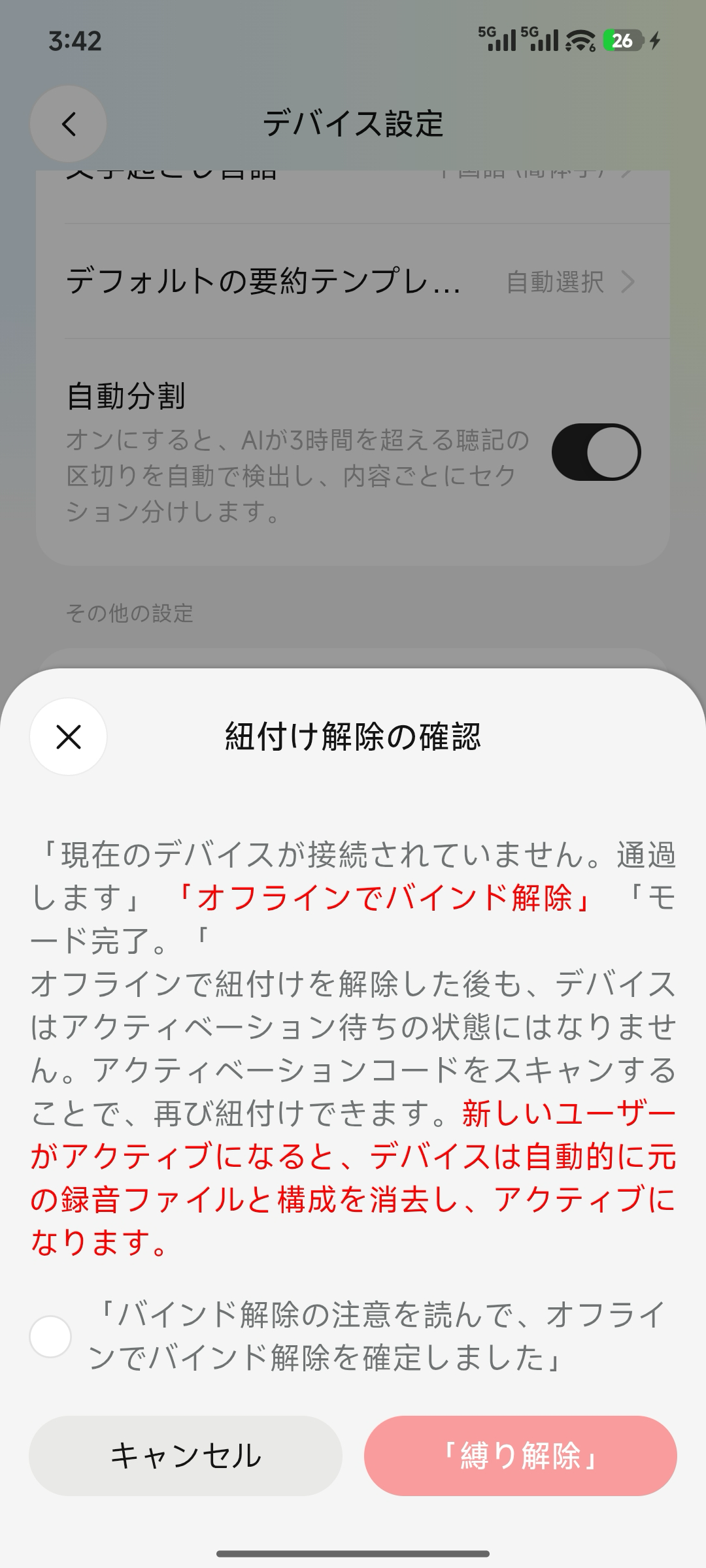
Offline unbinding description and confirmation
3. Data Considerations Before Unbinding
Unbinding and resetting removes the binding association and deletes all data on the device. To retain your recordings, sync and export them in the app before proceeding.