
Three Ways to Bind Your A1 Device to the Mobile App
I. Overview
You must bind your QwenNote A1 device to the QwenNote app on your phone to sync recordings and use transcription and AI features. The app supports three binding methods: nearby device detection, manual product selection, and QR code scanning.
If you have lost your device-specific activation code or user manual, scan the universal activation code below to activate your device.
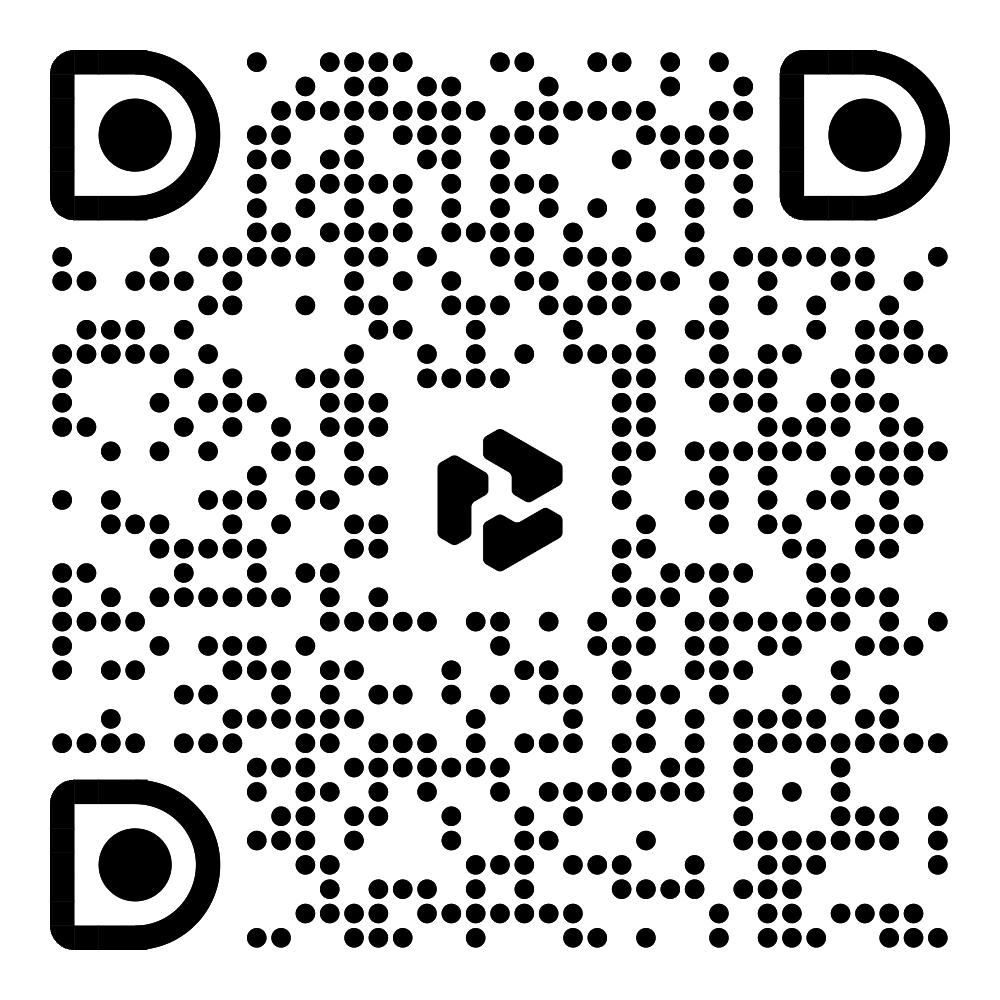
QwenNote A1 Universal Activation Code
II. Scenarios
- Binding the A1 device to your phone after unboxing
- Rebinding the device after switching phones
- Retrying after a binding failure
III. Procedure
Bind by Detecting Nearby Devices
When the device is powered on and near your phone, the app detects it and displays an animated prompt. Tap the prompt to start binding and follow the on-screen instructions.
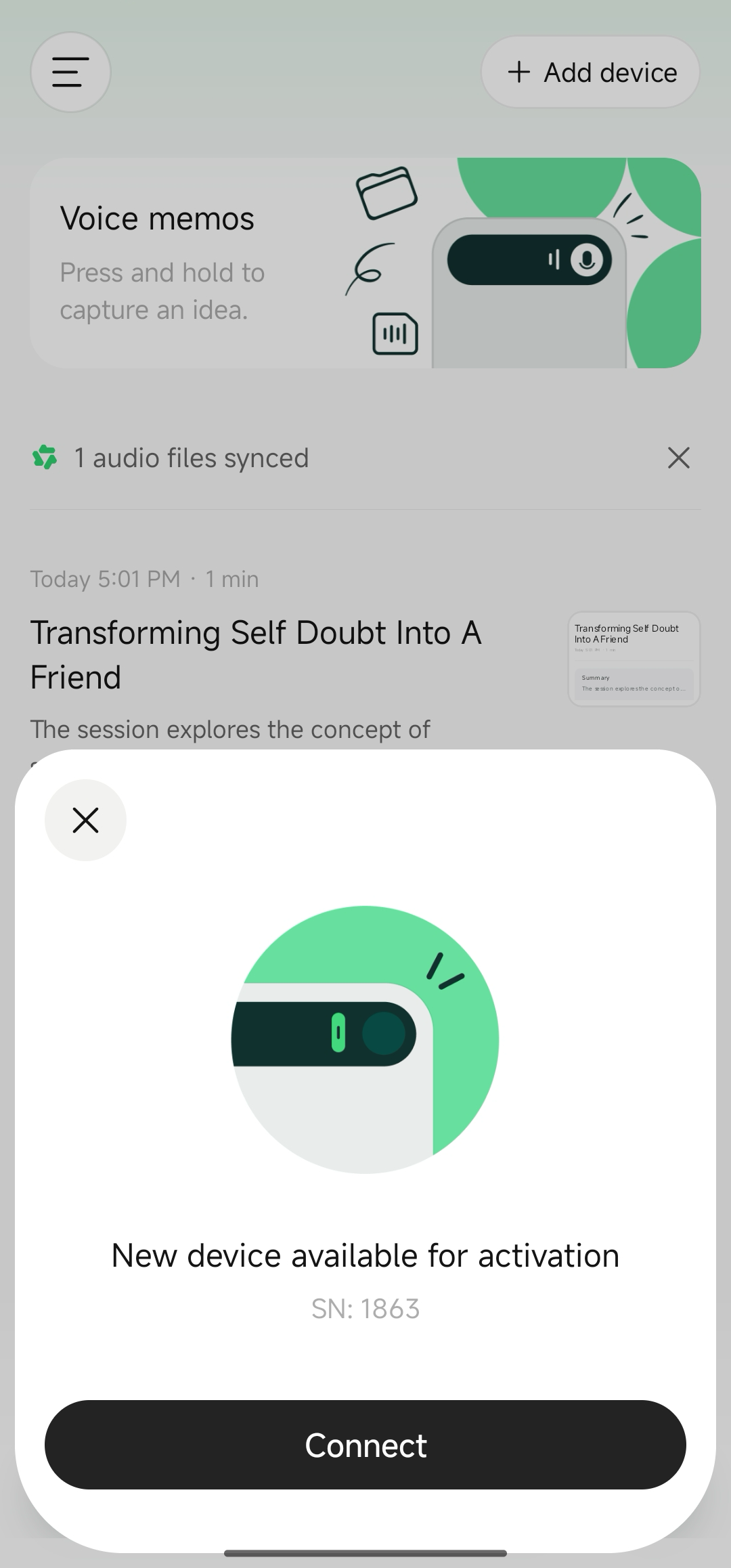
Nearby device binding prompt
Bind by Selecting a Product
1
Open the QwenNote app.
2
Tap Add Device in the upper-right corner of the home page.
3
On the Select Device page, tap QwenNote A1.
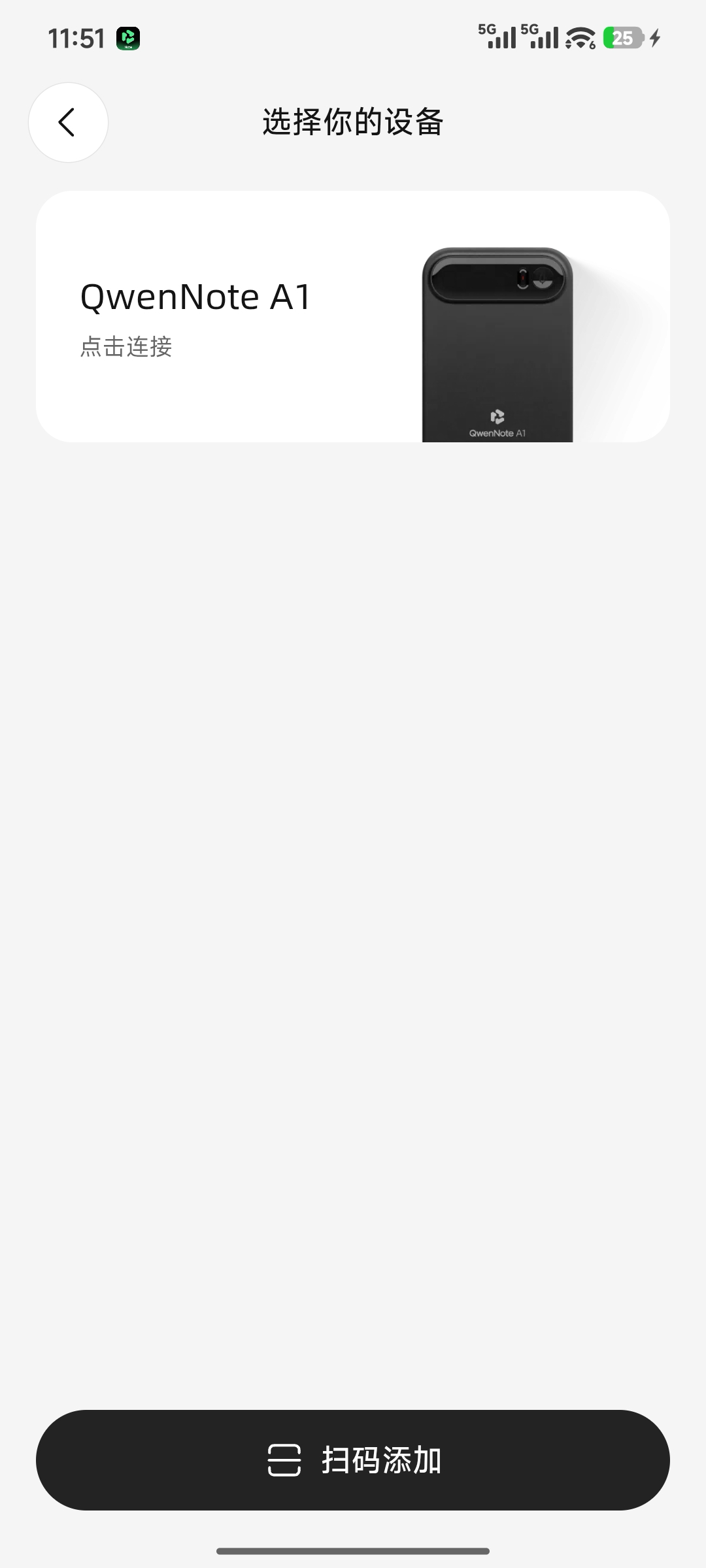
Select QwenNote A1
4
Follow the on-screen instructions to complete binding.
Bind by Scanning a QR Code
1
Tap Add Device in the upper-right corner of the home page.
2
Tap Scan to Add at the bottom of the Select Device page.
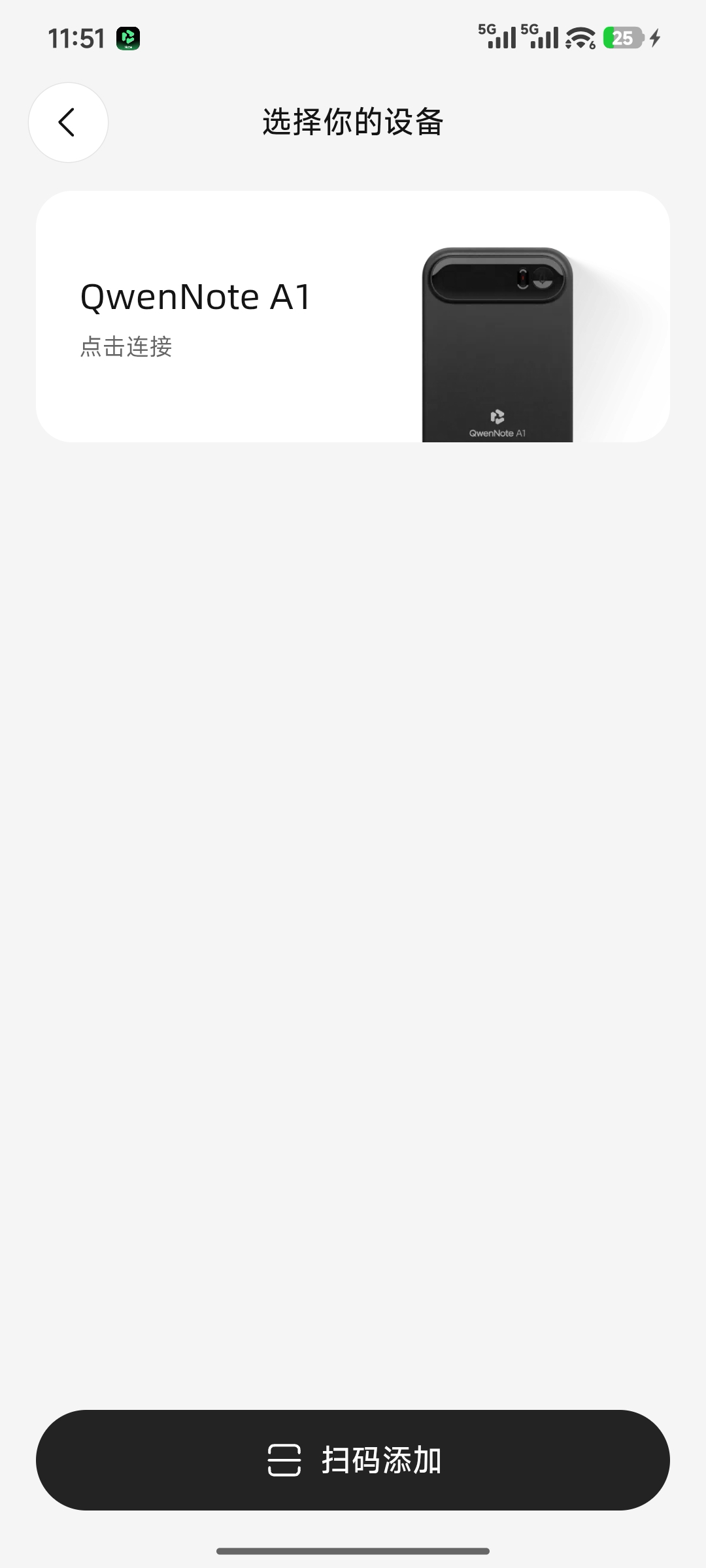
Scan to Add Entry
3
Scan the QR code on the device.
4
Follow the on-screen instructions to complete binding.
Activation and Binding Successful
- A congratulations pop-up indicates that activation and binding are complete. Your device is ready for use.
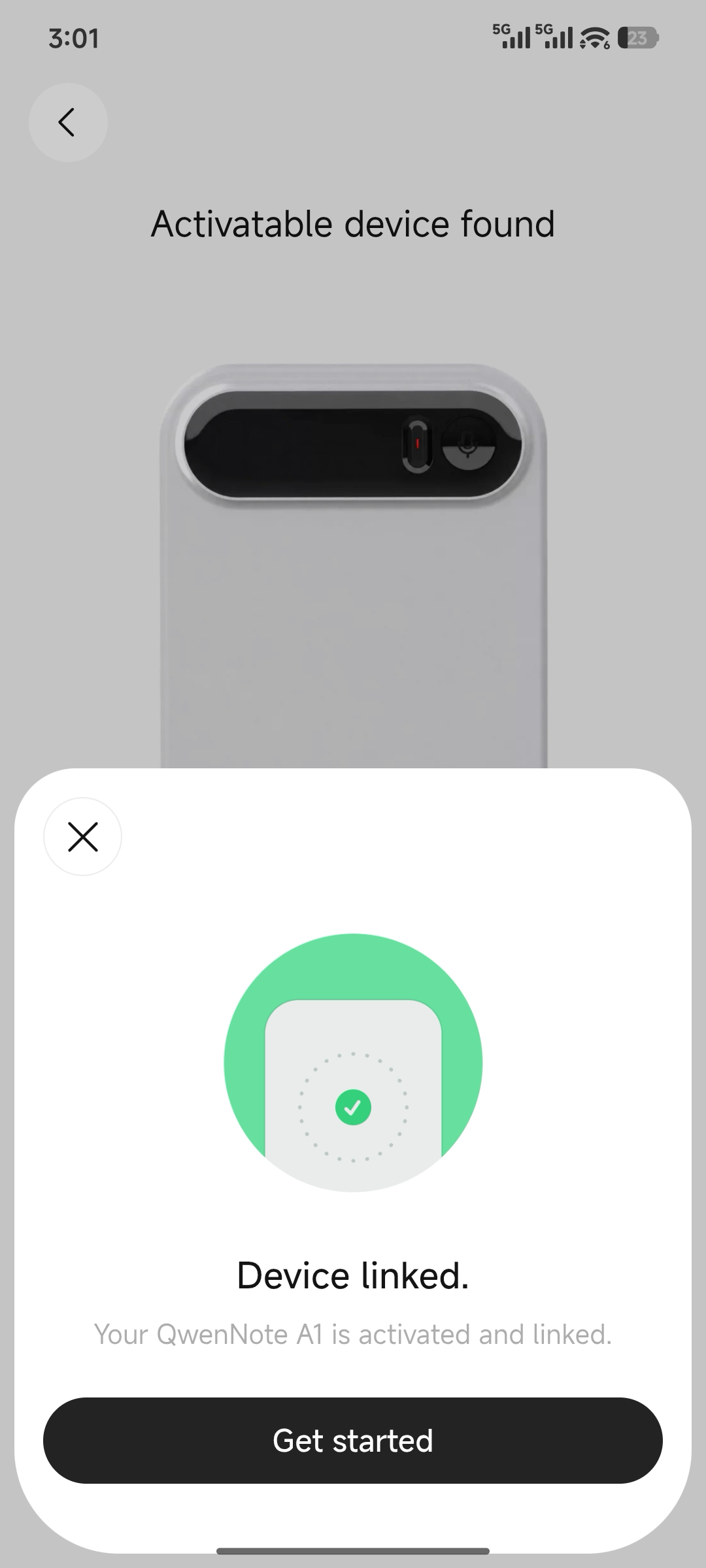
Activation and Binding Successful