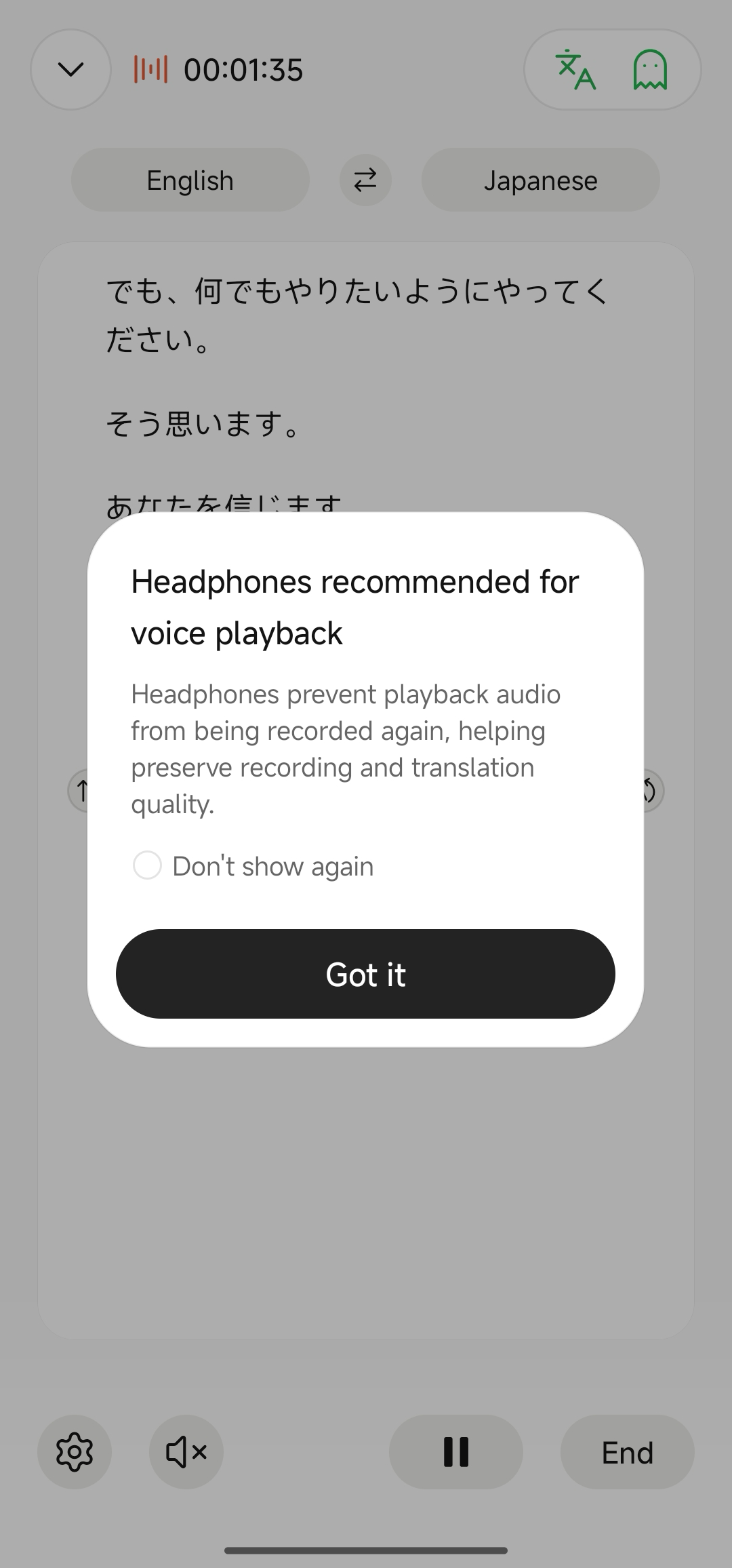
Core Value and Capability Comparison of A1
1. What is QwenNote A1
QwenNote A1 is a Personal AI Agent Device that uses dedicated hardware to capture important real-world conversations and convert them into AI-understandable, callable, and actionable context. Brand proposition: Make AI real.
It consists of a dedicated device and the QwenNote app. The device handles high-quality audio recording, while the app manages synchronization, organization, and retrieval. After recording, content automatically syncs to the app, where you can view summaries and transcripts, ask AI questions, and organize content with tags.
Three core values:
Context Capture
Dedicated hardware and voice algorithms work together to reliably capture high-quality audio.
Privacy Protection
Data in Japan is processed on local GPUs and in local data centers without leaving the country. Audio retention is user-controlled.
AI Openness
Structured context can be exported via MCP immediately.
2. Why Do You Need an A1 When Phones and Computers Can Record Audio
1. Hardware capabilities: Superior multi-dimensional performance
| Dimension | Phone / Computer | QwenNote A1 |
|---|---|---|
| Audio capture | Built-in microphones vary in quantity and quality by model; suitable only for quiet, near-field environments. | 5 omnidirectional microphones + 1 bone conduction microphone. Clear far-field audio capture in complex environments such as classrooms and meeting rooms.; Bone conduction enhances voice separation. |
| Transcription accuracy | Relies on third-party apps or built-in system transcription with inconsistent accuracy. | Powered by the Qwen-Audio-3.0-ASR-Flash speech recognition model, which automatically removes filler words, repetitions, and other spoken redundancies. 98% transcription accuracy. |
| Transcription languages | Limited language support. | Supports 120 languages. |
| Speaker identification | Not supported. | Automatically distinguishes different speakers. Content is structured by speaker, and precise voiceprint recognition remembers each individual. |
| Summary templates | None. | **Multiple meeting minutes templates.**Covers weekly meetings, class notes, sales visits, customer interviews, and more. |
| Recording stability | App switching, incoming calls, and notifications may interrupt recording. | Independent hardware device. Unaffected by phone app switching, incoming calls, or notifications, ensuring stable AI-powered recording throughout. |
2. Use cases: Broader application scenarios
| Use case | Phone / Computer | Third-party recording software | QwenNote A1 |
|---|---|---|---|
| Call recording | Restricted by the OS; some models require manual setup or display recording prompts, resulting in inconsistent experiences. | Does not support call recording. | One-tap activation via physical button. Start recording instantly with a single press. |
| Continuous recording | Continuously drains phone battery, typically lasting only 4–5 hours, insufficient for all-day meetings. | High power consumption; easily interrupted by incoming calls, network fluctuations, or app switching. | Independent power supply. Up to 45 hours of continuous recording. Unaffected by external environmental factors. |
| Meeting recording | Relies on built-in microphones, suitable only for small meeting rooms; audio capture degrades significantly in medium to large rooms. | Also relies on device microphones with limited pickup range. | Built-in 6-microphone array. Supports far-field audio capture at 5–8 meters. Suitable for small, medium, and large meeting rooms. |
| Outdoor recording | Complex noise in outdoor settings, client visits, and transit hubs makes effective audio capture difficult for phone microphones. | Dependent on phone hardware; performs poorly in complex outdoor acoustic environments. | Intelligent noise cancellation. Covers 500+ noise scenarios with adaptive audio capture across multiple environments. |
3. What Can A1 Do for You
1. AI-powered meeting summaries
After a recording file syncs to the app via Bluetooth, an AI summary analysis is generated automatically by default. If you prefer, you can switch to manual generation in Settings.
1
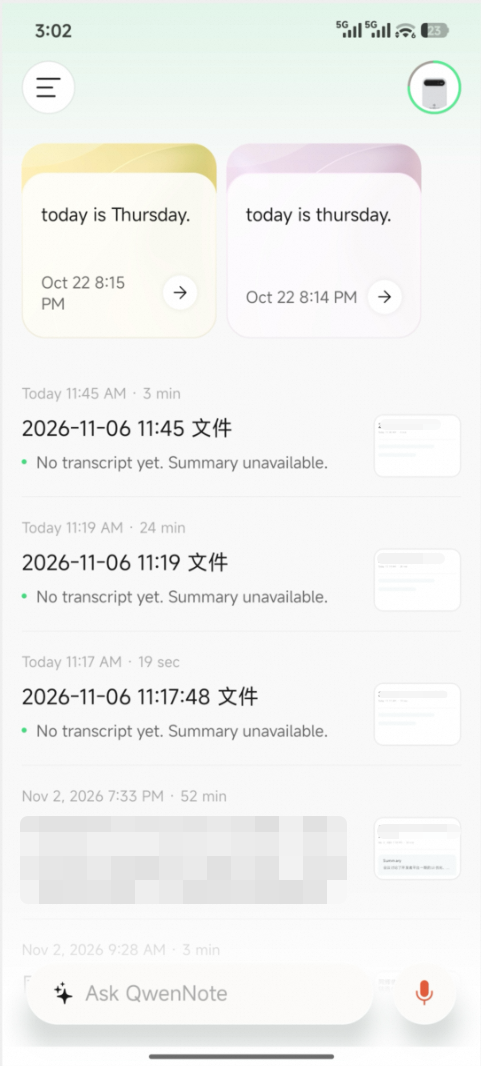
Tap a recording file on the home page to open the details page.
2
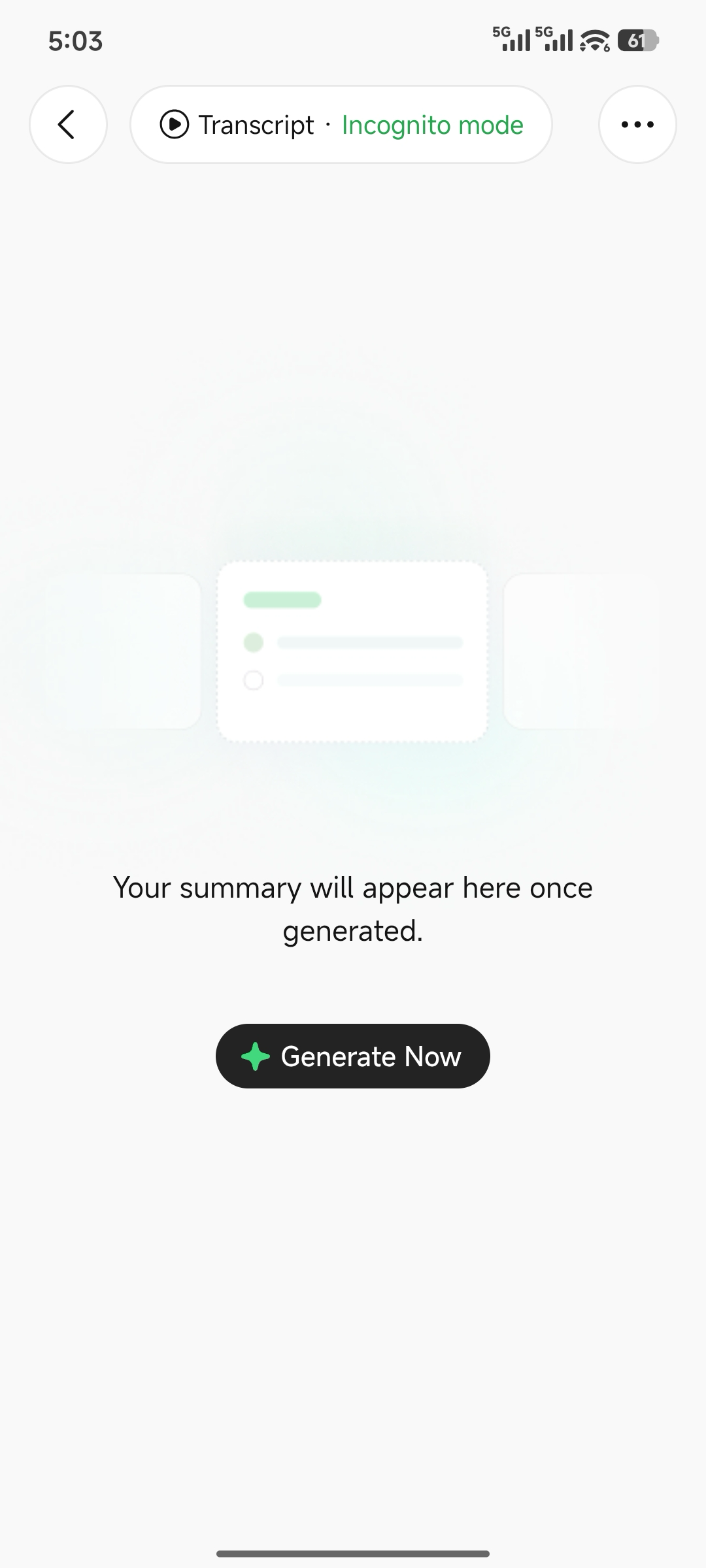
Tap the Generate button at the bottom and select a template to generate immediately.
3
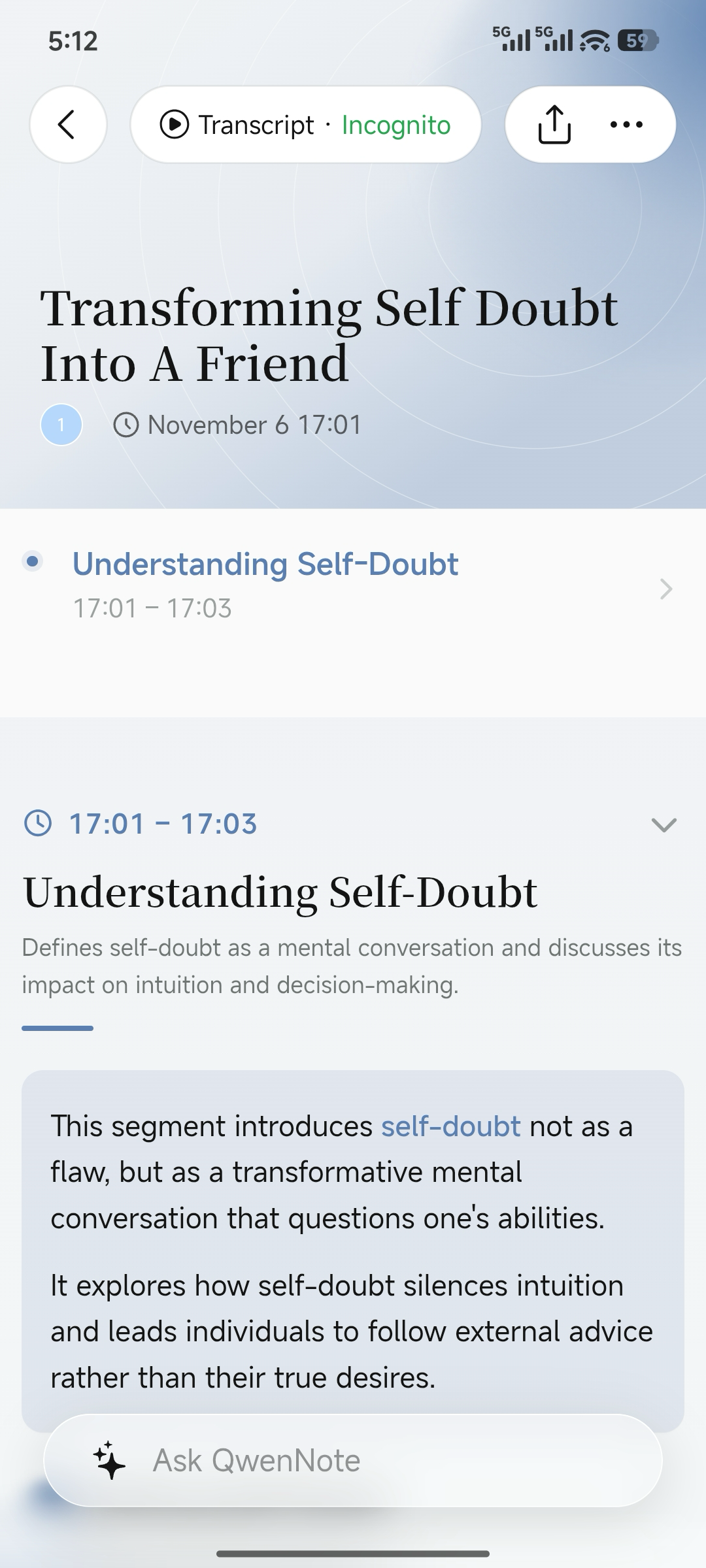
Once generated, view the summary, action items, and related content.
2. One-way translation / Two-way interpretation
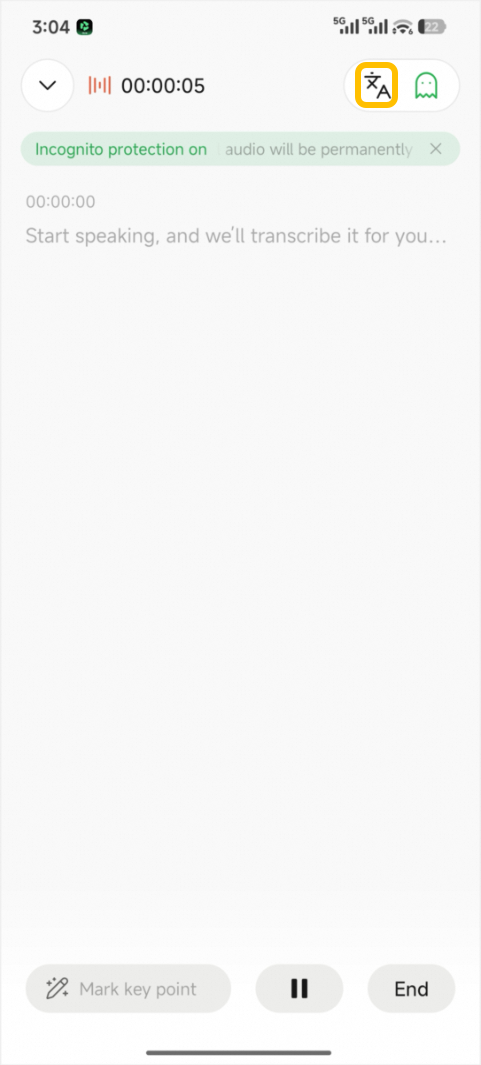
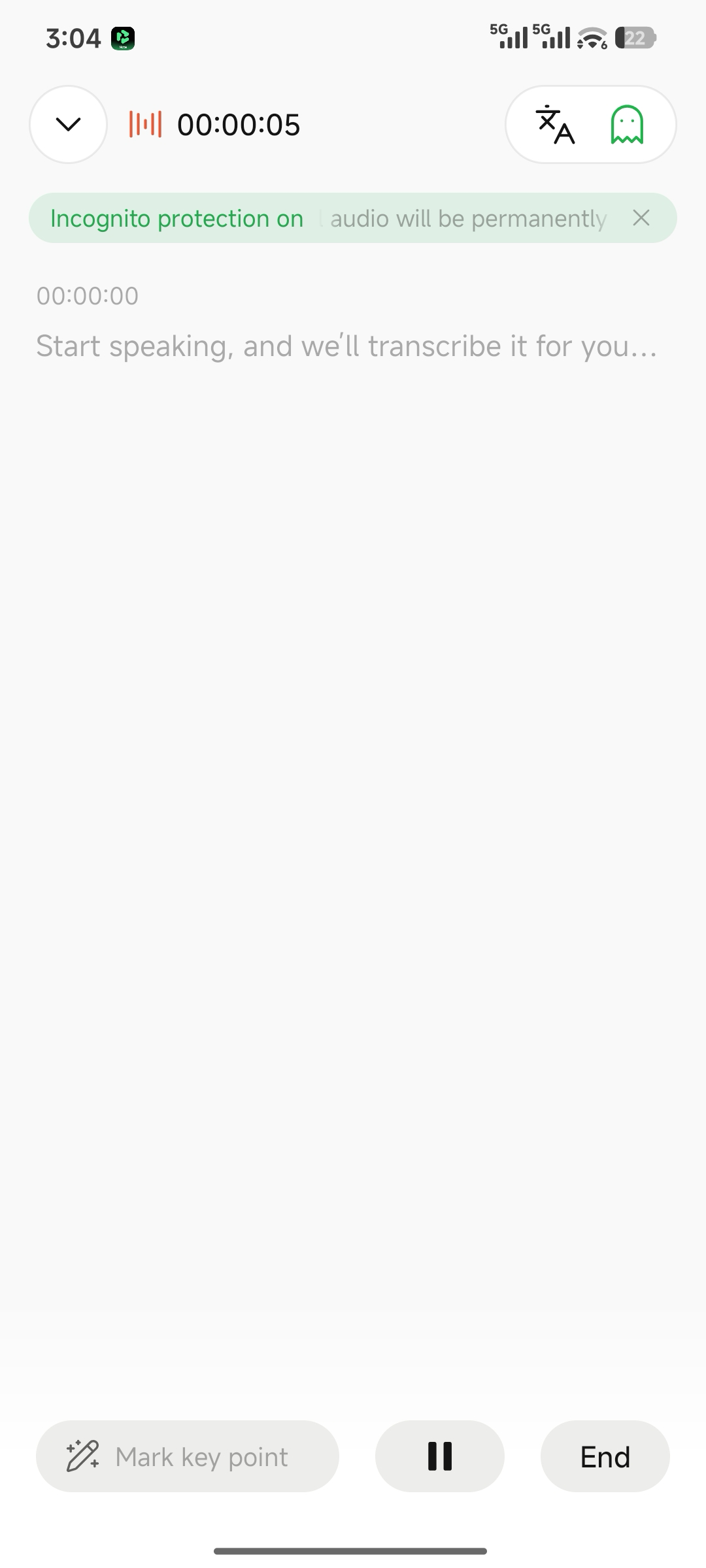
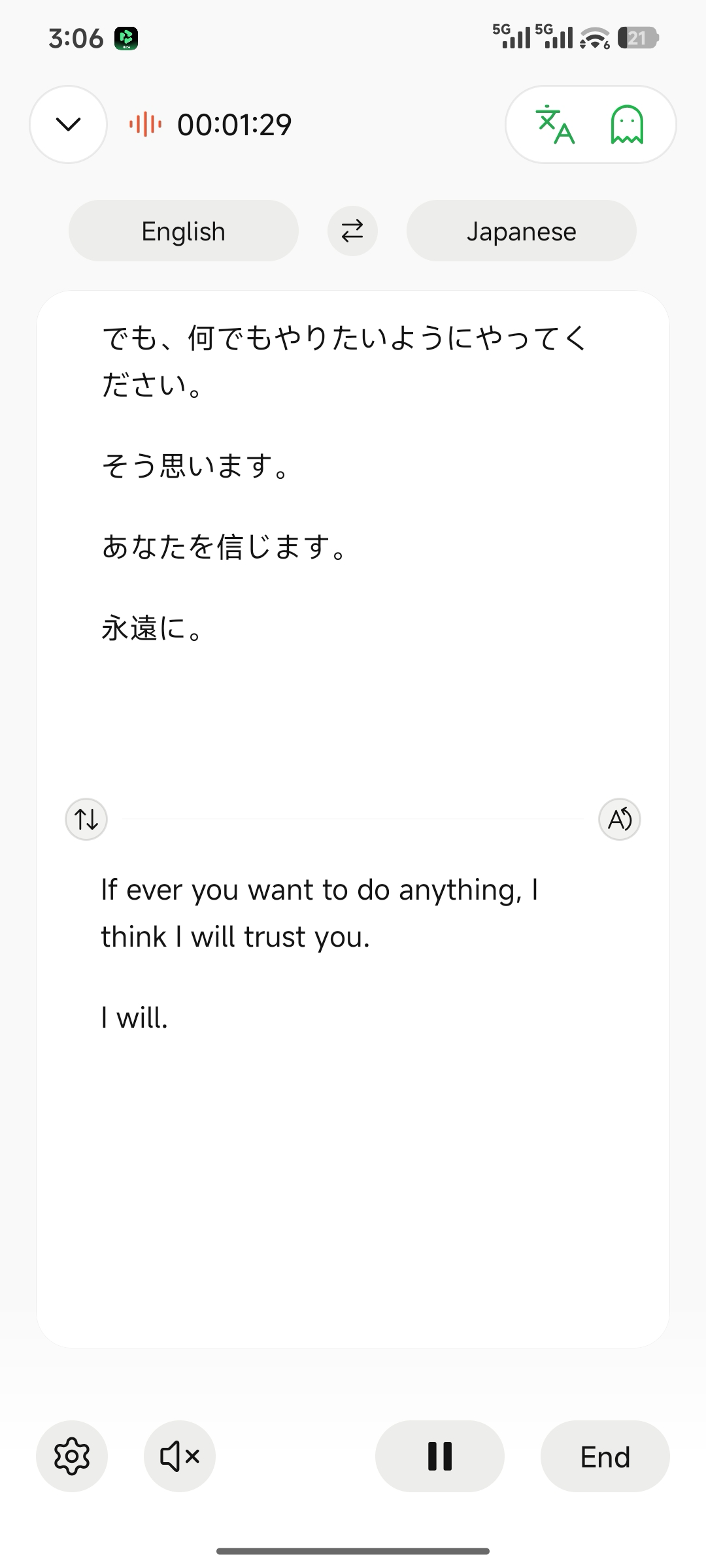
In addition to recording, you can enable AI simultaneous interpretation. The default mode is one-way translation, supporting real-time one-way translation in 79 languages without needing to switch direction. For face-to-face two-way communication, switch to Two-way Interpretation mode, which supports bidirectional interpretation in 70 languages.
1
Enable translation from the top-right corner of the recording screen.
2
One-way translation is enabled by default.
3
Manually switch the translation mode to two-way interpretation.
4
Switch between different playback modes.
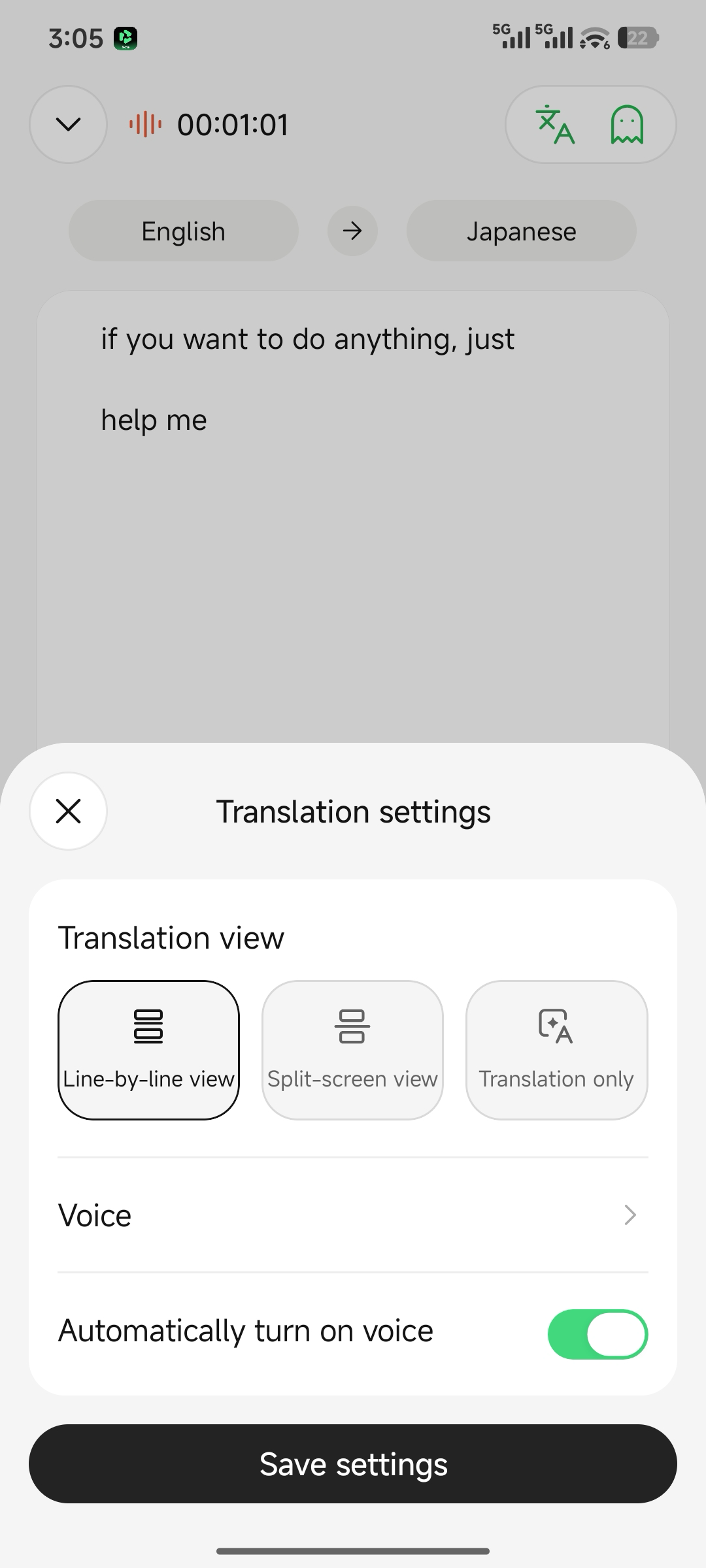
Voice playback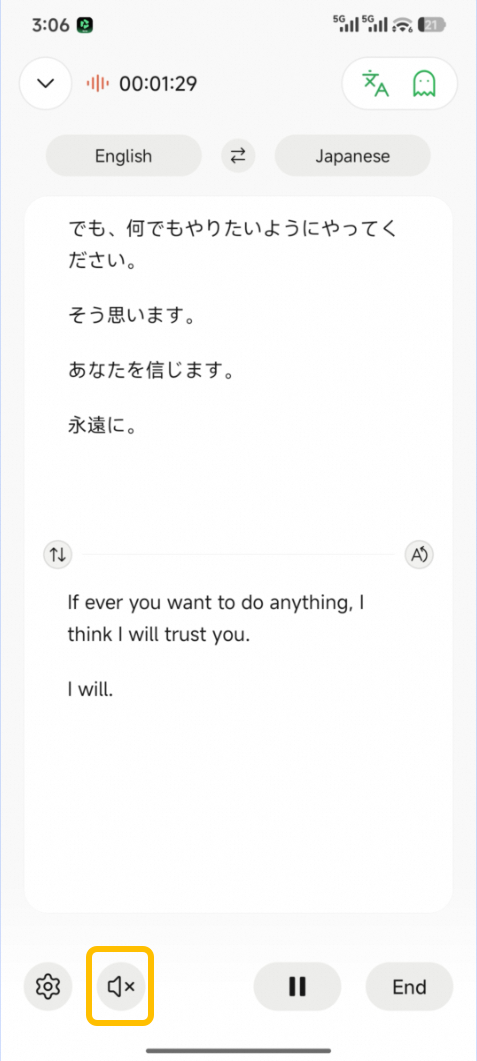
Enable voice playback