
Export Audio and Content Files to Other Apps
Overview
After syncing transcription files to the QwenNote app, you can export audio and content files and share them with other apps on your phone.
Scenarios
- Share transcriptions or minutes with colleagues who do not use QwenNote.
- Process files further on a computer.
- Archive important records.
Procedure
1. Export from the Transcription Details Page
1
Tap the ... icon next to the file in the file list.
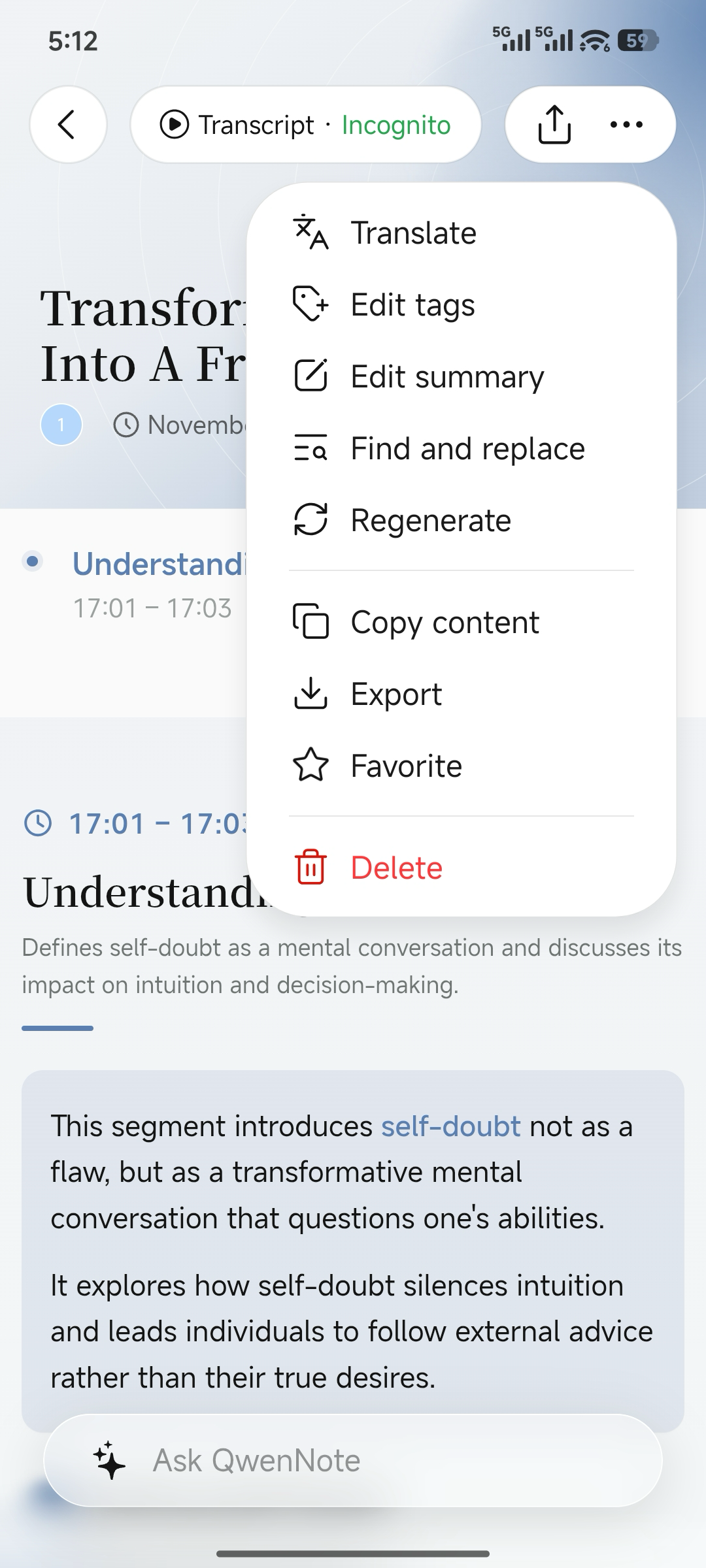
Export Entry on the Details Page
2
Select Export/Download in the pop-up window.
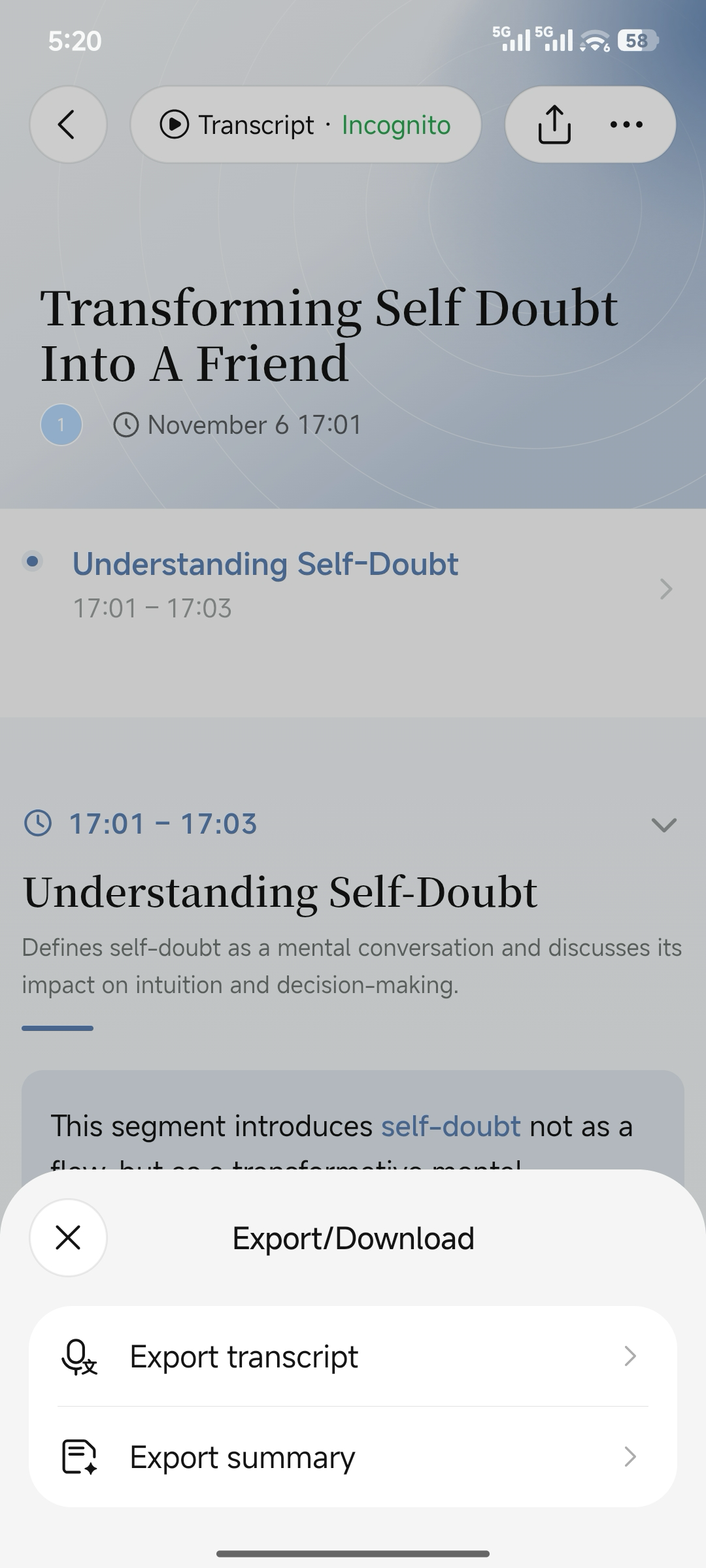
Select Export Content
3
Select the desired format and tap Export.
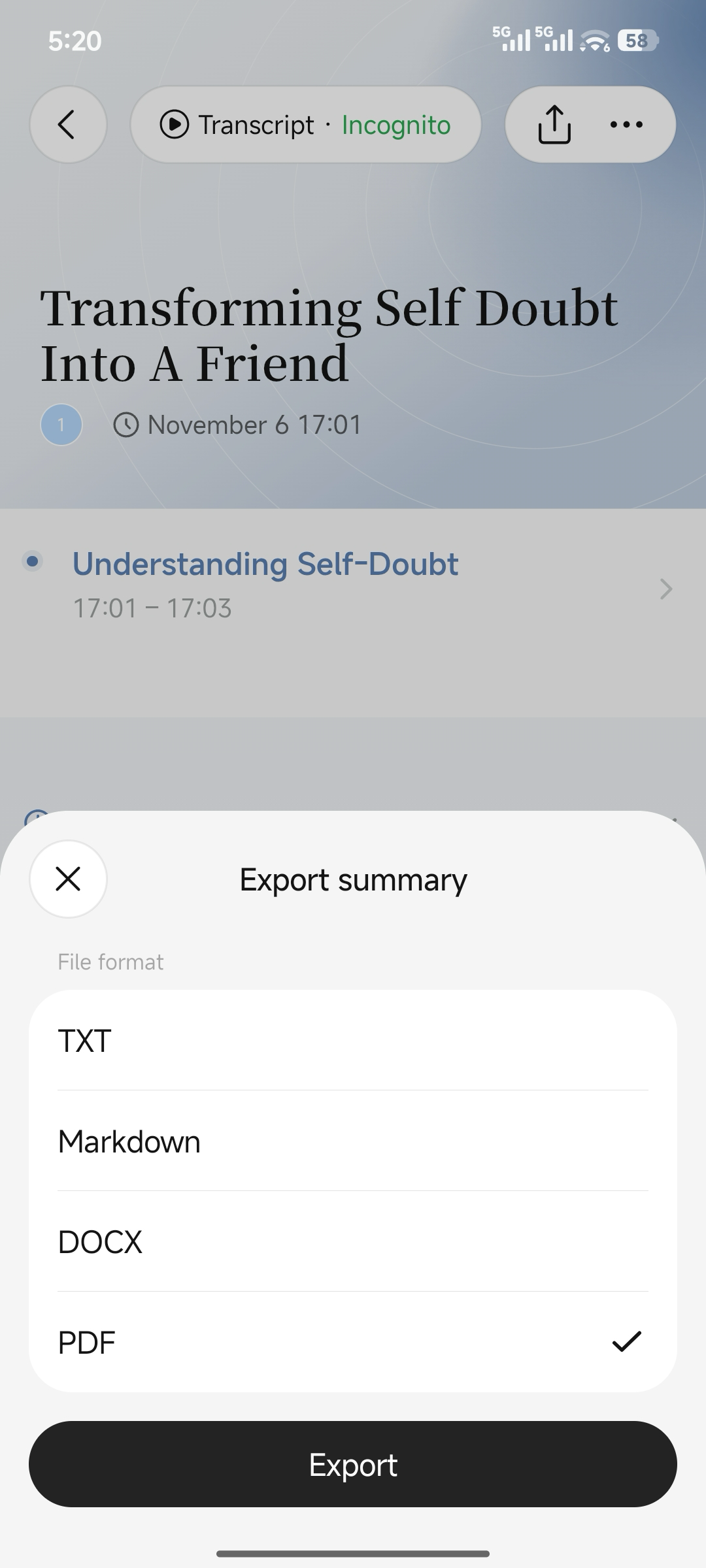
Select Format and Export
2. Export from the Home Page
1
Long-press the target file on the home page.
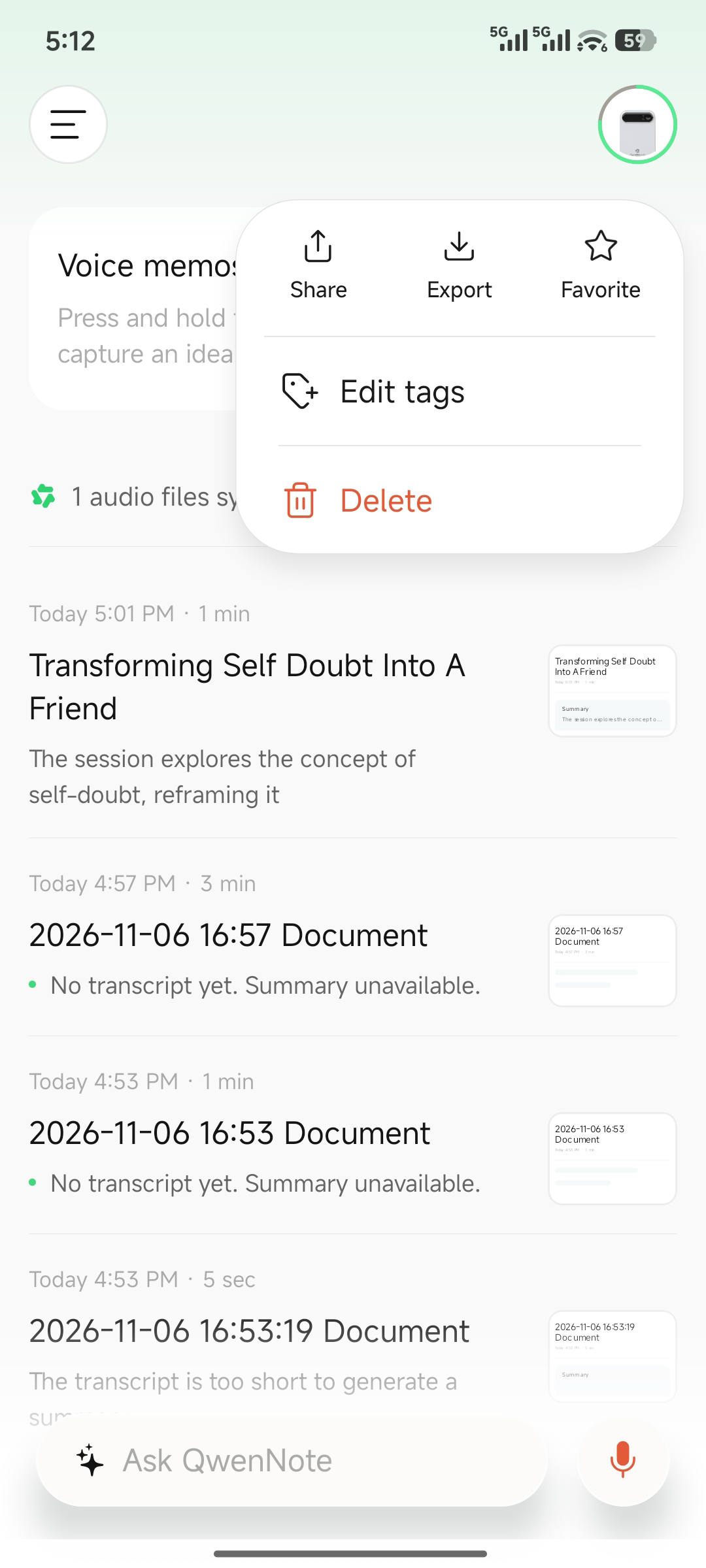
Export Entry on the Home Page
2
Tap Export in the pop-up window.
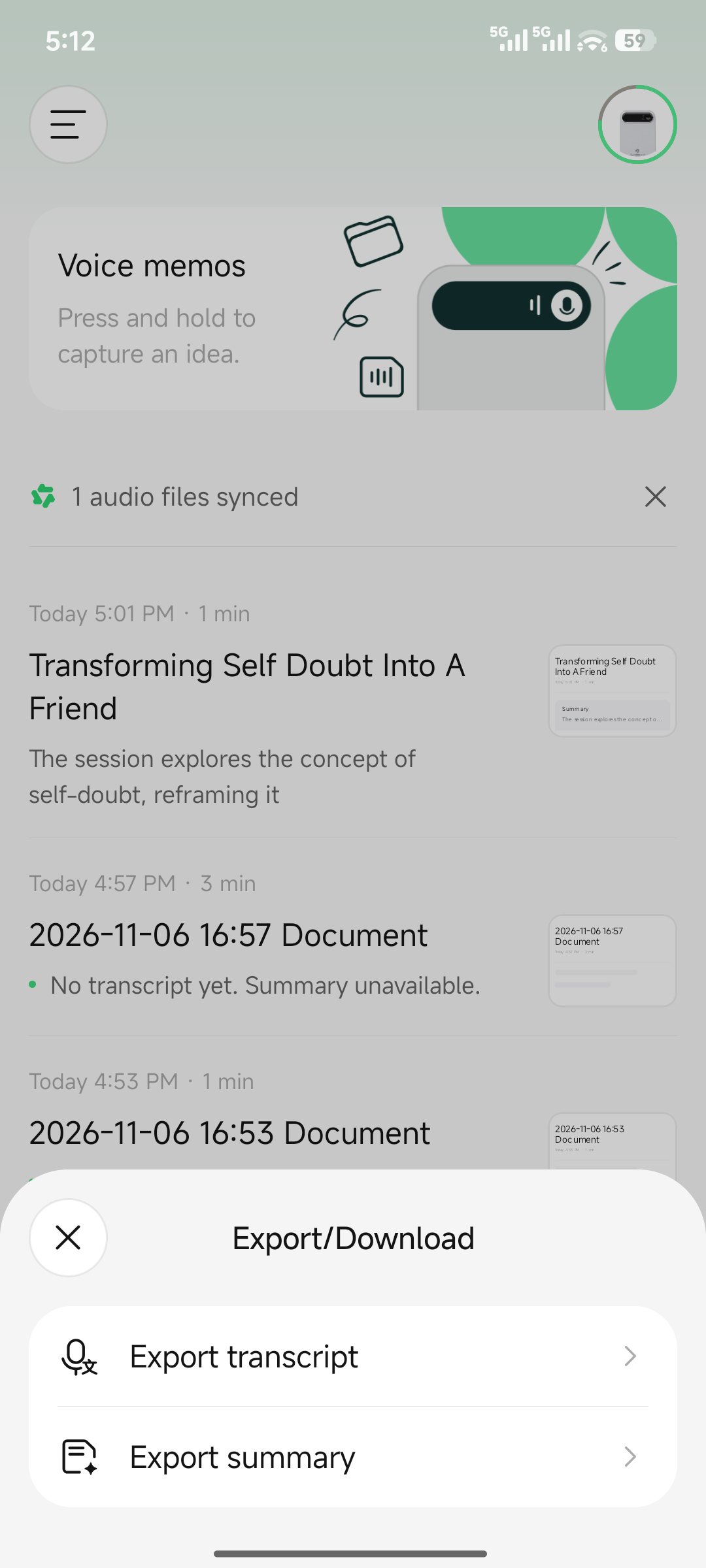
Select Export Content
3
Select a format and tap Export.
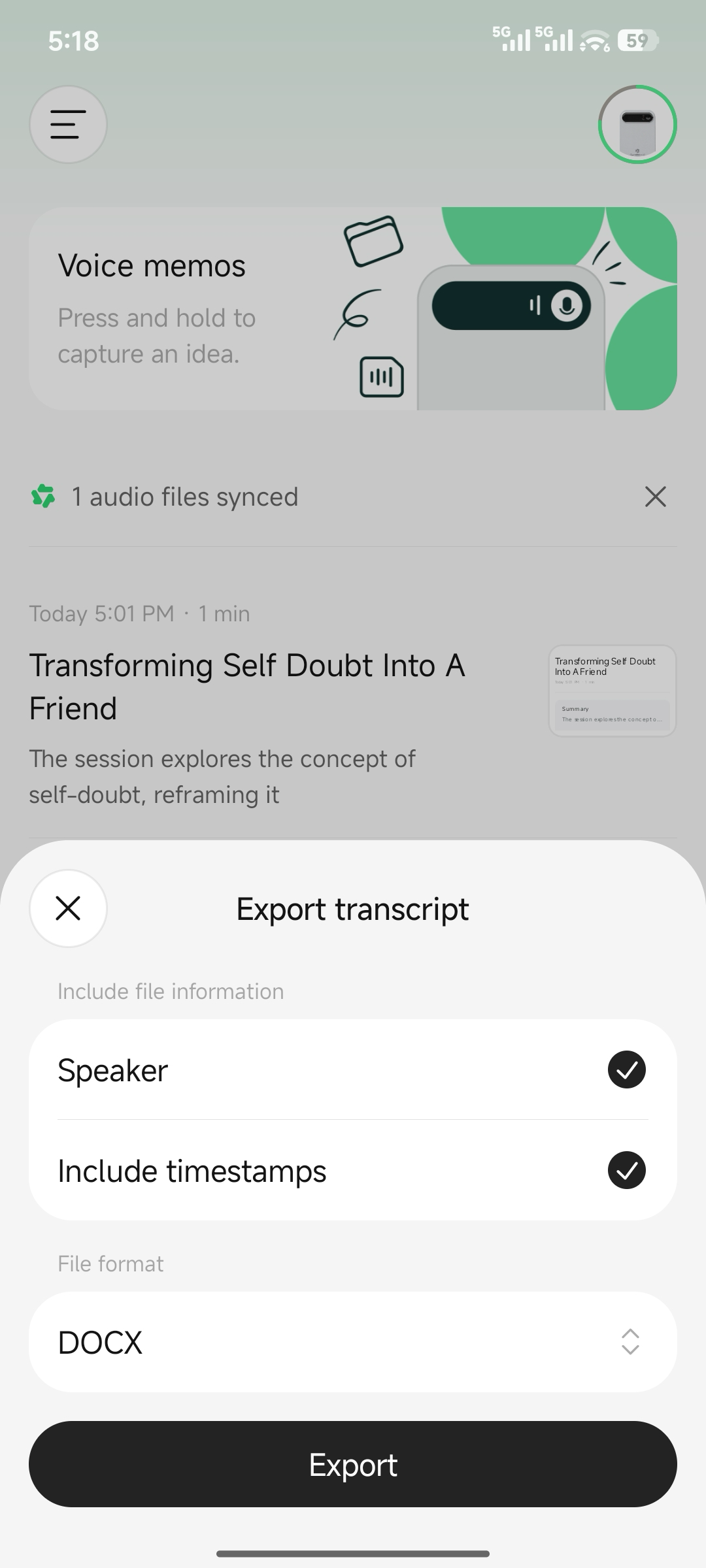
Select Format and Export
3. Considerations
- Whether you can export the original audio depends on the recording retention settings: In ephemeral mode, original audio is not retained, and viewing or exporting is unavailable. If you choose to retain recordings, you can view and export them.
- Exported content may contain sensitive information. Handle it in accordance with the privacy regulations of your region.