
View Text Content in Real Time During Recording
Overview
When used with the QwenNote app, the A1 device supports real-time transcription. Speech is converted to text as you record, allowing you to verify content on the spot.
Scenarios
- Viewing text output instantly during meetings.
- Reading transcriptions in real time during cross-language conversations.
- Verifying that audio capture and speech recognition are working properly.
Procedure
1. Enable Real-Time Transcription
After you start recording, open the app and go to the Recording screen. Real-time transcription starts automatically.
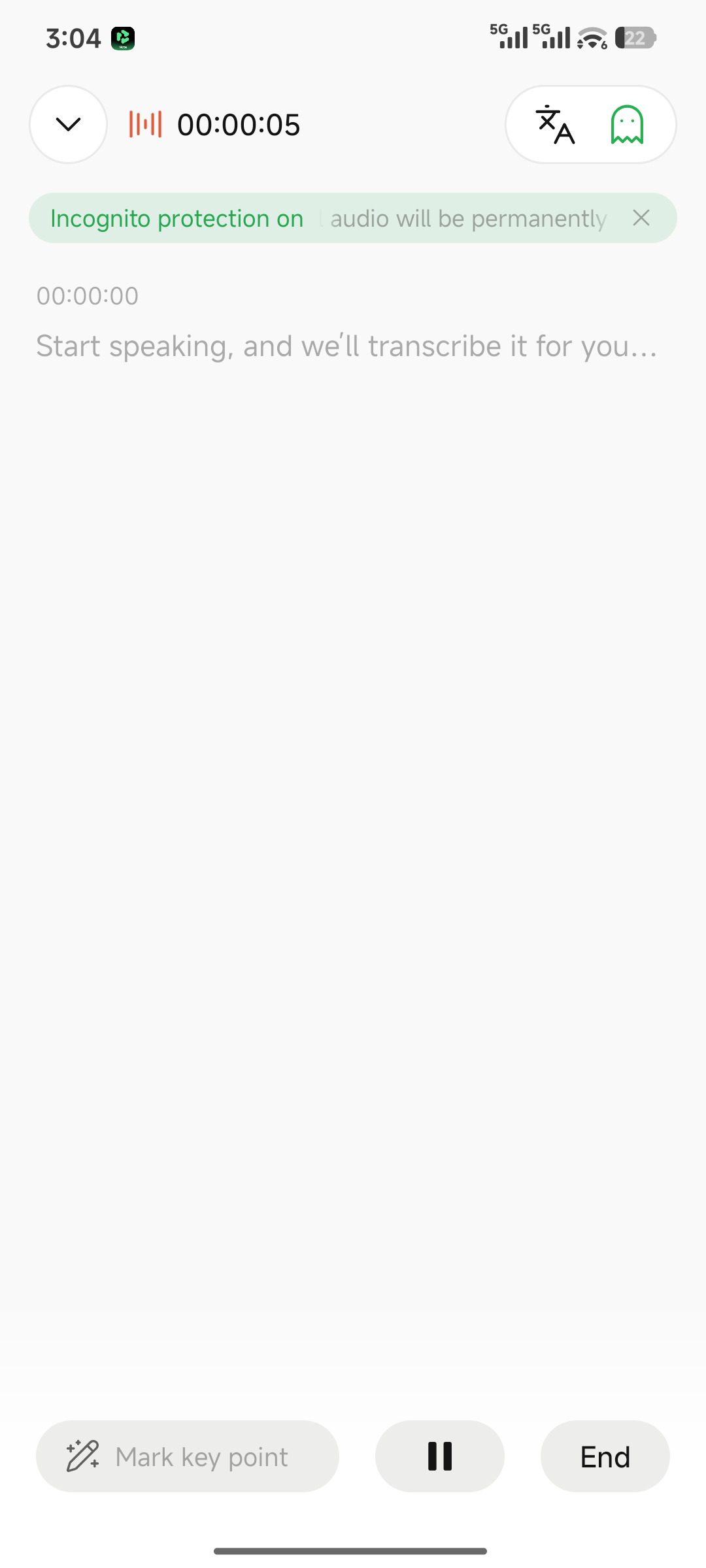
Enable real-time transcription
2. Switch Between Transcription and Translation Modes
Tap Text/A in the upper-right corner of the Recording screen to switch between transcription mode and translation mode.
1
Open the Recording screen to enable real-time transcription automatically
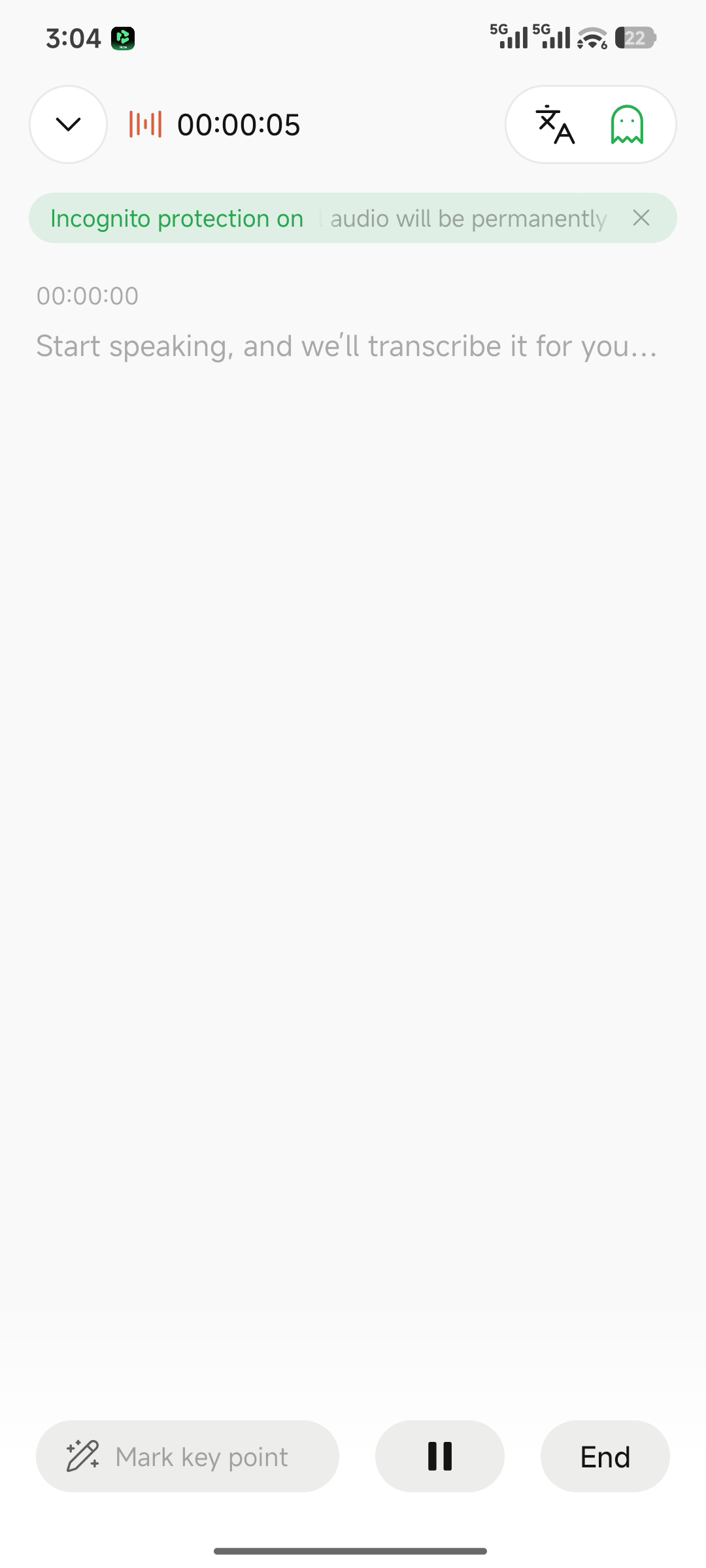
Real-time transcription mode
2
Tap Text/A to enable translation
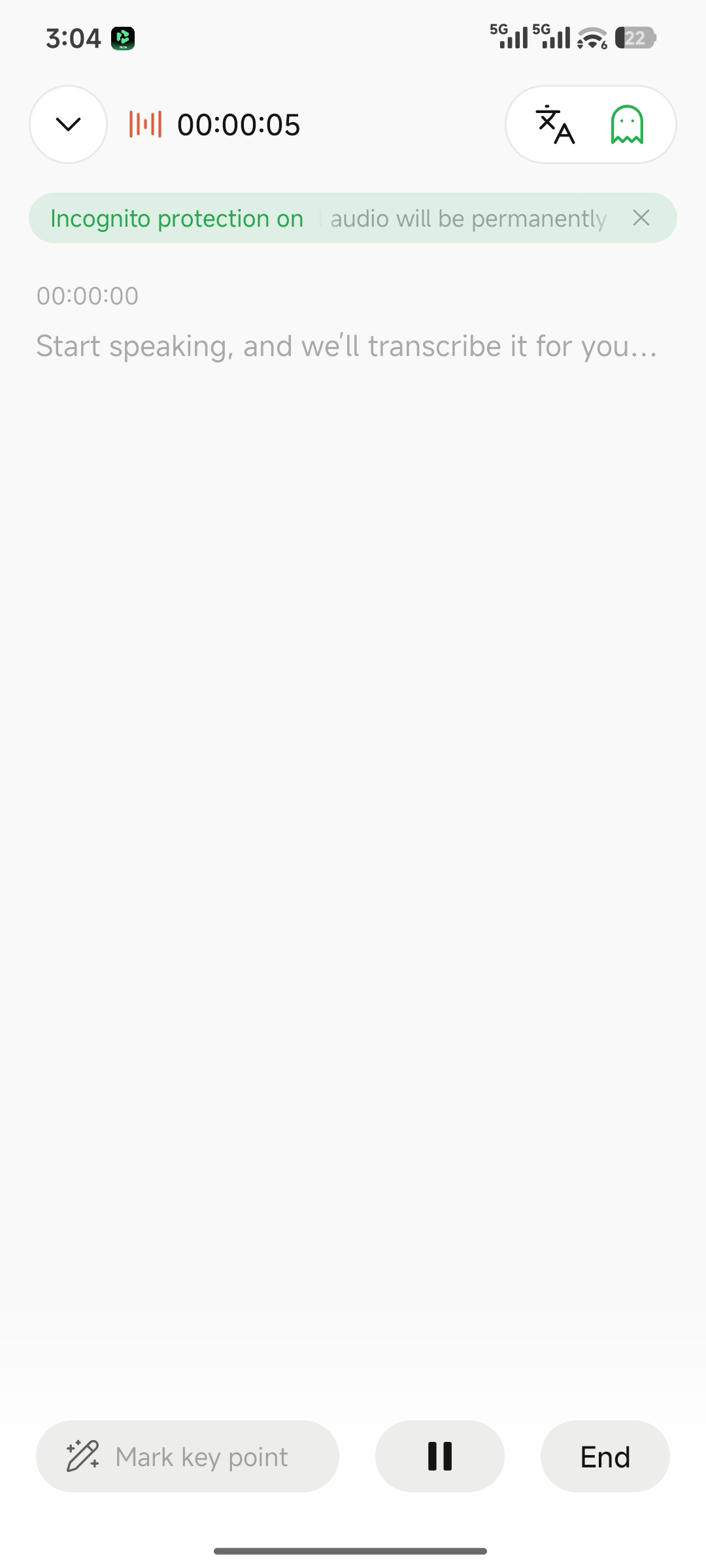
Switch to translation mode
3. Set the Transcription Language
The transcription language must match the spoken language. To configure it: Tap the device icon in the upper-right corner of the home screen > Device Settings > Transcription Language, and then select a language from the list.
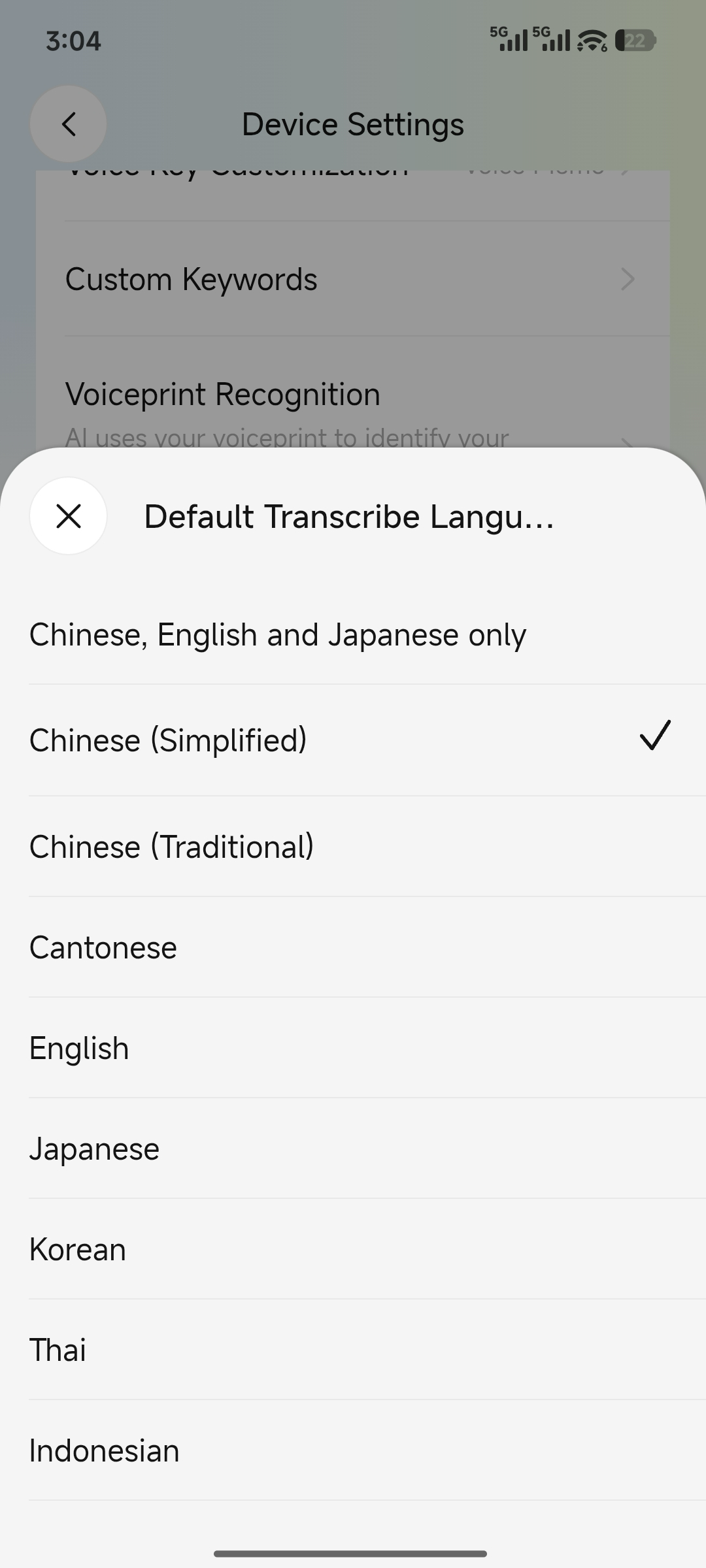
Set the transcription language
4. Notes
- Speech recognition supports 120 languages. Accuracy may vary depending on the environment.
- Mixed-language audio containing Japanese, Chinese, and English is supported.
- The transcription language and the app display language are configured independently.