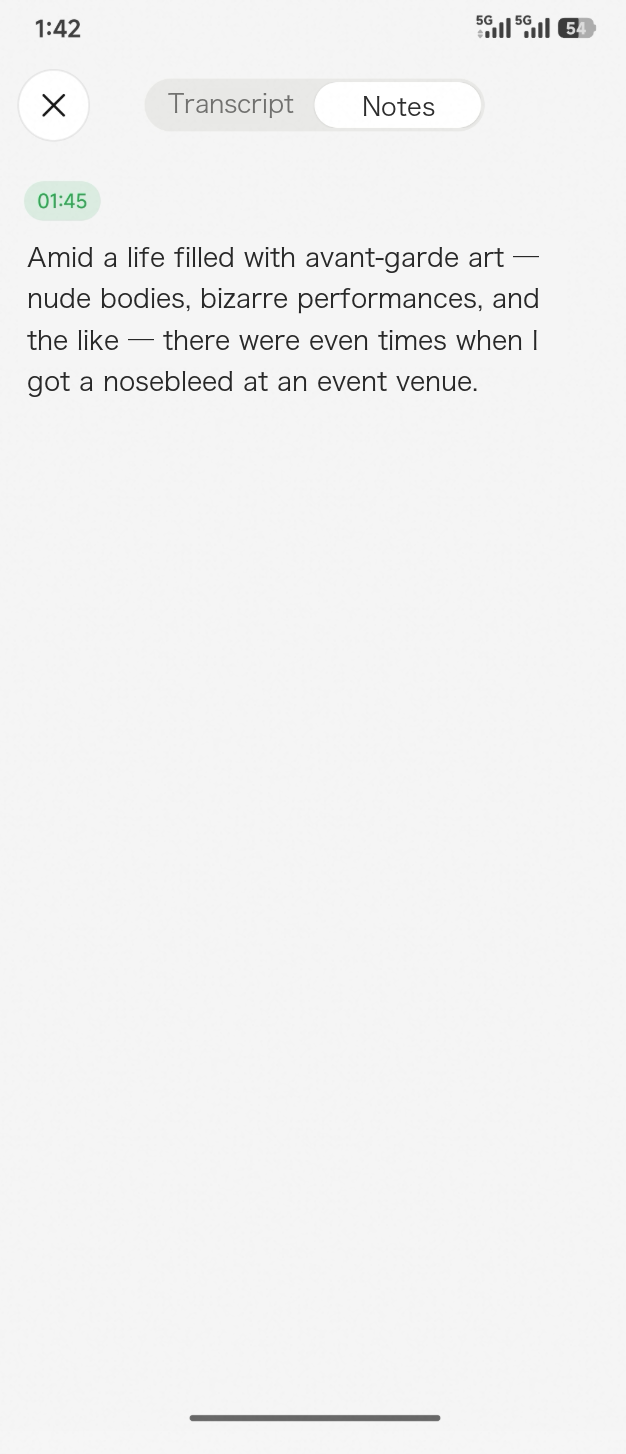
Add notes, images, or mark key points in Voice Memo
Overview
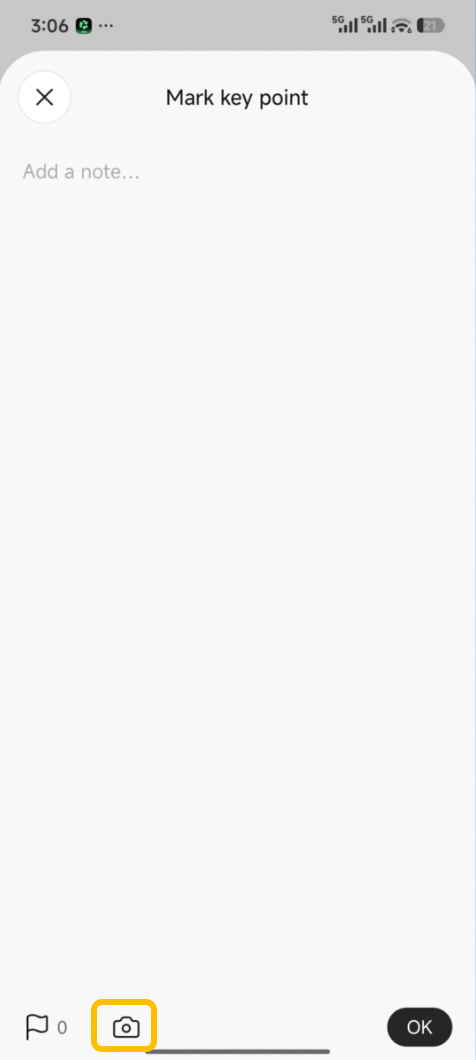
Voice Memo supports manual note-taking, image uploading or capture, and key point marking, enabling multimodal information input.
Scenarios
- Supplement your voice memos with additional context such as classroom whiteboard content, meeting slides, or photos.
Procedure
1. Mark key points on the device
Press the Voice Memo button on the device to mark a key point. The button location is shown in the following figure:
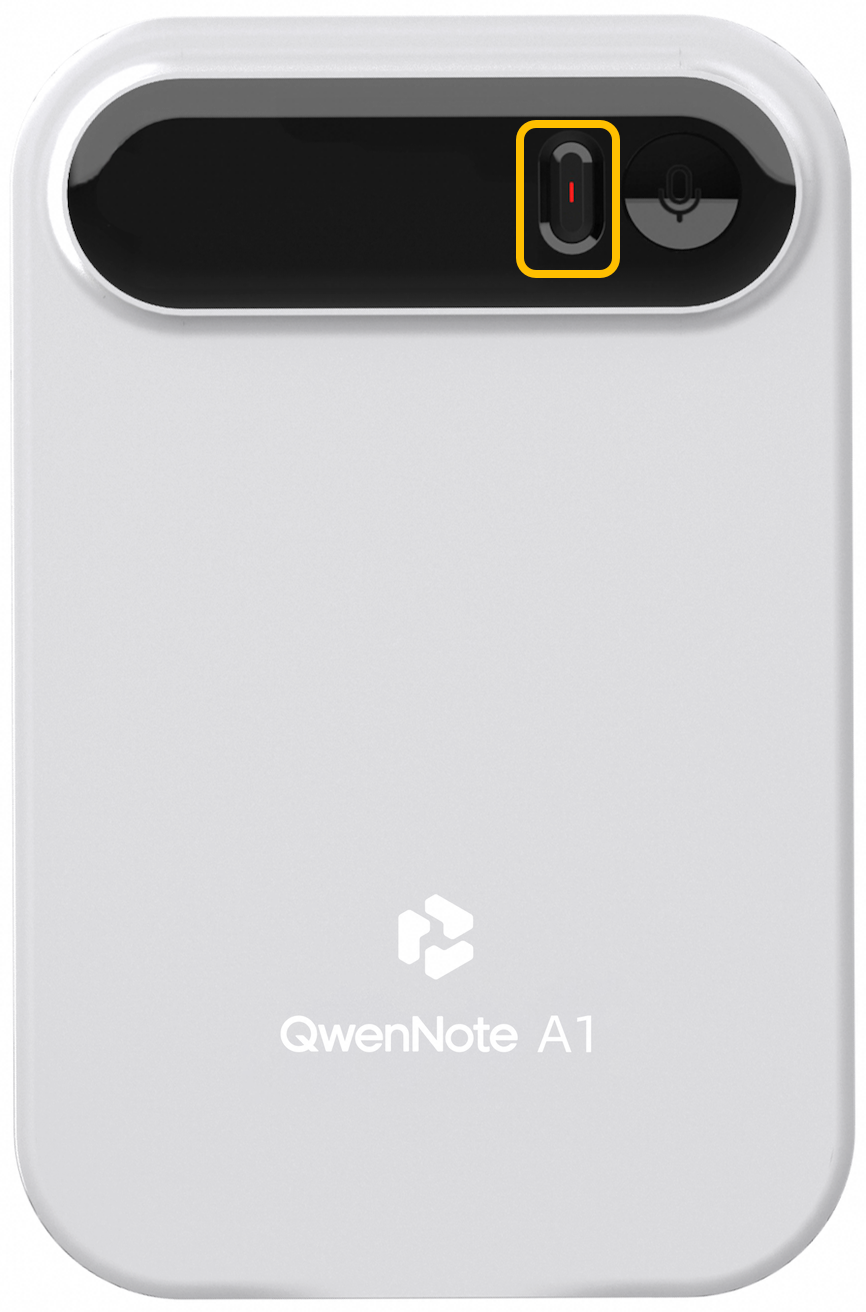
Marking key points on the device
2. Mark key points in the app
Start a voice memo and open the recording screen.
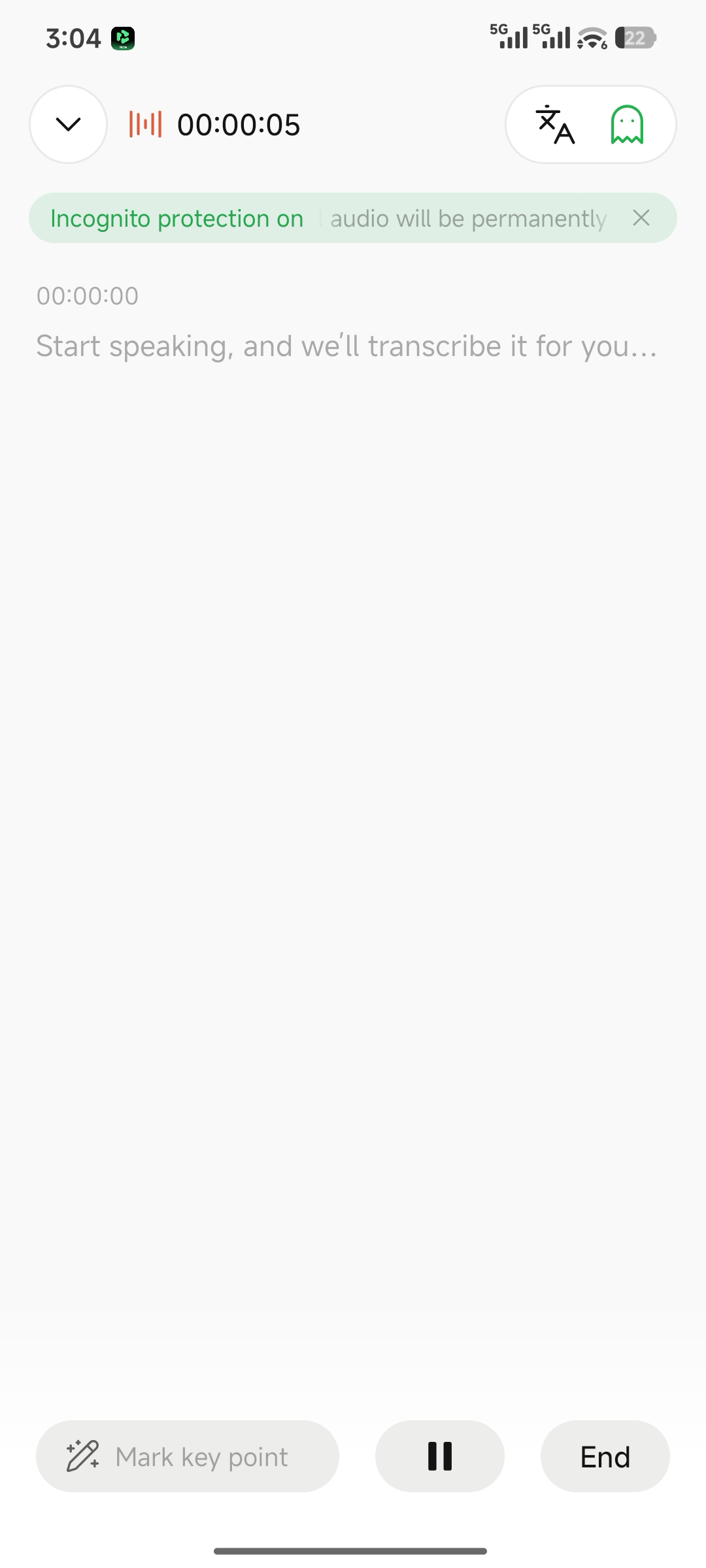
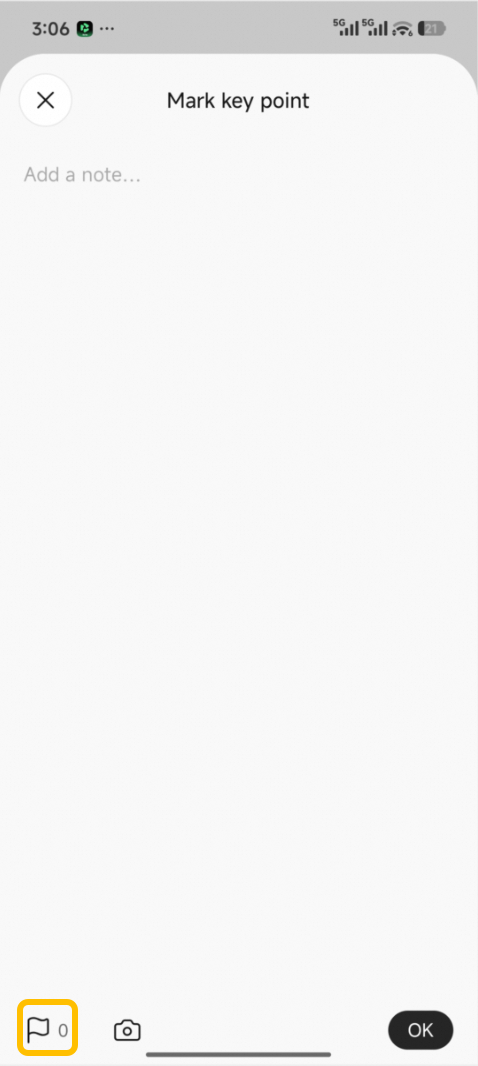
3. View annotations
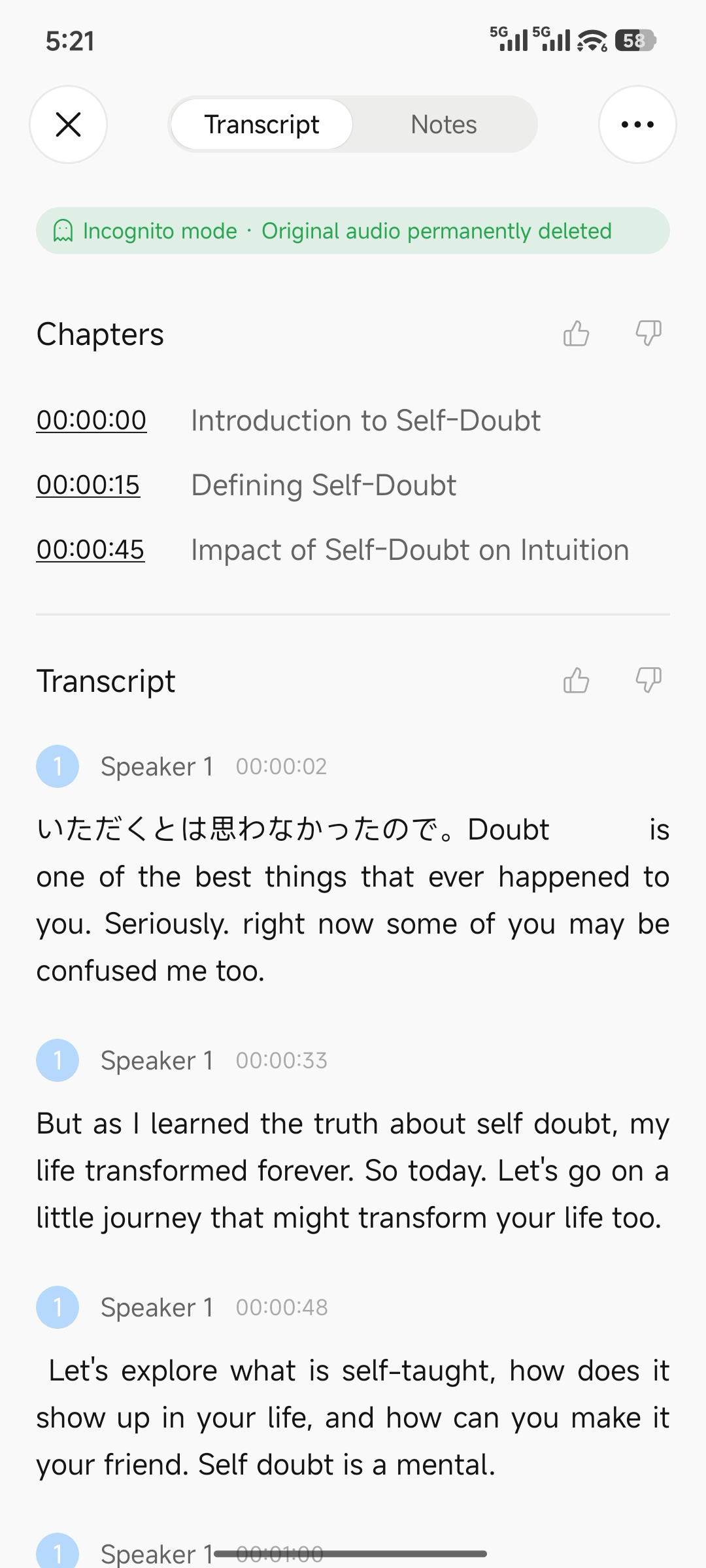
After you complete annotations in Voice Memo, the file syncs to the app. Open the details page to view your notes:
1
Tap to go to the transcript screen.
2
Tap to switch views and review your notes.