
Delete transcripts that you no longer need
Overview
You can delete individual transcripts that you no longer need directly in the app.
Scenarios
- Clean up accidental recordings or test audio files
- Free up storage space by removing old records
- Promptly remove content containing sensitive information
Procedure
Delete from the details page: On the details page of a transcript, tap … in the upper-right corner and select Delete.
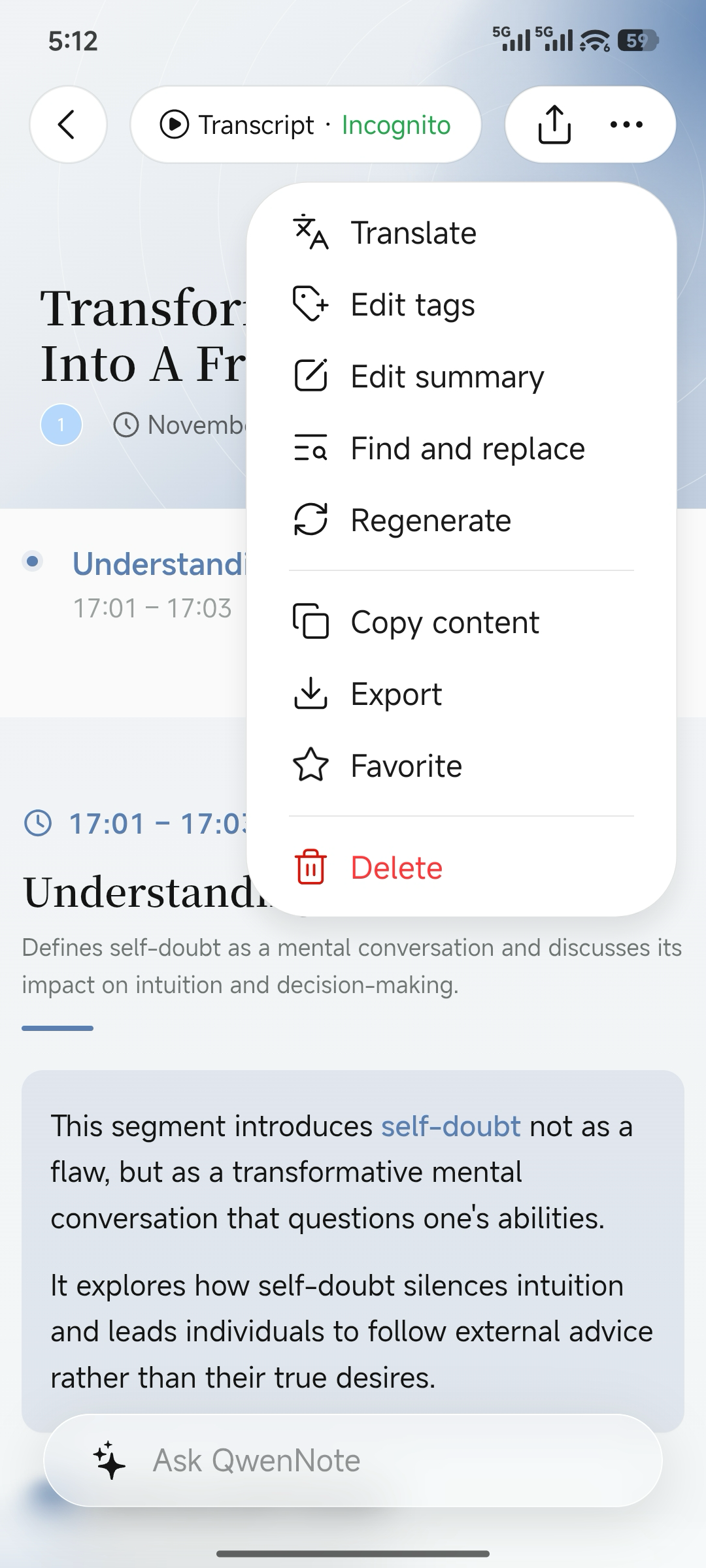
Delete option on the details page
Delete from the home page: On the home page, press and hold a transcript and select Delete.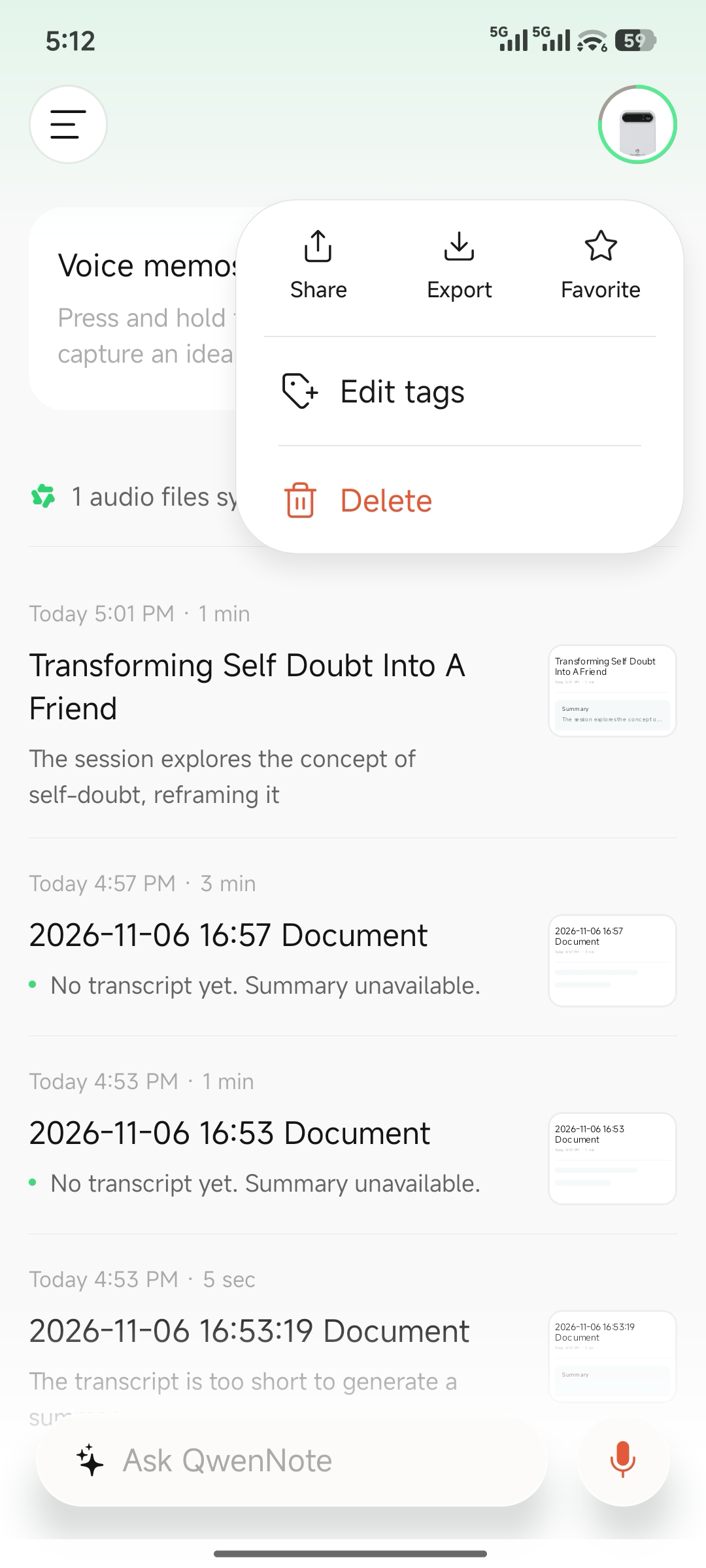
Delete option on the home page
Considerations
- Exercise caution when deleting transcripts. We recommend that you export and back up important content before deletion.
- Original audio is not retained in Traceless Mode. Enabling Traceless Mode permanently deletes the original audio files.
- To retain the transcribed text, enable the Retain Transcribed Text option before turning on Traceless Mode.